Quick Start: From an Empty Workspace to the First Shop Order
Seven steps to launch production in Oprela: industry pack, halls and people, skills, routings, first product, first order, and first machine operation.
This article is for those who have just gained access and want to see how the system works with their own product. The goal is simple: to go through the entire process once, from an empty workspace to a part marked as completed by an operator.
Don't try to set up everything perfectly. Take one simple product, one hall, and two or three people. You can add the rest later.
What to Prepare in Advance
- A model of a simple product in STEP format. Ideally, something with five to ten parts.
- A list of machines involved in manufacturing this product.
- Names of two or three employees and what each of them can do.
- A list of operations for the product in execution order.
If you don't have a model, a photo will suffice: the system can be launched with a quick estimate.
Step 1. Enable the Industry Pack
Open the Production Control Center and click Manage Industry Packs. Enable the pack for your industry: metalworking or cabinet furniture. Click Fill Starter Data.
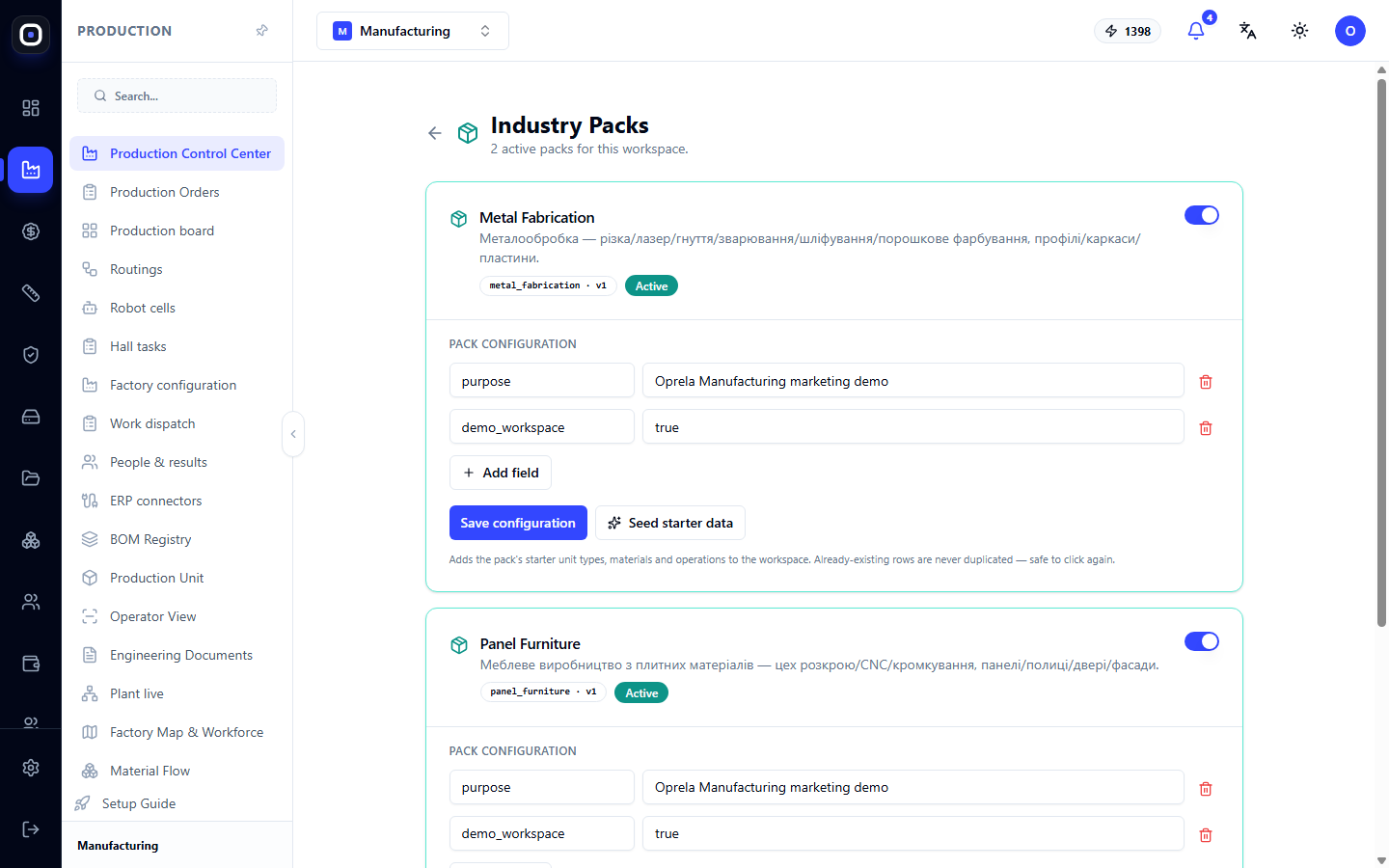
After this, you will have typical operations, materials, and part types. You won't have to enter them manually.
Learn more about industry packs
Step 2. Describe the Factory
Open Production → Factory Configuration. Click the Next button and go through the steps in order:
- Factory name and address;
- At least one hall;
- Hall foreman;
- Machines in the hall;
- People in the hall.
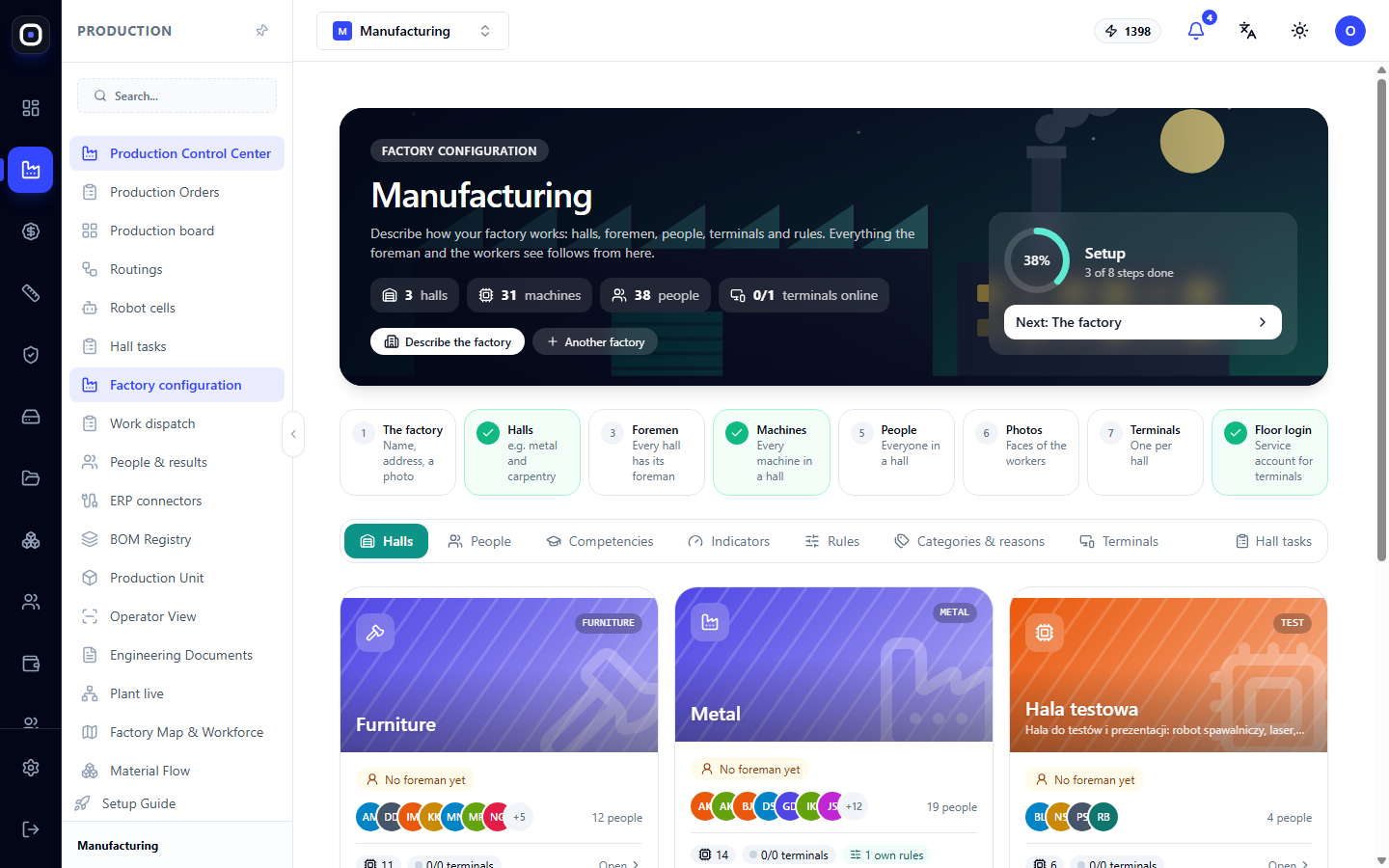
Employee photos and terminals can be added later.
Learn more about factory configuration
Step 3. Record Skills
Open Production → Shop Floor Workforce. For each person, click Add Skill and specify which operations they can perform and at what level.
Without skills, the system won't know who can be assigned work, and allocation won't function.
Learn more about shop floor workforce
Step 4. Create Routings
Open Production → Routings. Check if there is a released routing for each part type of your product. The industry pack provides typical routings, so it's possible everything is already set up.
If a routing is missing, click New Routing, add steps in execution order, specify estimated minutes for each, and click Release.
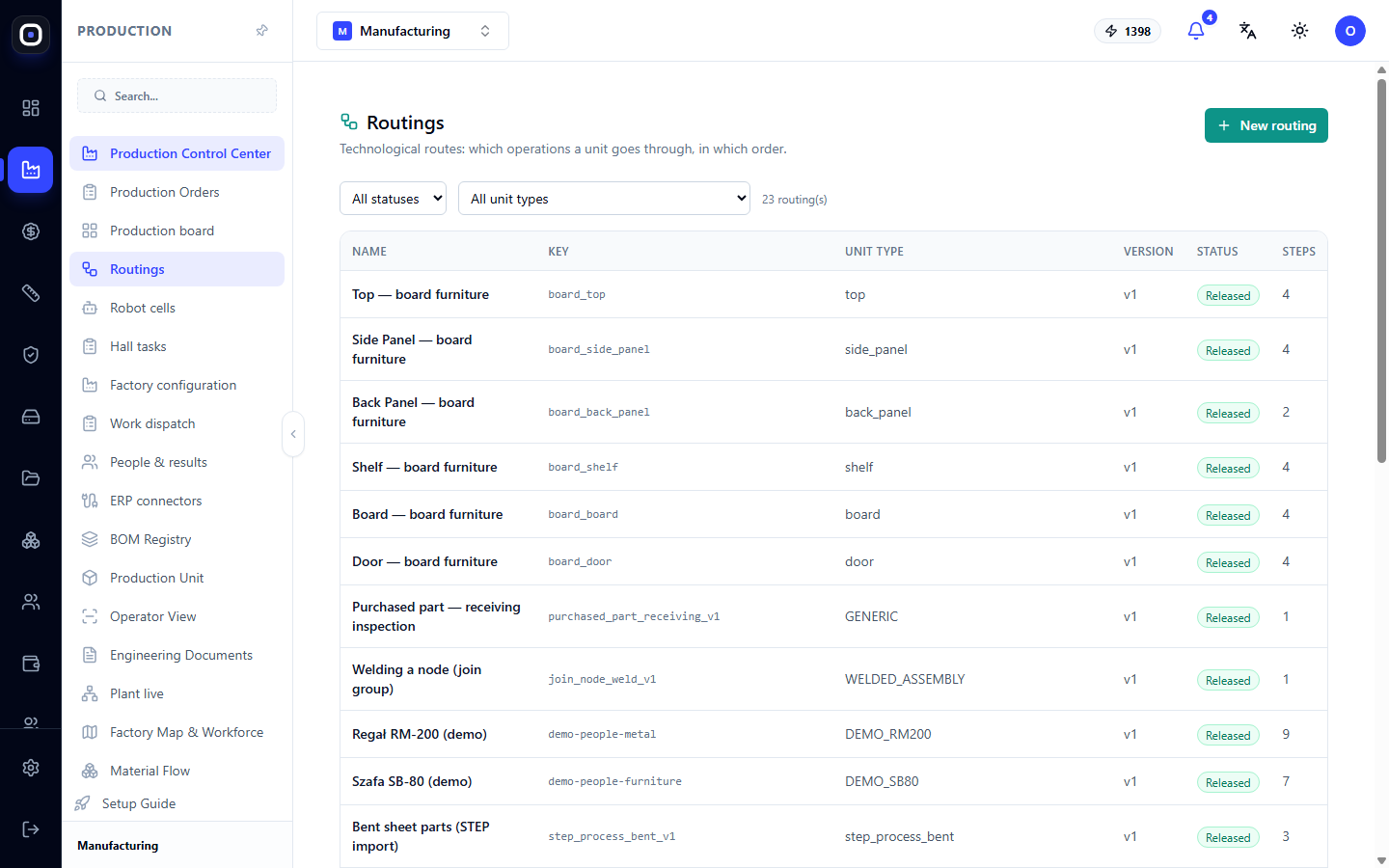
This is the most crucial step. Without a released routing, a part cannot be manufactured.
Step 5. Upload the First Product
Open Engineering → 3D Import. Select the rule set corresponding to the product and drag the STEP file into the upload field.
Wait until the import reaches the "Verification" stage. Open it, create a draft bill of materials (BOM), and resolve the issues shown by the quick filters. Most often, you need to specify the material and decide what you make yourself and what you buy.
When no issues remain, release the import.
Step 6. Launch an Order
Create a production order for the newly released product: specify the quantity and deadline. It will appear as a draft. Open Production → Production Board, find this draft, and click Launch into Production.
The system will check readiness. If something is missing, it will tell you what: most often, it's a routing for one of the part types.
After launching, open Production → Production Orders, expand the order, and review the created units.
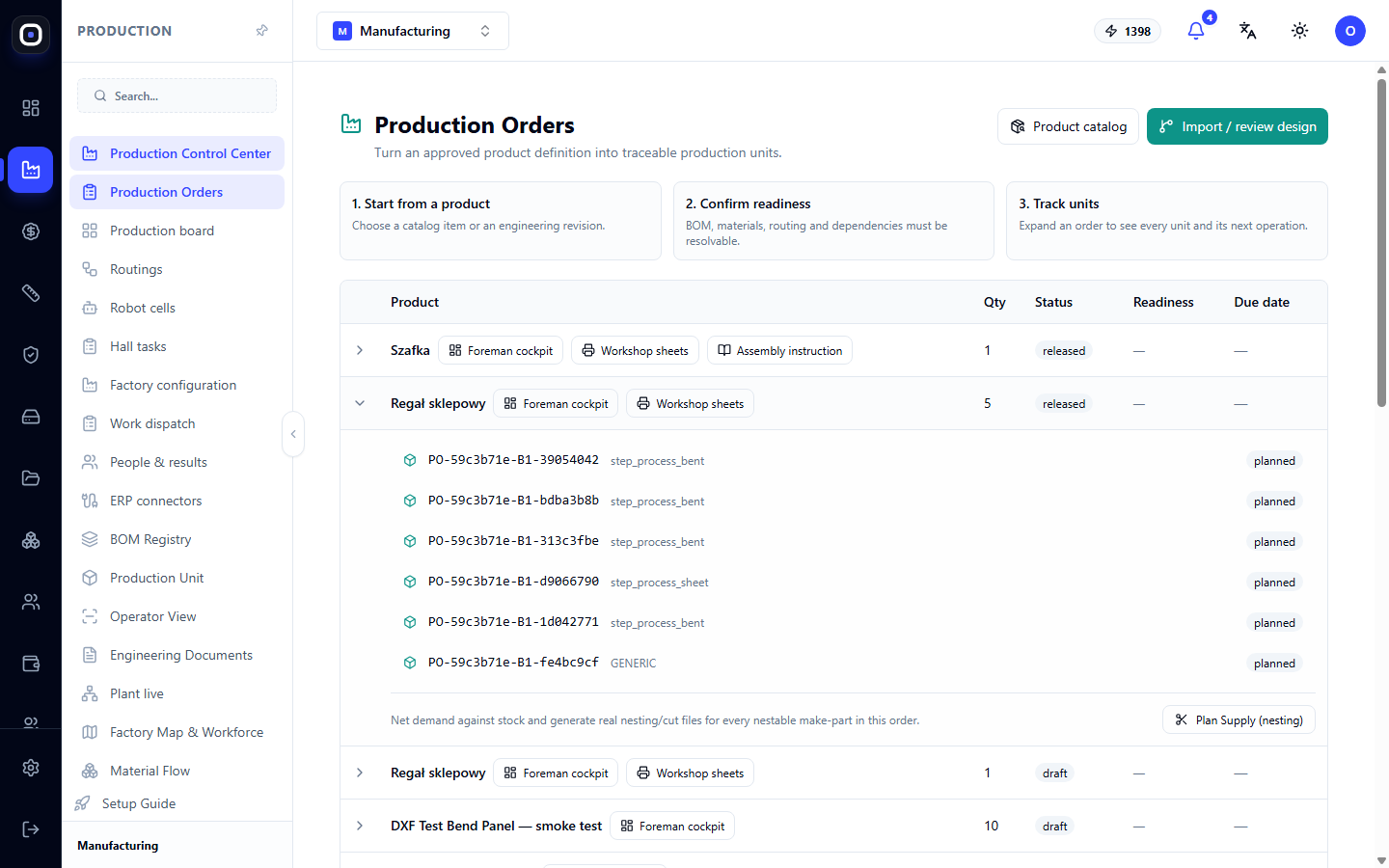
Learn more about production orders
Step 7. Distribute Work and Perform the First Operation
Open Production → Work Distribution. Ready work will appear in the pool on the right. Drag the task to a person or click Distribute Automatically.
Now open Production → Operator Workplace on a tablet or computer near the machine:
- Select the station;
- Scan or select the machine;
- Open the batch;
- Click Start;
- After work, click Complete and specify the quantity.
Return to the production board. The order has moved to the "In Production" stage, and progress has shifted.
Congratulations: you have completed the entire process.
What to Do Next
Now that the foundation is working, add the rest gradually.
- Pricing. Enter material prices and rates in Costing Studio to calculate costs.
- Nesting. Plan nesting from the order to get files for the machines.
- Terminals. Install kiosks in the halls and issue cards or PIN codes to employees.
- Quality. Add quality control to routing steps.
- Planning. Enter time standards and launch APS planning.
- Sales. Start managing customer inquiries in the system.
Typical Obstacles at Startup
Order Does Not Launch
Almost always, a released routing for one of the part types is missing. The error message will name the type.
Work Distribution Pool is Empty
Work appears in the pool only when it is ready: the order is launched, units are created, and the previous step is completed.
Operator Cannot Start Operation
The machine was not scanned, or the batch is locked. Reasons are written in the open batch.
System Does Not Suggest a Person for Work
The person does not have the required skill recorded.
BOM Looks Strange After Import
Check the rule set selected during import. They are different for tubular products and furniture.