Shop Floor Workforce: Employees, Skills, Qualification Levels, and Pace
A register of people working on the shop floor: employee code, skills with levels and validity periods, alerts for expired qualifications, and individual work pace.
The Shop Floor Workforce page is a register of people working at machines and what each of them can do. Half of the system relies on it: work dispatch suggests people based on skills, planning assigns only qualified individuals to machines, and the terminal prevents anyone without clearance from starting an operation.
If the skills in this register are incomplete or outdated, the system will honestly operate with incorrect data.
Where to find the page
In the left-hand menu, open Production → Shop Floor Workforce. The page URL ends with …/erp/production/workforce.

Below the heading, it states what is stored here: production identities of the shop floor and their skill and qualification records. "Production identity" refers to an employee as a participant in production: with a code, skills, and clearances. This is separate from their HR record with contract and salary details.
Five Counters
- Total — how many employees are in the register.
- Active — how many of them are currently working.
- Qualification expires ≤30d — how many people's clearance expires within a month.
- Expired qualification — how many people's clearance is already invalid.
- No skills — how many people have no skills recorded.
The last three numbers are a to-do list. An expired qualification means that the person is formally not allowed to perform an operation. A person without skills will not appear in any dispatch suggestions.
Search and Filter
The "Search by name, code, or skill" field searches by all three criteria. Enter a skill name, for example, "laser," and you will see everyone who possesses it.
The buttons next to it filter by employee status:
- All;
- Active — currently working;
- Suspended — temporarily not working, e.g., on extended leave;
- Archived — no longer working, but kept for historical purposes.
An employee is not deleted but archived. Otherwise, "unknown person" entries would appear in the operation history.
Employee Card
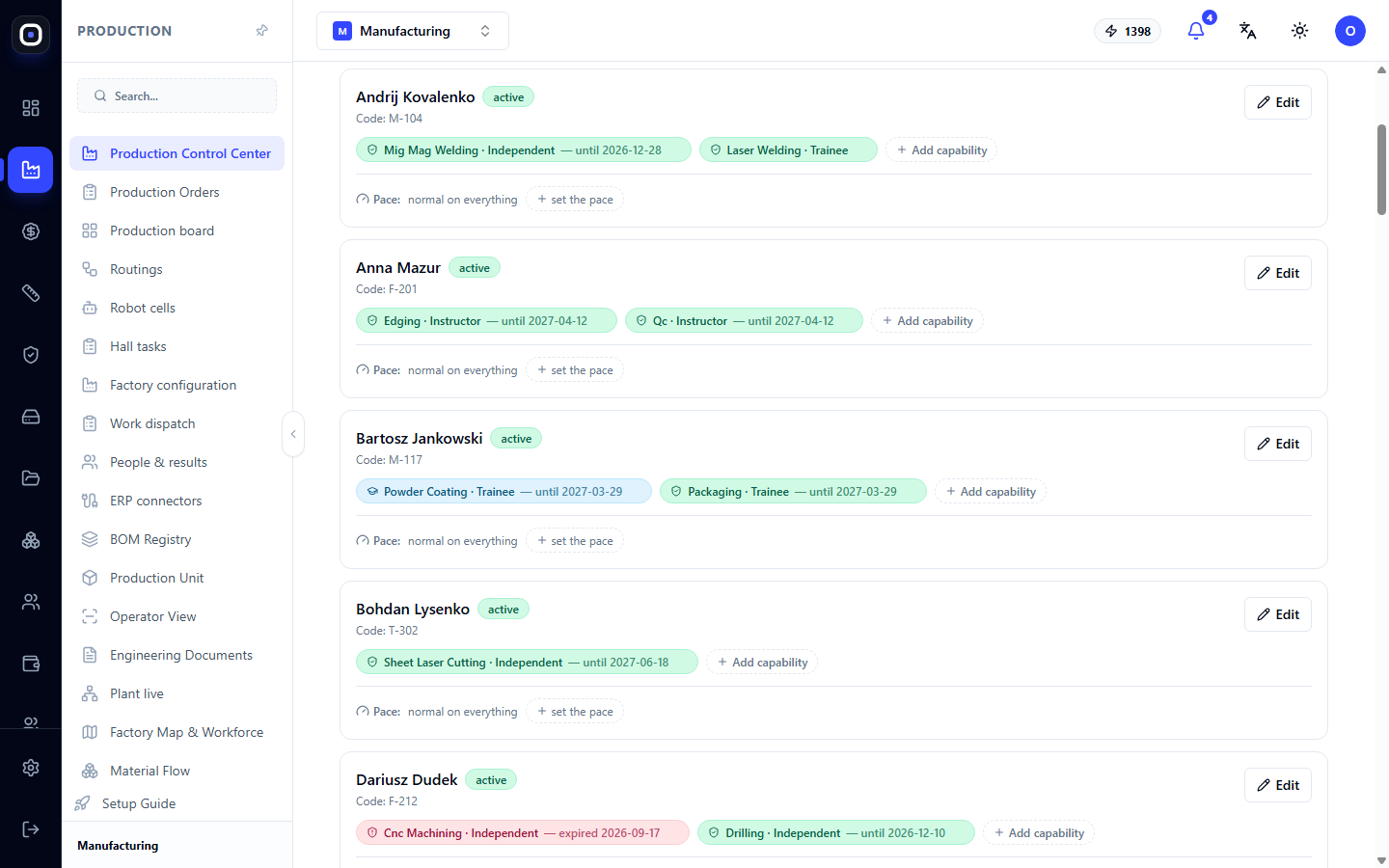
Each employee is shown as a card. It displays:
- Name and status indicator;
- Employee Code, e.g., M-116. The first letter usually indicates the hall;
- Edit button to change data;
- Skills — each as a separate tag;
- Pace.
Skill
A skill tag reads as follows: "Sheet Laser Cutting · Independent — until 2027-03-22". It has three parts:
- What the person can do — the operation;
- At what level;
- Until what date the qualification is valid.
The color of the tag indicates the status: normal, expiring soon, or expired.
Three Levels
- Apprentice — learning and working under supervision.
- Independent — performs the operation alone.
- Instructor — performs alone and can train others.
The level has practical significance. The training plan suggests mentors from instructors and candidates for training from apprentices.
Expiration Date
Many clearances require periodic revalidation: welding certifications, forklift operation permits, occupational safety training. The "until" date refers to this.
A skill without a date is valid indefinitely.
Add Skill
The Add Skill button on the card adds a new one. You choose the operation, level, and, if necessary, the expiration date.
Pace
The Pace line shows how fast a person works compared to the average. By default, it says "normal across the board."
The Set Pace button allows you to specify a custom pace. It affects the calculation of operation times: an experienced operator will complete the same batch faster than a novice, and the plan will account for this.
Pace is not an evaluation of the person. It is a technical parameter to ensure the plan is realistic.
How to Add an Employee
Click Add Employee in the top right corner. Fill in the name and code, save, and then add skills to the card.
After that, assign the person to a hall in the factory configuration and issue them a terminal login method (card, PIN, or QR code) in their employee card.
How it Connects to the Rest of the System
- Work Dispatch prioritizes those who know the operation and are currently available.
- APS Planning assigns only qualified and present individuals to machines if the corresponding rule is enabled.
- Factory Configuration → Competencies shows coverage: whether there are enough qualified people for each machine.
- People and Results → Training suggests who to train to close skill gaps.
Typical Workflow
- Open Production → Shop Floor Workforce.
- Look at the Expired qualification and Qualification expires counters.
- Find these people and schedule revalidation of their clearances.
- Check the No skills counter and add missing skills.
- For new people, click Add Employee.
- Quarterly review levels: some apprentices may now be working independently.
Frequently Asked Questions
The system doesn't suggest a person for an operation, even though they know how to do it.
The skill is not recorded or has expired. Check the employee card.
The skill is shown in red.
The validity period has passed. After revalidating the clearance, update the date.
What's the difference between "suspended" and "archived"?
A suspended employee will return: they are on leave, sick leave, or temporarily reassigned. An archived employee no longer works at the factory.
Do employees see each other's pace?
No. This page is accessible to management, not shop floor employees.
How is this page different from the "People" tab in factory configuration?
In factory configuration, you assign people to halls and add photos. Here, you manage skills, levels, and clearance validity periods.