People and Results: Attendance, Productivity, Training, and Bonuses
The manager's page about the team: nine indicators compared with the previous period, "Needs attention" signals, the people table, the training plan, and bonus calculation.
The People and Results page shows the manager how each person and the entire team are performing. It gathers attendance, productivity, quality, and time allocation, comparing each figure to the previous period of the same length.
The purpose of the page is not to control anyone. It helps to notice in time when a person needs help, training, or a conversation, and to fairly calculate their bonus.
Where to find the page
In the left menu, open Production → People and Results. The page address ends with …/erp/production/people.
Who sees the page
- Owner and Administrators see everyone.
- Shop Foreman (Brigadier khaly) sees only the people in their shops. Whether they see productivity and notes is decided by the factory.
- HR with time tracking access sees attendance.
- Other employees do not see the page.
Top row
- Period: 7 days, 30 days, 90 days, this month, last month.
- All Shops (Usi khaly) — filter by shop.
- Excel exports the people table to a file.
- Metrics (Pokaznyky) opens settings: which figures to show and with what thresholds.
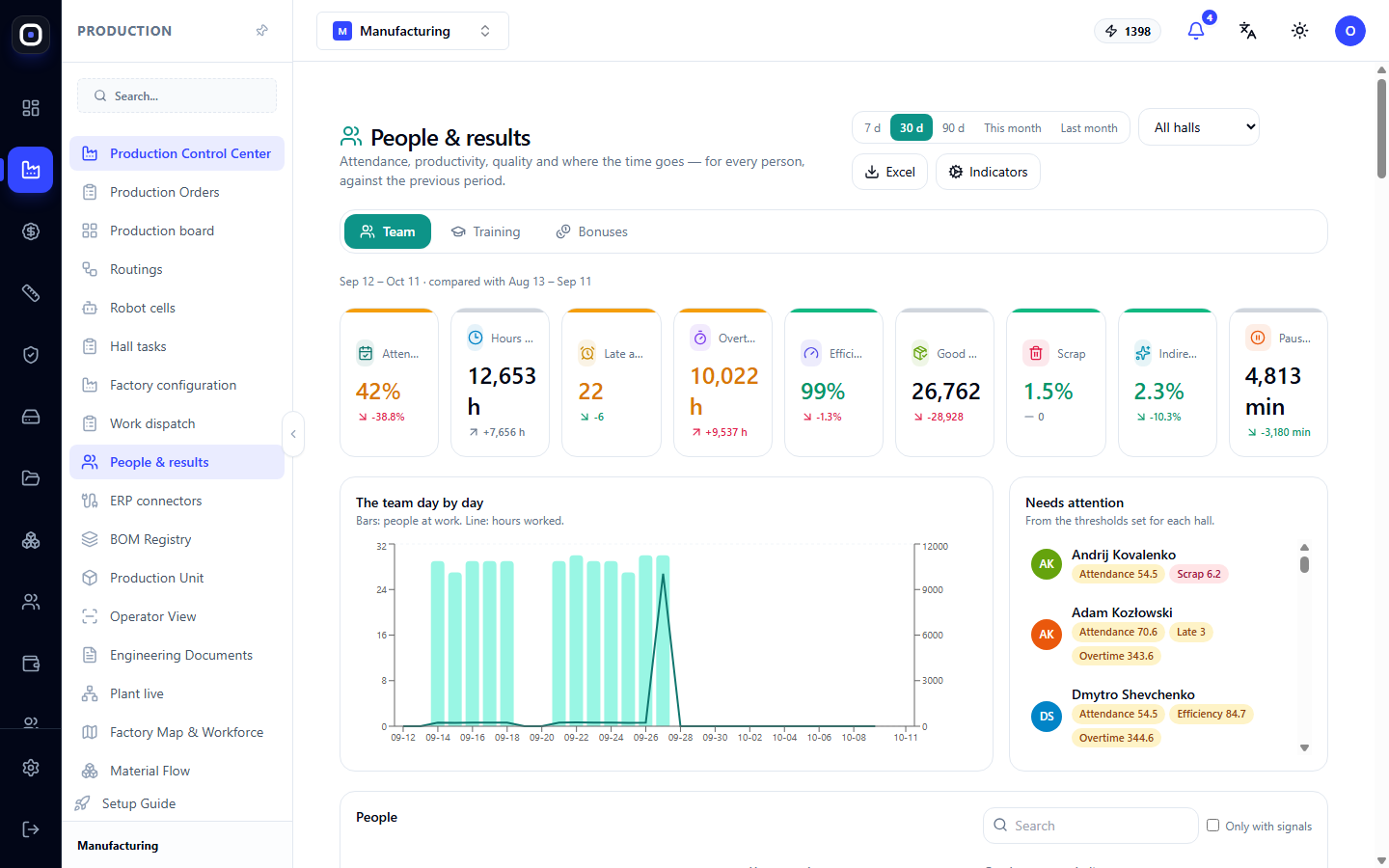
Below the title, it states which dates are being compared, for example, "Sep 12 – Oct 11 · compared to Aug 13 – Sep 11."
Below are three tabs: Team (Komanda), Training (Navchannya), Bonuses (Premiyi).
Team tab
Nine metrics
Tiles are at the top. Each has a large number – the value for the period, and a small number below it – the change compared to the previous period.
- Attendance (Prysutnist) — days at work divided by planned days. Approved vacations and sick leaves are not counted against the person.
- Hours Worked (Vidprats'ovano) — hours from clock-in to clock-out.
- Late Arrivals (Zapiznennya) — how many times a person arrived later than the start of the shift.
- Overtime (Ponadnormovi) — hours exceeding the shift plan.
- Efficiency (Efektyvnist) — standard time divided by actual time. Calculated only for operations that have a standard.
- Good Items (Dobri shtuky) — how many suitable parts are recorded in the shop.
- Scrap (Brak) — percentage of defective items.
- Indirect Time (Nepryamyy chas) — percentage of hours spent on shop tasks: cleaning, material handling, logistics.
- Pauses (Pauzy) — minutes of pauses a person started in the shop.
Click a tile, and the people table will be sorted by that metric: the worst values will be at the top.
One important caveat. The picture is only as accurate as the shop records everything. An operation without standard time does not affect efficiency, and an unfinished operation distorts hours.
"Team day by day" chart
Columns show how many people were at work, the line shows hours worked. The chart reveals dips: days when half the team was absent.
"Needs Attention" block
To the right of the chart, people with signals are listed. A signal appears when a value exceeds the threshold set for that person's shop. The card shows which metrics triggered it: for example, "Attendance 54.5", "Scrap 6.2", "Efficiency 84.7", "Permit expiring".
This is a list for conversation, not for punishment. Low efficiency often means new work or a problematic machine.
People table
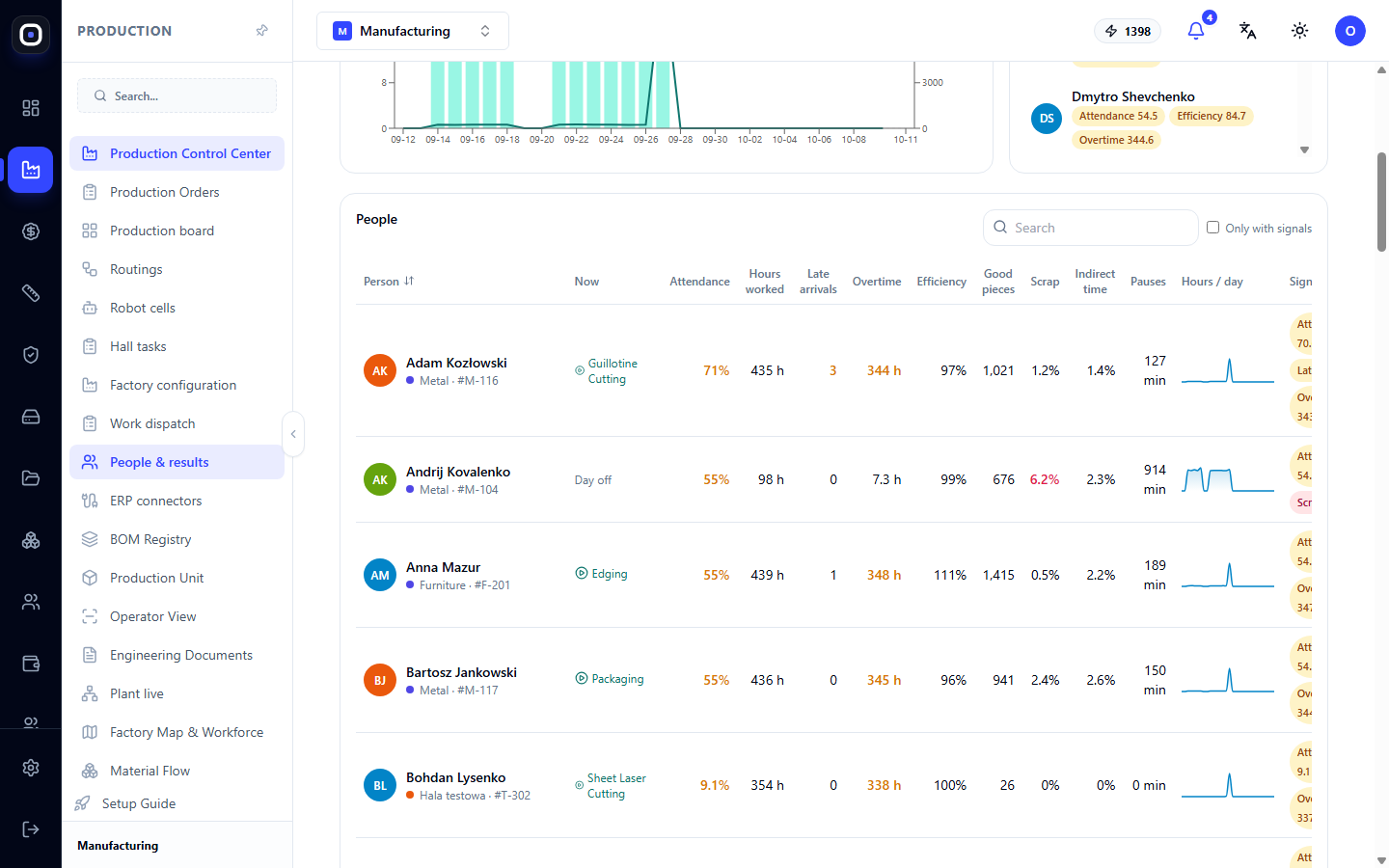
For each person, you can see their shop, what they are doing now (zaraz), all nine metrics, and signals. Above the table, there is a Search (Poshuk) field and a Only with signals (Lyshe iz signalamy) checkbox.
On a phone, cards are shown instead of a table.
Clicking on a person opens their employee card with tabs:
- Results (Rezultaty) — "plan and actual hours" charts, "efficiency and output", where time is spent, breakdown by operations and machines, reasons for scrap and pauses, comparison with shop median;
- Timeline (Khronologiya) — clock-ins, operations, tasks, absences, competencies, notes;
- Plan (Plan) — 14 days ahead: working, absent, or day off, and how many operations are planned;
- Notes and Goals (Notatky i tsili) — conversations, praise, and remarks visible only to management, as well as goals. If a goal is tied to a metric, progress is calculated automatically.
Training tab
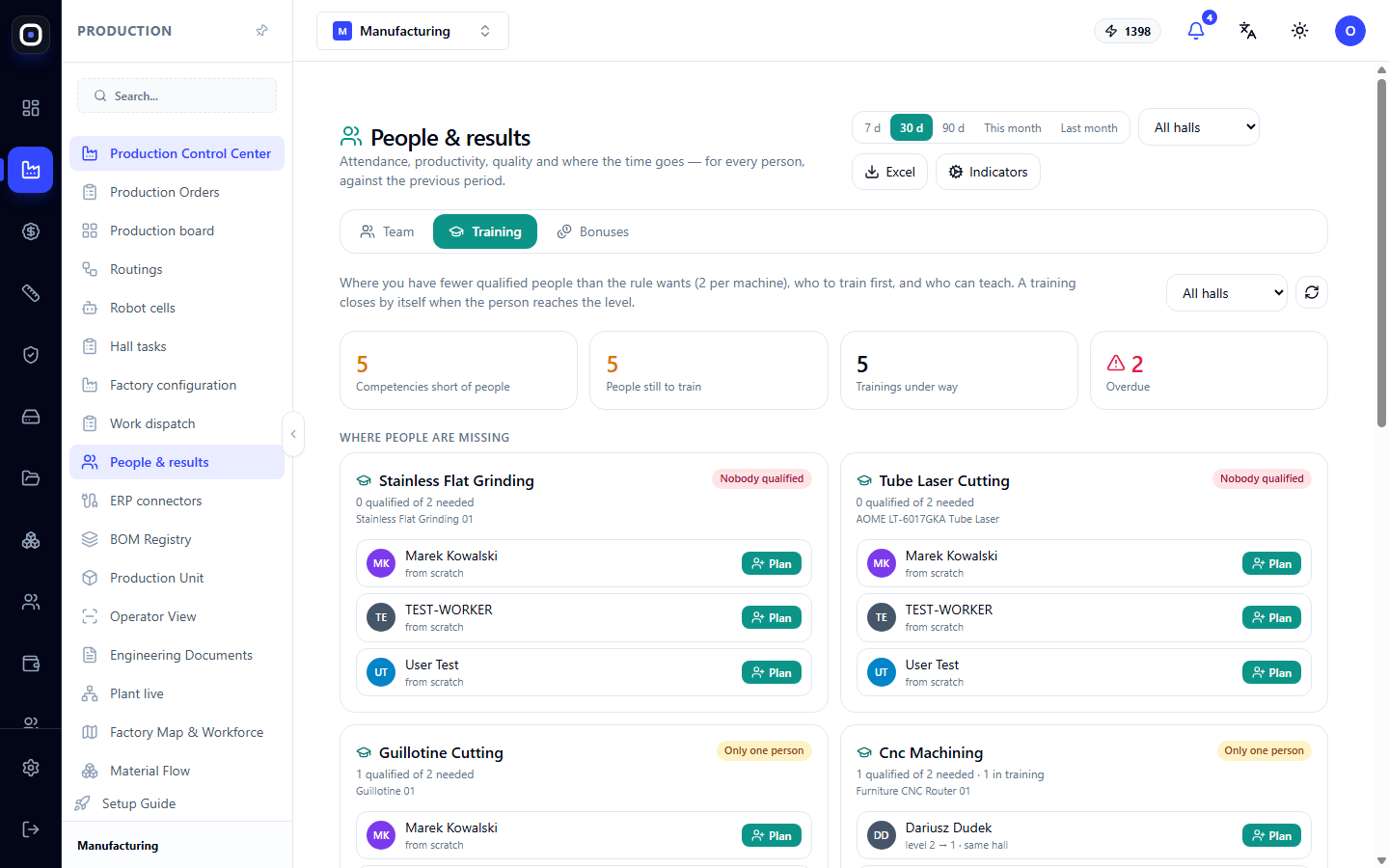
This tab shows where there are fewer qualified people on machines than required by the "minimum per machine" rule. Permits that are about to expire are counted as absent.
At the top are four counters: how many competencies lack people, how many people should be trained, how many trainings are in progress, and how many are overdue.
Below is the "Where people are lacking (De brakuie lyudey)" block. Each card represents one competency, for example, "Tube Laser Cutting". It shows:
- the reason for the gap: no one with a permit, only one person, below minimum, or permits expiring;
- whom the system suggests training. First, people with a lower level of this competency, then people from the same shop;
- a Schedule (Zaplanuvaty) button next to each candidate.
By clicking Schedule (Zaplanuvaty), you specify the target level, deadline, and mentor. When the person achieves the required level, the training closes automatically. The Passed (Sklav) button immediately grants the competency.
Here you also find a list of permits that need to be renewed.
Bonuses tab
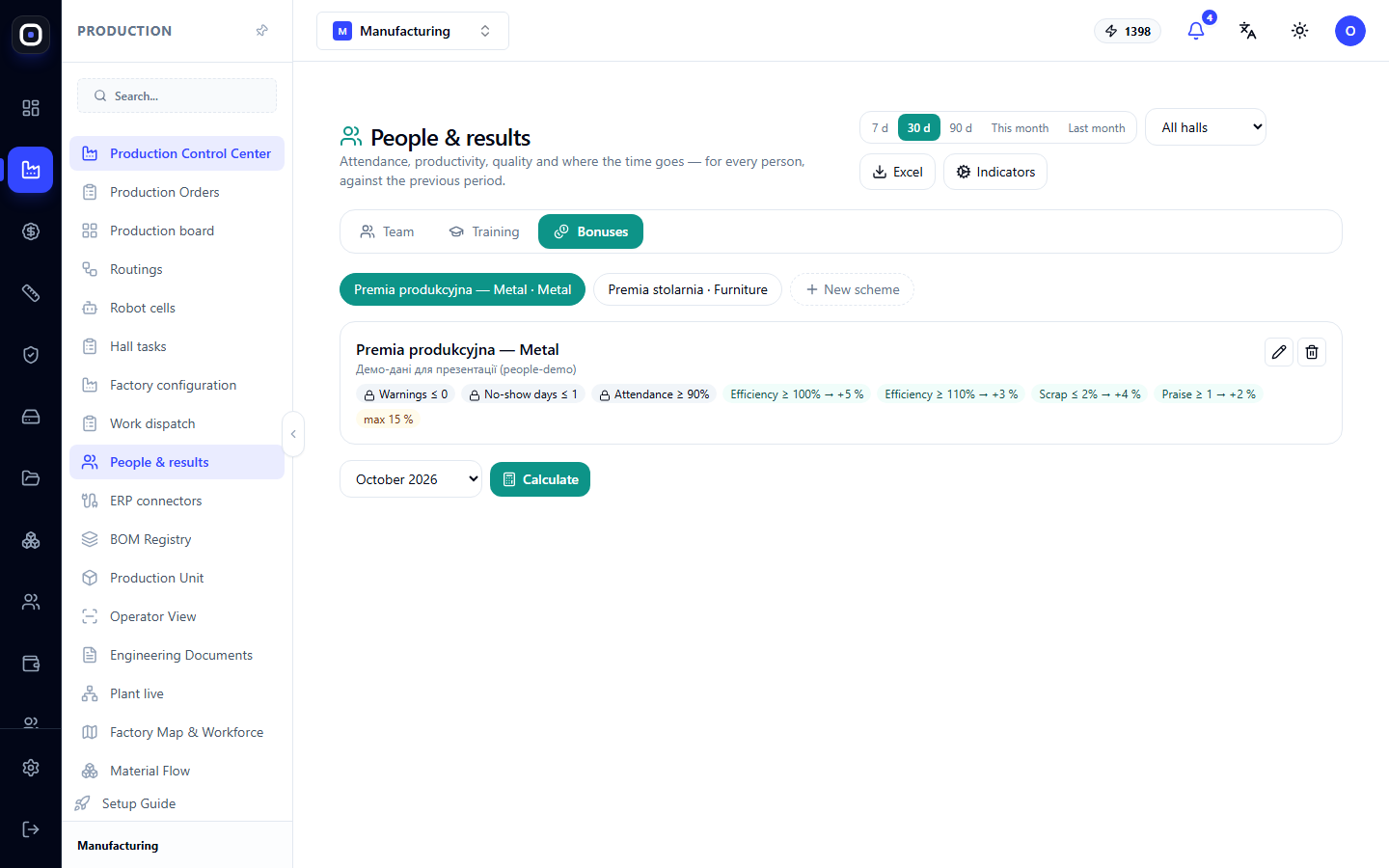
This tab is only available to the owner and administrators.
Bonus scheme
The scheme consists of two parts:
- conditions (umovy) that must all be met. For example, "no remarks", "no more than one day of absence", "attendance no less than 90%";
- rewards (nahorody) that are added to each other. For example, "efficiency from 100% — plus 5%", "scrap up to 2% — plus 4%".
You can set a maximum bonus and calculate it as a percentage of salary or a fixed amount. The scheme applies to everyone or to one shop, so metalworking and carpentry may have different rules. A new scheme is created by the New scheme (Nova skhema) button.
Calculation
Select a month and click Calculate (Porakhuvaty). For each person, the system will show which conditions are met, which are not, and where data is missing.
A condition without data does not block the bonus, but it also does not provide a reward. For example, efficiency cannot be calculated for a person whose operations do not have a standard time.
The amount can be manually changed with a note. The Approve (Zatverdyty) button fixes the month for accounting, and Excel exports the table.
Weekly digest
Once a week, the owner and administrators receive a summary: team metrics compared to the previous week, who needs attention, which machines will be without enough qualified people next week, which permits are expiring, and which trainings and goals are overdue.
Foremen, if enabled, receive a digest only for their shops. The day, hour, and channels (email, in-app notifications, Telegram) are set in Factory Configuration (Konfiguratsiya zavodu) → Metrics (Pokaznyky).
Personal data
This page contains employees' personal data, so GDPR requirements apply:
- show productivity only to those who manage the person;
- explain to the team what is being measured and why;
- keep the profile view log enabled.
Typical workflow
- Once a week, open Production (Vyrobnytstvo) → People and Results (Lyudy i rezultaty) and select a 7-day period.
- Review the tiles: what has changed compared to the previous week.
- Go through the Needs Attention (Potrebuye uvahy) block and decide who to talk to.
- Open Training (Navchannya) and schedule training where people are lacking.
- At the beginning of the month, open Bonuses (Premiyi), calculate for the past month, check the rows, and approve.
Frequently Asked Questions
A person's efficiency is not shown
Their operations do not have a standard time. Enter standard times in the routes, and efficiency will start to be calculated.
Attendance is very low, even though the person came to work
Attendance is calculated by clock-ins. If the person did not clock in at the terminal, the system assumes they were not present. Check if they are clocking in.
Vacation ruined a person's attendance
It shouldn't. Approved vacations and sick leaves are not counted against the person. Check if the absence is documented and approved.
Overtime looks implausibly high
Most often, someone did not clock out, and the shift "lasted" until the next day. Correct the timestamps.