Production Board: All Orders, Gantt, and People Load on One Screen
A daily planning tool: "What to do now" list, five board views, deadline forecast, launching a draft into production, and employee and station load.
The Production Board shows all production orders together and answers the question "what's urgent and what to do now." If the orders page is a list, the board is the planner's control panel: it displays stages, deadlines, forecasts, plans, and people's workload.
In this article, we'll cover everything in order: the list of urgent actions, five board views, the forecast, launching an order, and workload.
Where to find the page
In the left menu, open Production → Production Board. The page address ends with …/erp/production/board.
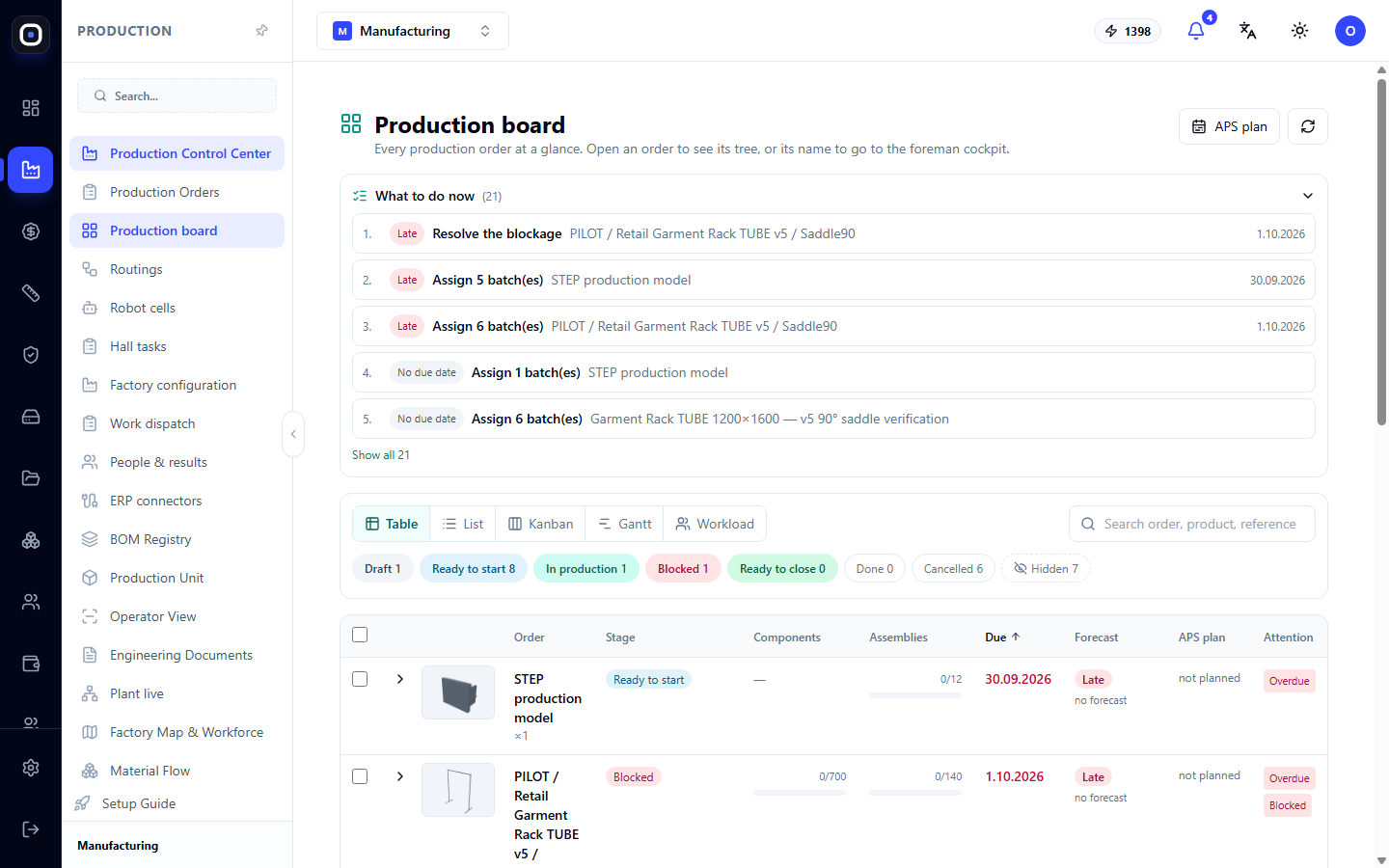
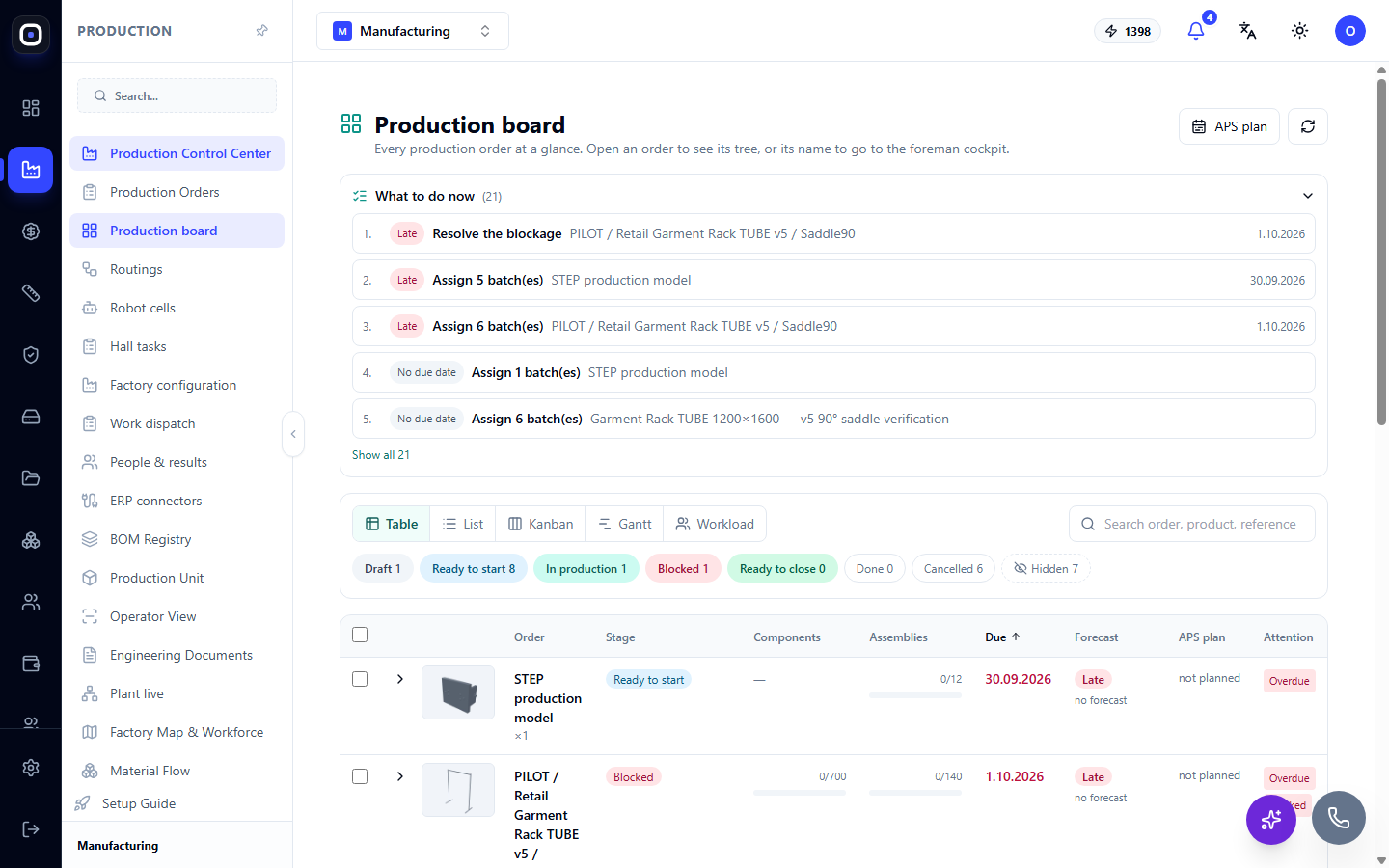
In the top right, there's an APS Plan button. It opens automatic planning, where the system schedules operations based on capacity and calendars.
"What to do now" list
Above the board is a list of the most urgent actions. The total number is in parentheses next to the title, and the first five are visible on the screen. The Show all button expands the entire list.
Each line consists of three parts:
- urgency indicator — for example, "Late" or "No deadline";
- action — what needs to be done;
- order and deadline it concerns.
Actions can be:
- Remove block — the order is stalled until someone resolves the cause.
- Assign N batches — work exists, but it has no assignee.
- Replace defect — a part is rejected, a replacement is needed.
- Enter standards — steps lack time standards, so the forecast is incomplete.
- Close completed order — everything is done, only formal closing remains.
The list is sorted by urgency. Clicking a line leads directly to the required place: to the order or to the Gantt chart where standards are entered. Start your morning with this list from top to bottom.
Filter by stage
Below the view switcher, there's a row of buttons with stages and the number of orders in each: Draft, Ready to launch, In production, Blocked, Can be closed, Completed, Canceled. Clicking a stage leaves only its orders on the screen.
A separate Hidden button shows orders you've removed from the board to avoid clutter.
Above the table, there's a "Search order, product, number" field.
No one sets the stage manually. The system calculates it from data: how many batches are created, how many are in progress, whether there are blocks.
Five views
Switcher at the top: Table, List, Kanban, Gantt, Workload. The system remembers your choice. On mobile, the list view opens by default.
Table
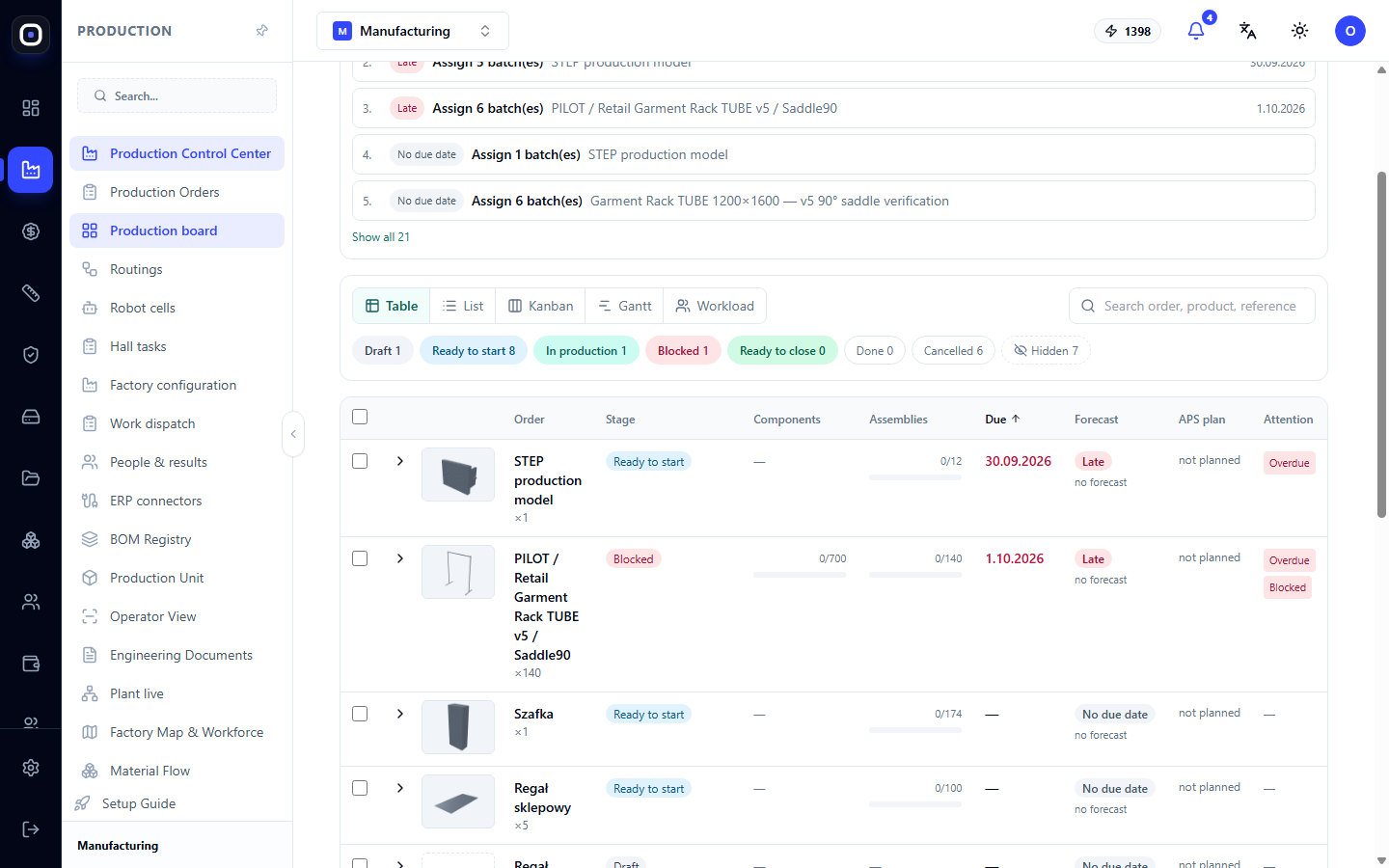
The densest view. Columns:
- Order — product name and quantity (e.g., ×5).
- Stage — where the order is currently.
- Components — how many parts are ready out of the total, e.g., 0/100.
- Assemblies — the same for sub-assemblies.
- Deadline — the date by which the order should be ready.
- Forecast — "Late," "Risk," "On time," or "No deadline" indicator.
- APS Plan — whether the order is planned by automatic planning.
- Attention — what to pay attention to: "Overdue," "Blocked."
- Priority — a number; the higher, the more important.
The table can be sorted by stage, components, deadline, and priority. Checkboxes on the left allow selecting multiple orders for bulk actions.
List
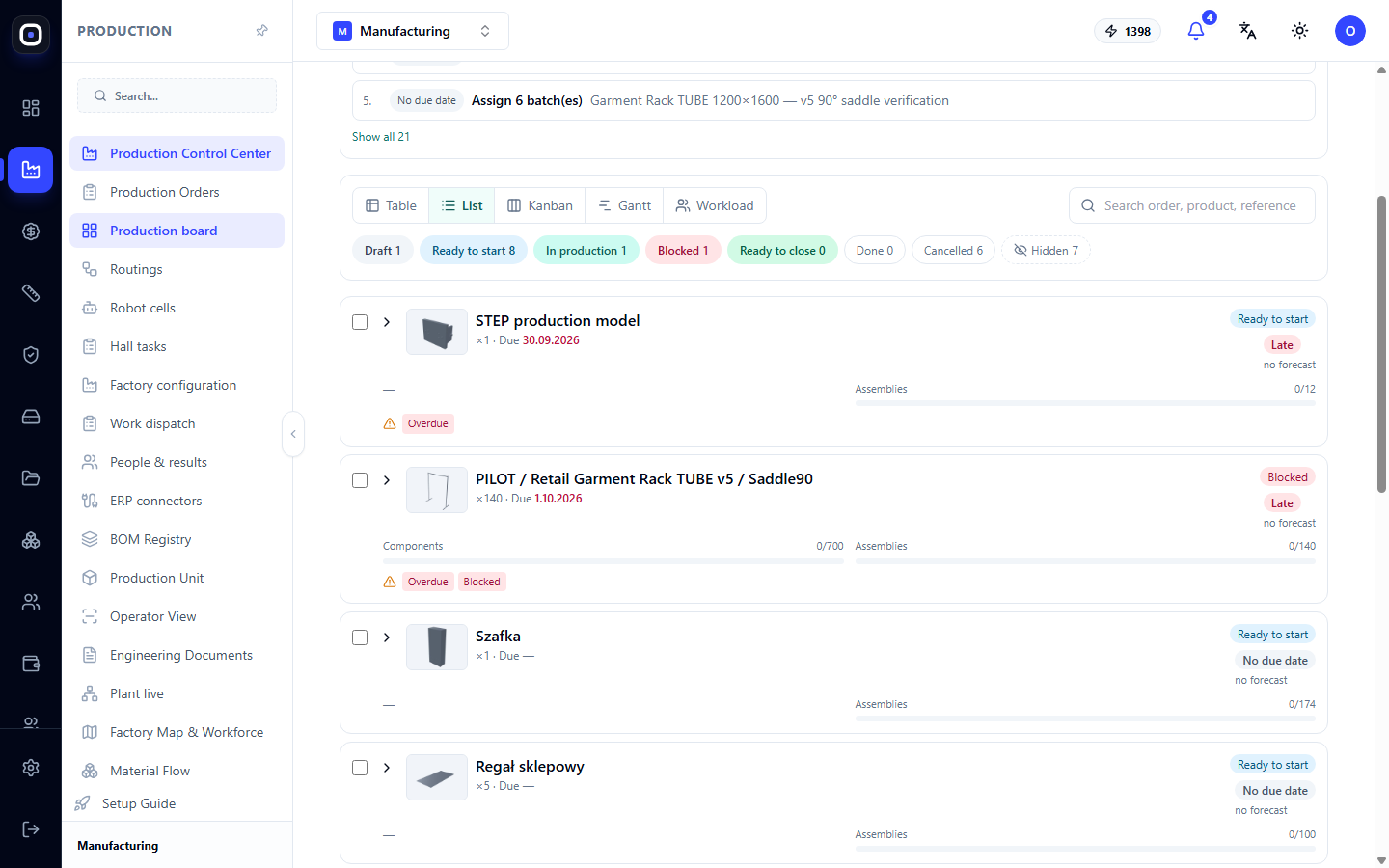
The same data, but as cards. Convenient on a phone when you're on the shop floor.
Kanban
Columns by stage: Draft, Ready to launch, In production, Blocked, Can be closed, Completed. You can immediately see where bottlenecks have accumulated.
Cards between columns are moved by the system itself. You can only do one thing manually: drag a draft to the "Ready to launch" column. This is how you launch it into production.
Gantt
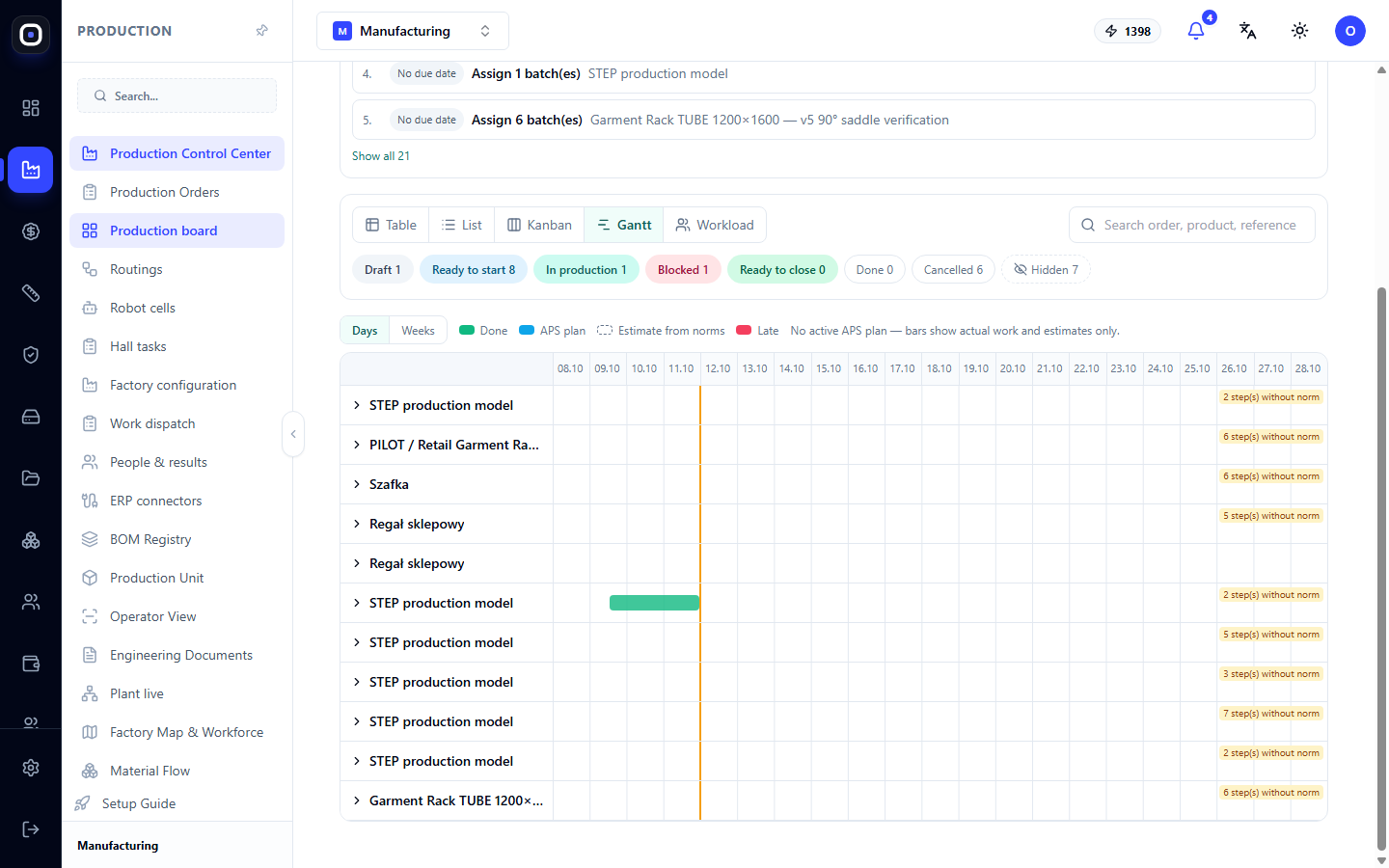
Timeline. For each order, three layers are visible:
- green — actually completed operations;
- blue — plan from the active APS revision; red means late, yellow means risk;
- dashed — estimate based on standards where there is no plan.
The yellow vertical line is today, red is the order deadline. The Days / Weeks switcher changes the scale of the timeline.
On the right in the row, there might be a note like "6 steps without standard." It shows how many steps of the order lack a time standard, so no bar is drawn for them.
If a step has no time standard, the board does not draw a fictitious bar. Instead, the text "Enter standard" appears. Enter minutes per batch, and the estimate will be recalculated. The standard is saved in the routing, so you won't have to enter it next time.
Workload
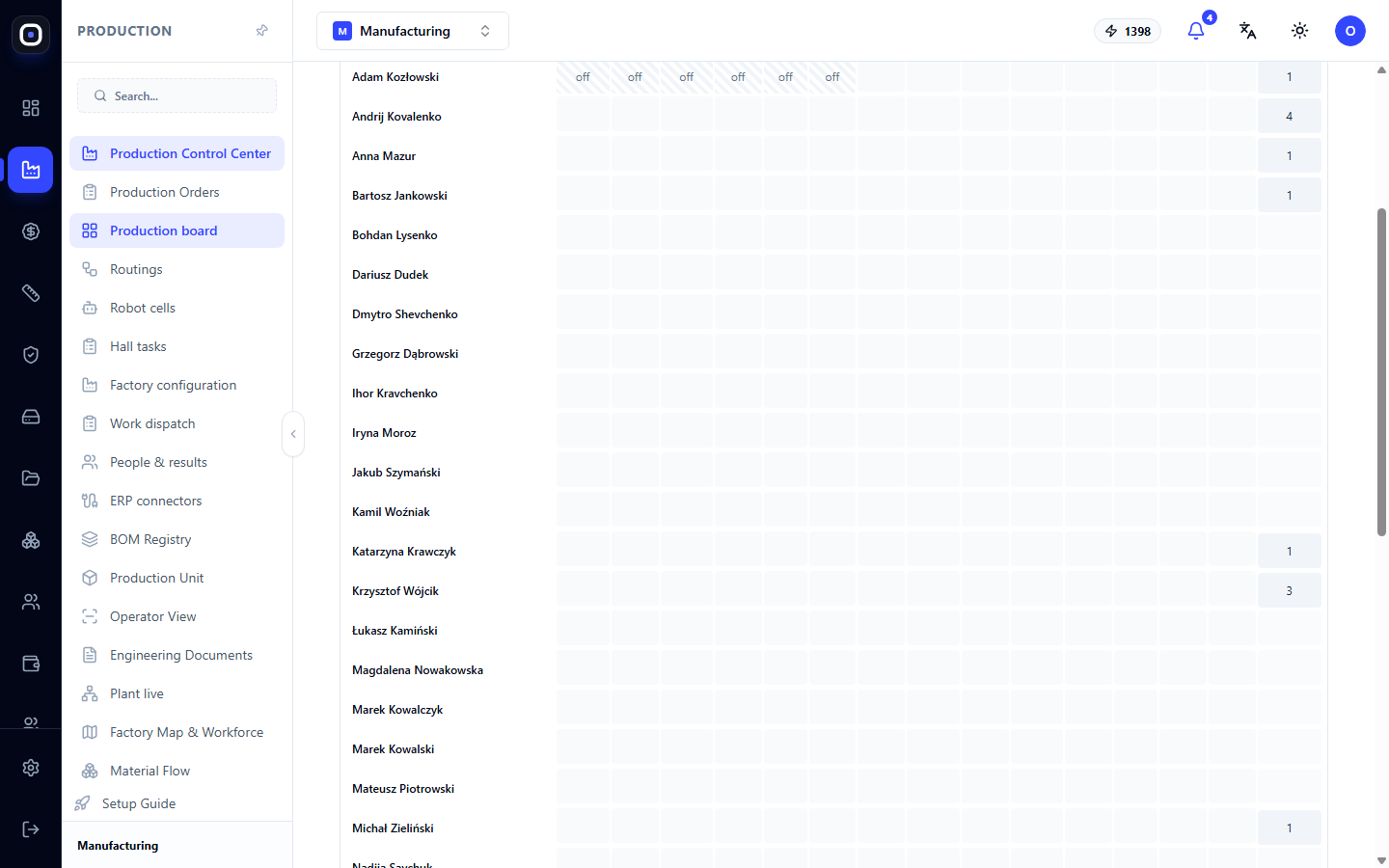
A two-week grid by day. The Employees / Stations switcher shows the load of people or machines.
The number in the cell is working hours versus the work calendar. Colors:
- green — there's spare capacity;
- yellow — almost full load;
- red — overload;
- dash — person or station is absent.
The "+N" indicator means N tasks without a standard. They are not accounted for in hours, so the actual load is higher than what the cell shows.
Where capacity comes from is visible in the cell tooltip: from the station, department, or shop calendar, or from the employee's shift. Where there is no calendar, a standard 8-hour workday is used. Clicking a cell shows the tasks for that day and allows navigating to the order.
Workload collects both foreman assignments and the APS plan. The same step is counted once.
Forecast: Are we on time?
Each order has a forecast indicator:
- Late — deadline passed or will definitely be missed;
- Risk — might not make it;
- On time — everything is on schedule;
- No deadline — no date specified for the order.
Hover over the indicator to see the reasons: deadline passed, APS plan is late, estimated completion is later than the deadline, order is blocked, three days until deadline but components are not ready.
Estimated completion is taken from the APS plan. Where there is no plan, it's calculated from time standards, spread over working days (8 hours, weekdays only). An asterisk "*" next to the date means an incomplete forecast: some steps lack a standard.
"No forecast" and "Not planned" mean exactly that: the system lacks standards or a plan to provide a date. It does not invent a date at random.
Launching an order into production
A draft can be launched in one of two ways:
- Click the "Launch into production" button in the draft's row (available in table, list, and on mobile);
- Drag the draft card on the Kanban board to the "Ready to launch" column.
Before launching, the system does three things: re-checks readiness, locks the order's specification, and creates production batches.
If it cannot be launched, you will see the reason and what to do next. For example, the technical package has been replaced with a newer one, or the readiness check is blocked.
Order tree
Any order on the board can be expanded into a tree: assembly → sub-assemblies → parts → batches → steps with assignees. This way, you see not just "order is late," but also which specific part is stalled at which step.
Clicking the order name opens the foreman's cockpit. The "Back" button returns to the board.
Photos, drawings, and 3D
Each order has an image of the product. The system renders it from the 3D model once and saves it for all. Clicking the image opens the 3D model, which can be rotated.
In the tree, next to each line, there's a small drawing that opens full screen. In the expanded line, all files for the part are available: 3D, STEP, drawing, IGS, and DXF, if they exist.
Above the tree are the buttons "3D assembly", "Print all drawings", and "Generate missing drawings".
Bulk actions
Select multiple orders with checkboxes in the table or list. After that:
- "Generate missing drawings" will create drawings only for parts where they don't yet exist;
- "Print drawings (PDF)" will open one document with all sheets in tree order, each in its true format. In the print window, select "Save as PDF."
Typical morning for a planner
- Open Production → Production Board.
- Go through the "What to do now" list from top to bottom.
- Click the Blocked stage and deal with each order.
- Go to Workload and find red cells. Redistribute work.
- Go to Gantt and enter standards where it says "Enter standard."
- Check the Can be closed stage and close completed orders.
Frequently asked questions
Why can't I drag a card to the "In production" column?
Because the stage is calculated by the system from actual data. The order will automatically move to "In production" when the operator starts the first operation. Only a draft can be manually moved to "Ready to launch."
Next to an order, it says "no forecast." What should I do?
Open the "Gantt" view and enter time standards for steps without them. Or plan the order via "APS Plan."
In workload, it says "+5." What is that?
Five tasks for that day have no time standard, so the system doesn't know how many hours they will take. Enter the standards, and the cell will show the actual hours.
An order disappeared from the board
Check the Hidden button and the stage filter: perhaps one stage is selected, and the order moved to another.