Production Control Center: Where to Start and What's Next
The production home page: seven steps from product to finished unit, order and unit counters, and quick links to the relevant sections.
The Production Control Center is the home page for the "Production" section. It's not for daily detailed work, but rather for quickly understanding two things: whether everything is configured correctly and what's currently happening in the factory.
If you're new to the system, open this page first. It will show you which step is still missing. If the factory is already running, it serves as a summary: how many orders, how many units, and what their status is.
Where to find the page
In the left-hand menu, open Production → Production Control Center. This is the first menu item. The page address ends with …/erp/production.
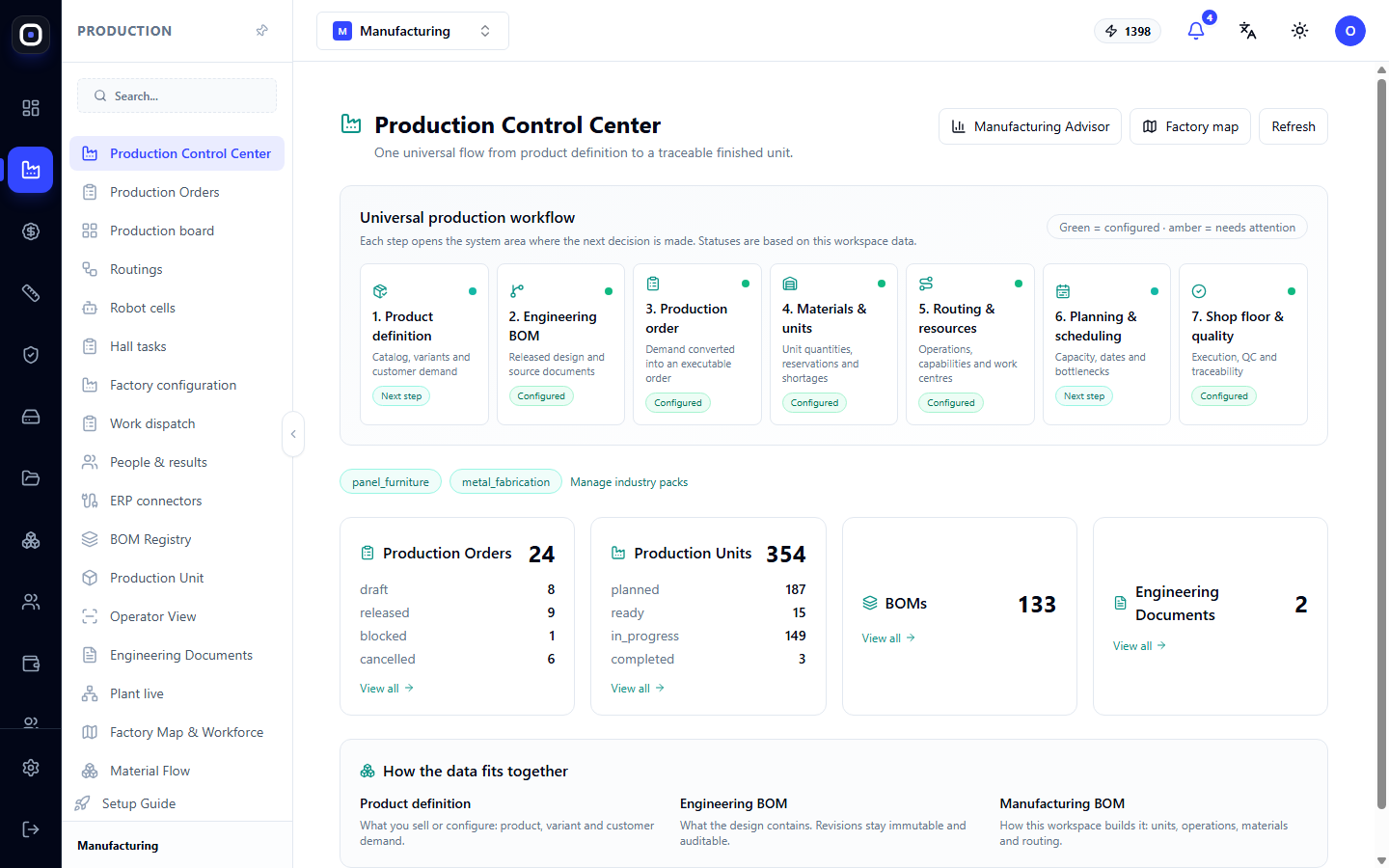
Most of the labels on this page are currently displayed in English. In this article, they are presented as you see them on the screen, with Ukrainian explanations.
Buttons in the top right corner
- Manufacturing Advisor opens the advisor. It reviews workspace data and suggests what needs to be configured or fixed.
- Factory map opens the factory map with halls, machines, and people.
- Refresh reloads the data. Click if a colleague has just made a change and the numbers on your screen are outdated.
Seven steps of the production workflow
The main part of the page is the Universal production workflow block. These are seven cards, arranged in the order in which a product moves through the factory. Each card is a button: clicking it opens the system section where decisions for that step are made.
- Product definition — the product. Catalog, variants, and customer demand: what exactly you sell or configure to order.
- Engineering BOM — engineering bill of materials. Approved design and its source documents.
- Production order — production order. Demand converted into an order that can be fulfilled.
- Materials & units — materials and units. Quantities, reservations, and shortages.
- Routing & resources — routings and resources. Operations, machine capabilities, and work centers.
- Planning & scheduling — planning. Capacity, dates, and bottlenecks.
- Shop floor & quality — shop floor and quality. Execution, quality control, and traceability.
What the labels on the cards mean
Below each step, there is a status indicator. It is calculated from your workspace's real data, not set manually.
- Configured (green) — the step is configured, data is available.
- Next step — the next step that should be taken. Most often, this means that nothing has been configured here yet or the data is incomplete. If the circle in the corner of the card is yellow, the step needs attention.
The tooltip above the cards states: Green = configured · amber = needs attention.
The practical rule is simple: go from left to right and stop at the first card marked "Next step". Until it becomes "Configured", subsequent steps will not function fully. For example, without routings (step 5), orders cannot be broken down into units, and without planning (step 6), the dashboard will not show the completion forecast.
Industry packages
Below the cards, you can see which industry packages are enabled in the workspace, such as panel_furniture or metal_fabrication. A package adds unit types, operations, and rules specific to the industry to the universal core.
The Manage industry packages link opens a page where packages are enabled and disabled.
Counters
Below are four blocks with numbers. Each block is a summary and also a View all button.
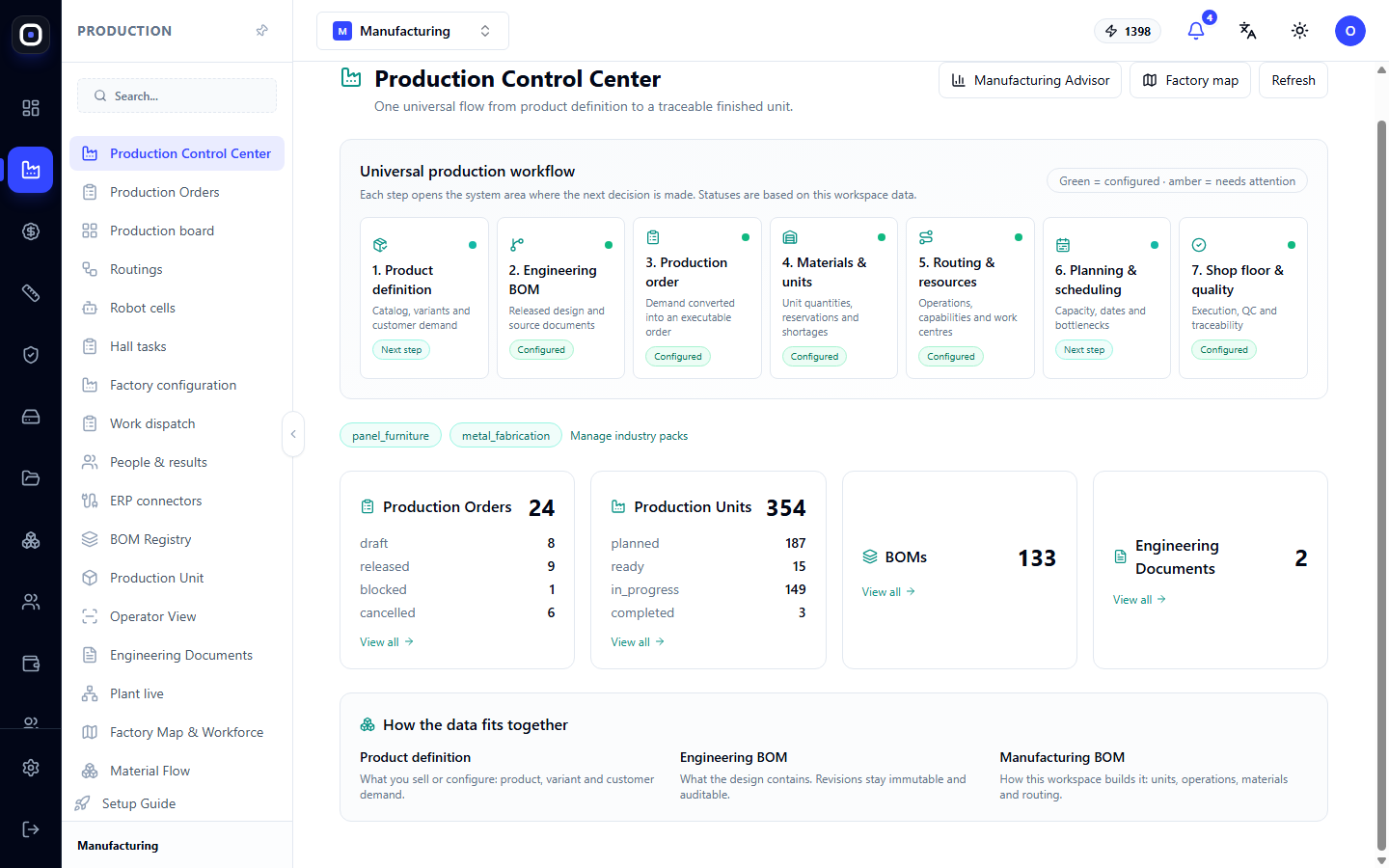
Production orders
The large number indicates the total number of orders. Below it is a breakdown by status:
- draft — drafts, not yet released;
- released — released to production;
- blocked — blocked, requiring intervention;
- cancelled — canceled.
If the number of blocked orders is greater than zero, start your day with them.
Production units
The large number indicates how many units (parts, assemblies, products) exist. Breakdown:
- planned — planned, work has not yet started;
- ready — ready to be taken into work;
- in_progress — currently in progress;
- completed — completed.
This is the fastest way to assess workshop load. Many units in the ready state and few in in_progress means there is work, but no one to do it.
Bills of Materials (BOM) and Engineering Documentation
The last two blocks show how many BOMs and how many engineering documents are in the workspace. Clicking opens the corresponding register.
How the data fits together
At the bottom of the page, there is a How the data fits together block. It briefly explains the three levels of product description that are often confused.
- Product definition — what you sell: product, variant, and customer demand.
- Engineering BOM — what the design consists of. Revisions are not changed retroactively, so you can always check what was approved.
- Manufacturing BOM — how your factory manufactures it: units, operations, materials, and routing.
The same design at two different factories will have the same engineering BOM but different manufacturing BOMs.
Typical workflow
- Open Production → Production Control Center.
- Review the seven cards and find the first one marked "Next step".
- Click on it and perform what the opened section suggests.
- Return and click Refresh. The indicator should change to "Configured".
- Review the counters. If there are blocked orders, click View all and deal with them.
Frequently Asked Questions
All cards are marked "Configured", but the order is not starting. Why?
The "Configured" indicator means that the section is generally configured, not that every single order is ready. To check the readiness of a specific order, see the "Readiness" column on the production orders page.
The numbers don't match what I see on the shop floor
Click Refresh. The page does not update itself every second. If the discrepancy remains, it is most likely that operators have not marked operations as complete.
How does this page differ from the production dashboard?
The Control Center shows the configuration status and general figures. The production dashboard shows each order separately with deadlines, forecasts, and personnel load. For daily planning, the dashboard is needed.