Routings: how to describe the operations a part goes through
A technological routing defines the operations and their sequence for each unit type. Learn how to read the routing list, create a new one, add steps, and release a routing for production.
A routing is the answer to the question "how do we make this." It lists the operations a part goes through and defines their sequence: for example, cutting → bending → welding → painting → inspection.
Without a routing, the system doesn't know what to do with a part, so it cannot create tasks for it or calculate its lead time. That's why the "Routings" page is one of the first places configured in a new factory.
Where to find the page
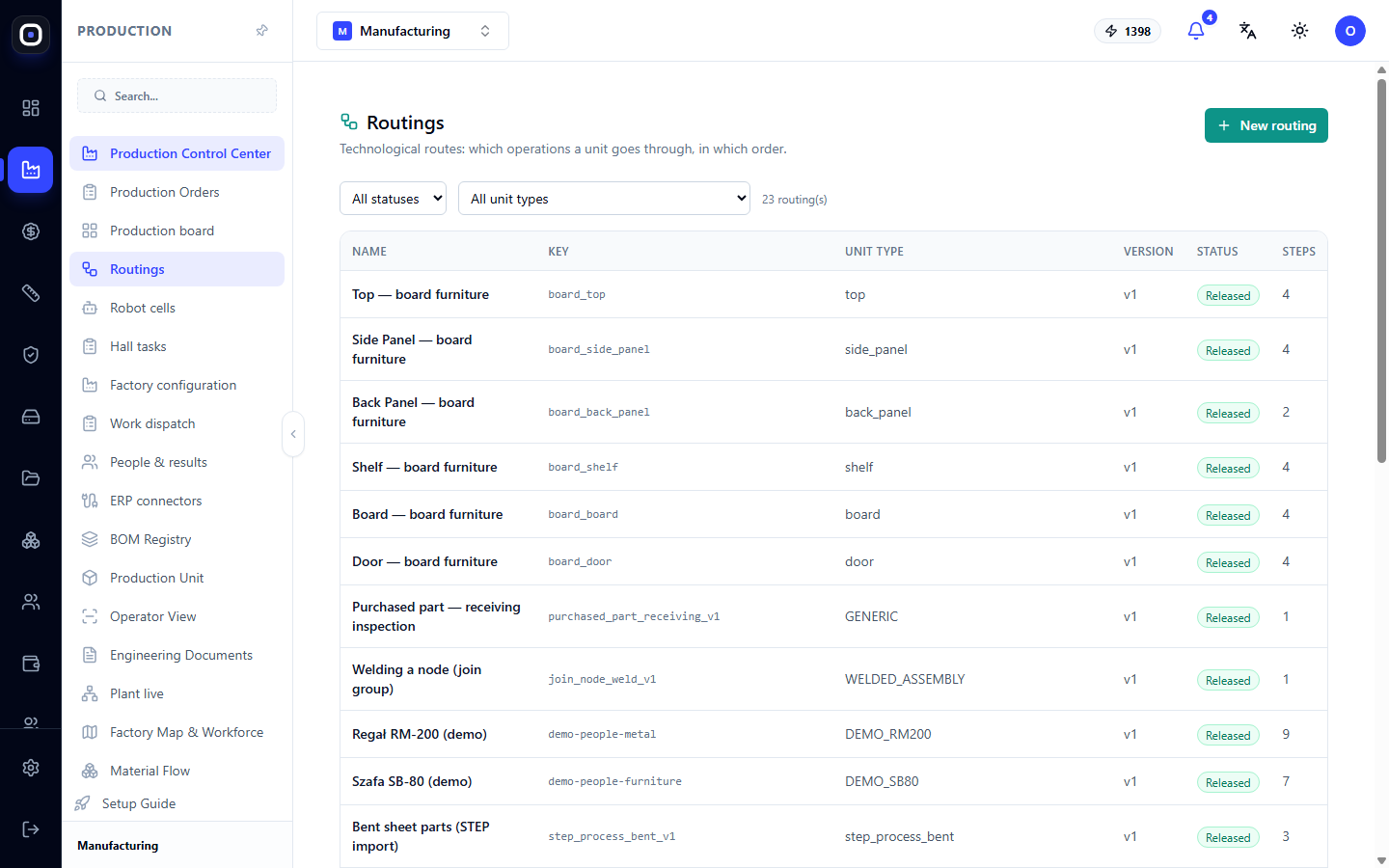
In the left-hand menu, open Production → Routings. The page address ends with …/erp/production/routings.
The main rule: a routing belongs to a unit type
This is the most important thing to understand about routings in Oprela.
Routings are not selected for each part individually. They are tied to a unit type: shelf, side panel, profile pipe, welded assembly, bent sheet metal part. All units of this type will automatically follow this routing.
This has two consequences:
- By describing a routing once, you cover hundreds of parts with it.
- By changing a routing, you change the path of all units of that type, not just one.
The page has a hint that summarizes this: a unit can only be produced if there is a released routing for its type.
List of routings
The table shows all routings in the workspace. Above it is a counter, for example, "23 routing(s)".
Columns:
- Name — a human-readable name, for example, "Shelf — board furniture".
- Key — a technical identifier without spaces, for example,
board_shelf. - Unit Type — for which units this routing applies.
- Version — v1, v2, and so on. A new version appears when a routing is changed after release.
- Status — Draft, Released, or Replaced.
- Steps — how many operations are in the routing.
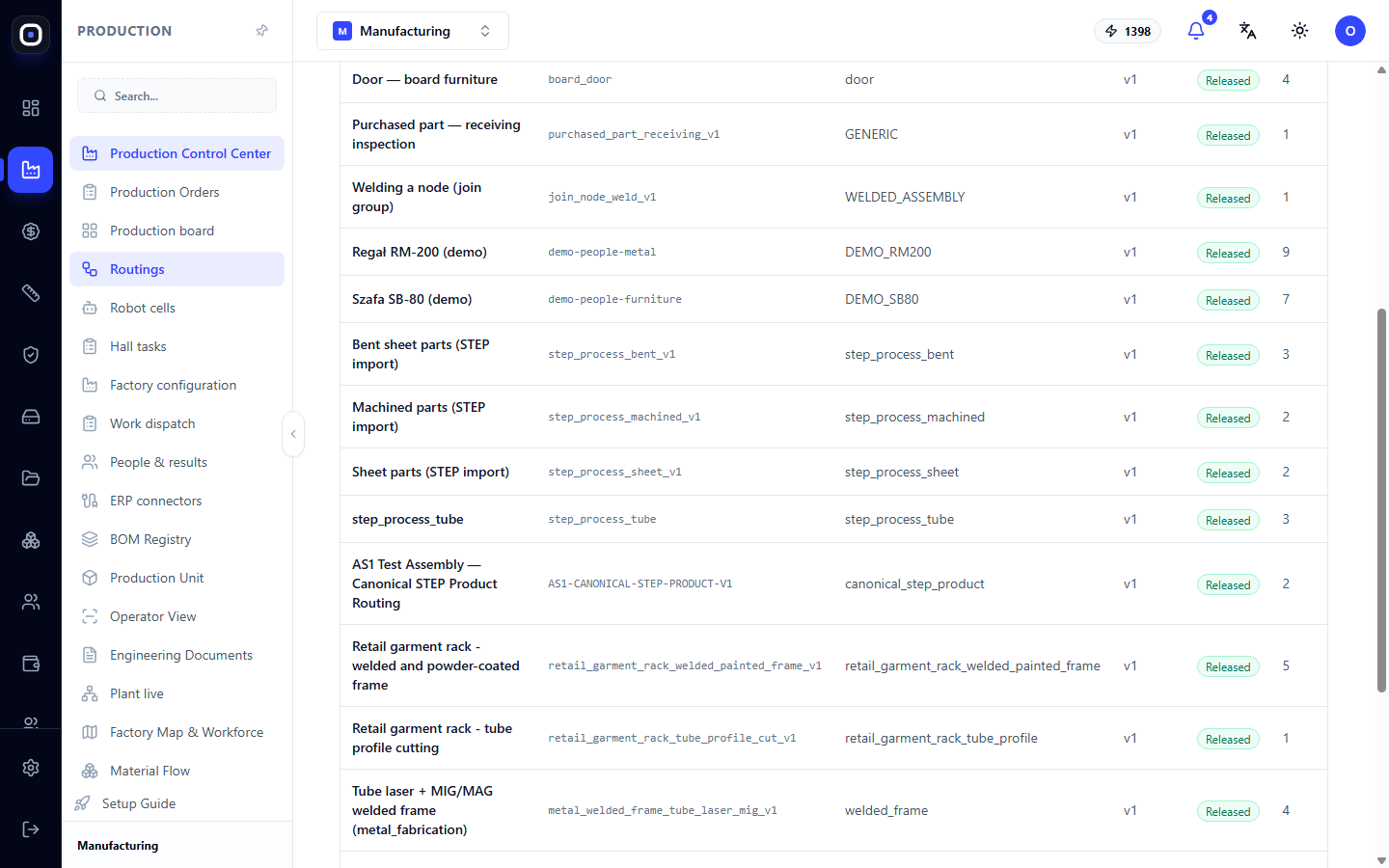
Clicking on a row opens the routing editor, where all steps are visible.
Three statuses
- Draft — the routing is still being written. It can be freely changed and does not affect production.
- Released — the routing is active. All units of the corresponding type follow it.
- Replaced — an older version that has been superseded by a new one. It is kept for historical purposes: it shows how things were done previously.
Only one released routing is active for a given unit type. When you release a new one, the previous one automatically becomes replaced.
Filters
Above the table are two lists:
- Filter by status — all statuses, Draft, Released, Replaced.
- Filter by unit type — all types or one specific type.
To quickly check if there is an active routing for a certain type, select that type and the "Released" status. An empty list means that parts of this type cannot be manufactured.
How to create a routing
- Click New Routing in the top right corner.
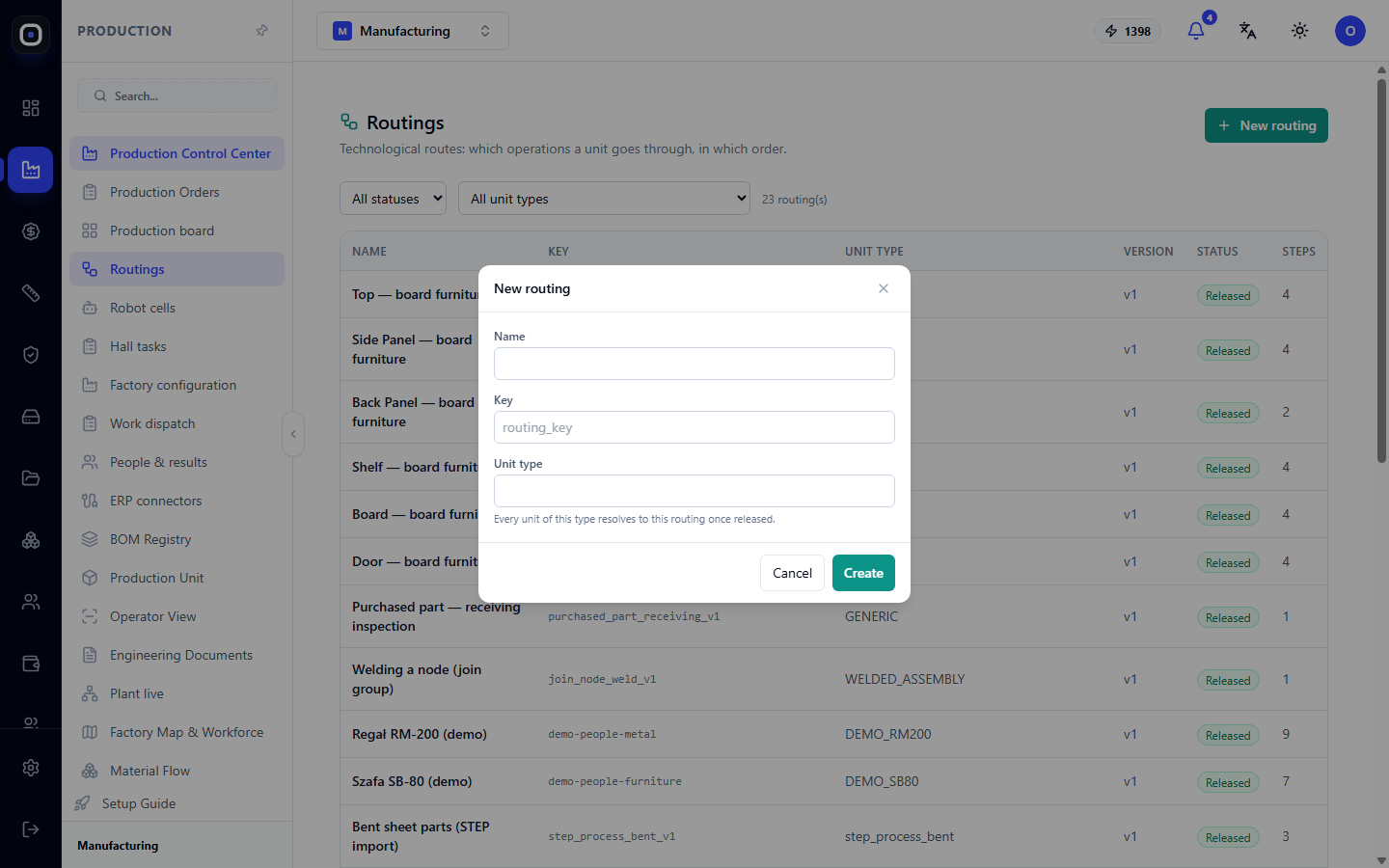
- Fill in the Name. It is mandatory.
- Specify the Key and Unit Type. The unit type determines which parts will follow this routing. Without it, the routing will not apply to anything.
- Click Create. A "Routing created" message will appear, and the routing will get the "Draft" status.
A draft without steps is just a placeholder. Next, you need to populate it with operations.
How to add steps
Open the routing by clicking on its row and then click Add Step. If there are no steps yet, the system will prompt you: add the first operation to describe how units of this type are produced.
To add a step, there must be at least one active operation type in the workspace. Operation types are defined in the factory configuration directories.
Each step has the following properties:
- Operation Type — what we do: cutting, bending, welding, assembly.
- Required Workstation Capability — what the machine must be able to do, for example,
laser_cutting. The system uses this field to determine where the step can be performed. - Required Document — what the operator needs to see: drawing, CNC program, work instruction, quality instruction, other, or nothing.
- Estimated Minutes — standard time. This is used to calculate the estimated completion time and human workload.
- Quality Control Required — whether the step ends with an inspection.
- Previous Step Must Be Completed — whether this step can start before the previous one.
- Required Evidence Tags — what the operator must add as proof, for example,
finished_part_photo. If the list is empty, no evidence is required.
After making changes, click Save Step.
Conditional steps
Not every part of the same type goes through all operations. For this, a step can be made conditional. There are three options:
- Always perform this step.
- Only if the part uses a specific process, for example,
CNC_MACHINING. - Only if the part uses one of several processes.
The condition is checked against the part's process profile. A part that does not meet the condition simply skips this step.
Be careful: if all steps in a routing are conditional, there might be a part that doesn't meet any condition. It will have no operations. Add at least one unconditional step.
How to release a routing
When the steps are ready, click Release. The system will first validate the routing and will not allow it to be released with errors:
- The routing has no steps.
- One step number is used twice.
- Step numbers do not form a continuous sequence 1, 2, 3, and so on.
- A step refers to an operation type that no longer exists or is disabled.
- The routing does not have a unit type specified.
If everything is correct, a confirmation window will appear. It will state how many units currently use this type. After release, each of them will follow the new routing, and the previous released routing of this type will become replaced.
Read this number before confirming. If it's large and work is already in progress, it's better to release changes between orders.
How to change a released routing
A released routing cannot be edited directly. Click Duplicate as Draft: the system will create a copy with the next version number. Make your changes to it and release it. The old version will become replaced and remain in history.
Typical workflow
- Open Production → Routings.
- Use the filter to check if there is a released routing for the desired unit type.
- If not, click New Routing, set the name, key, and unit type.
- Add steps in the order of execution and specify the operation type and minutes for each.
- Click Release and correct any errors the system finds.
- Verify that the routing in the list has the "Released" status.
Frequently Asked Questions
An order doesn't break down into units and says a routing is missing. What should I do?
One of the unit types in the order does not have a released routing. Find this type using the filter, create or complete the routing, and release it.
Can I have two routings for one unit type?
You can have as many drafts as you want, but only one released routing. If parts of the same type are made differently, use conditional steps or create a separate unit type.
Why enter estimated minutes?
Without them, the system cannot calculate either the order completion date or the human workload. On the production board, such steps are marked with "Specify standard time."
I changed a routing. Will units already in progress change?
After a new version is released, units of that type determine their routing based on it. Therefore, changes should be released thoughtfully, and the number of units in the confirmation window should be read carefully.