Shop Tasks: Cleaning, Materials, Assistance, and Other Off-Route Work
A task board for work not included in the production route: how to create tasks, assign them to employees, set up recurring templates, and track indirect time.
Not all work in the shop floor is described in the production route. Someone needs to clean around the laser, transport pipes, pack finished goods, change nozzles, or assist with assembly. If such work isn't recorded anywhere, it either doesn't get done, or it gets done but the time spent on it disappears from tracking.
The Shop Tasks page is designed precisely for this. It's a board where a foreman assigns off-route tasks to people and sees who is busy with what.
Where to find the page
In the left-hand menu, go to Production → Shop Tasks. The page URL ends with …/erp/production/shop-tasks.
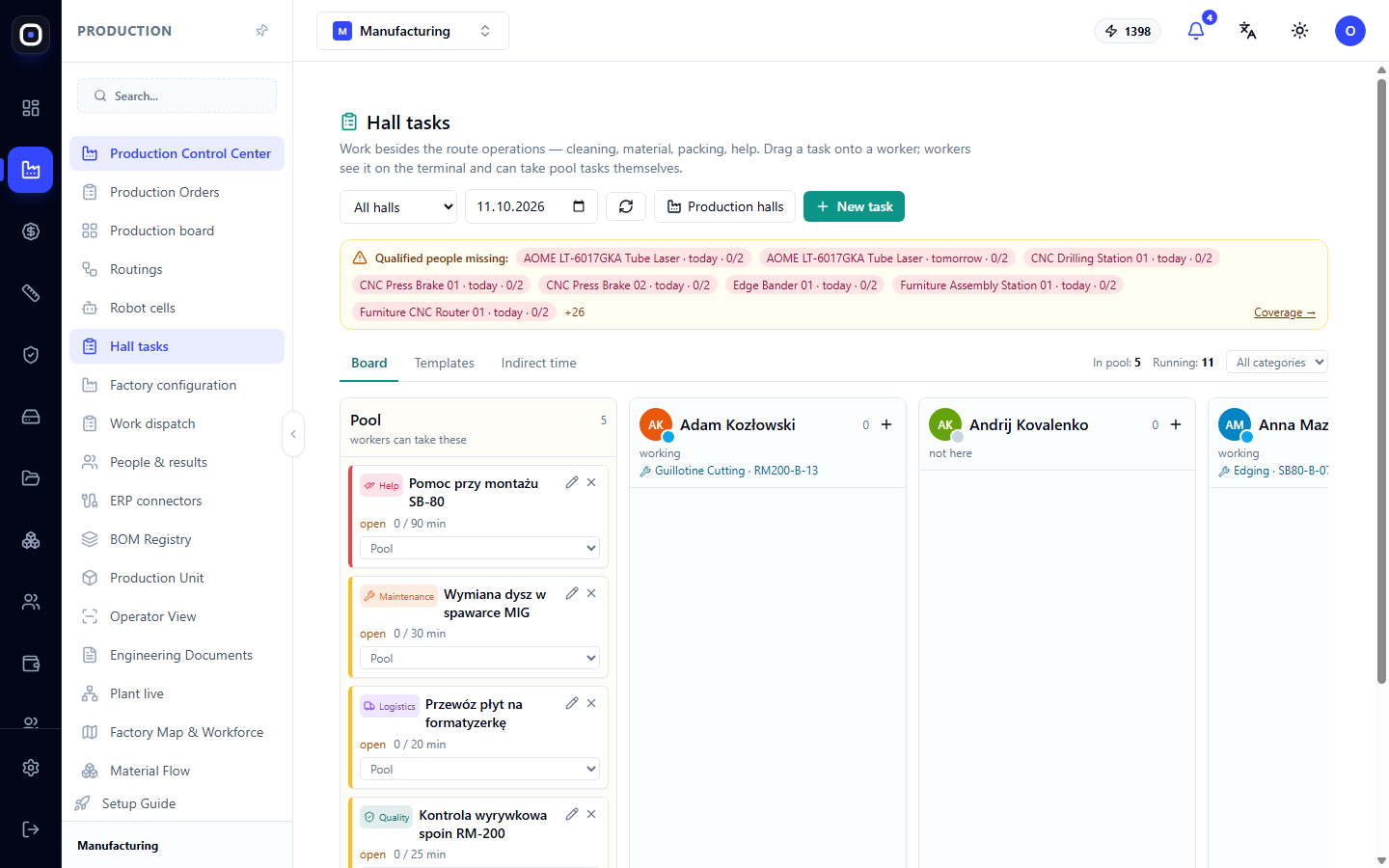
Top section of the page
Shop selection
In the top left, there are buttons with shop names, such as "Furniture," "Metal," and an All Shops button. Select a shop, and only its tasks and personnel will remain on the board.
A foreman assigned to a specific shop only sees their shop. The owner and administrator see all shops.
Two buttons on the right
- Production Shops opens the page where shops are created and assigned foremen, machines, employees, and terminals.
- New Task creates a task. More on this below.
"Missing qualified personnel" warning
Below the buttons, a yellow "Missing qualified personnel" block might appear. It lists machines for which there aren't enough people with the required qualifications for today or tomorrow, e.g., "CNC Press Brake 01 · today · 0/2". This means two people are needed, but no qualified personnel are on shift.
If there are many lines, a "+26" indicator might appear at the end. The Coverage → link opens the full picture: who can operate which machines and where the gaps are.
This block is not directly related to tasks, but it's here for a reason. The foreman assigning work should be the first to see that no one will be at the bending machine tomorrow.
Three tabs
- Board — the main view with tasks and people.
- Templates — recurring scheduled tasks.
- Indirect Time — a report on how much time was spent on such work.
"Board" tab
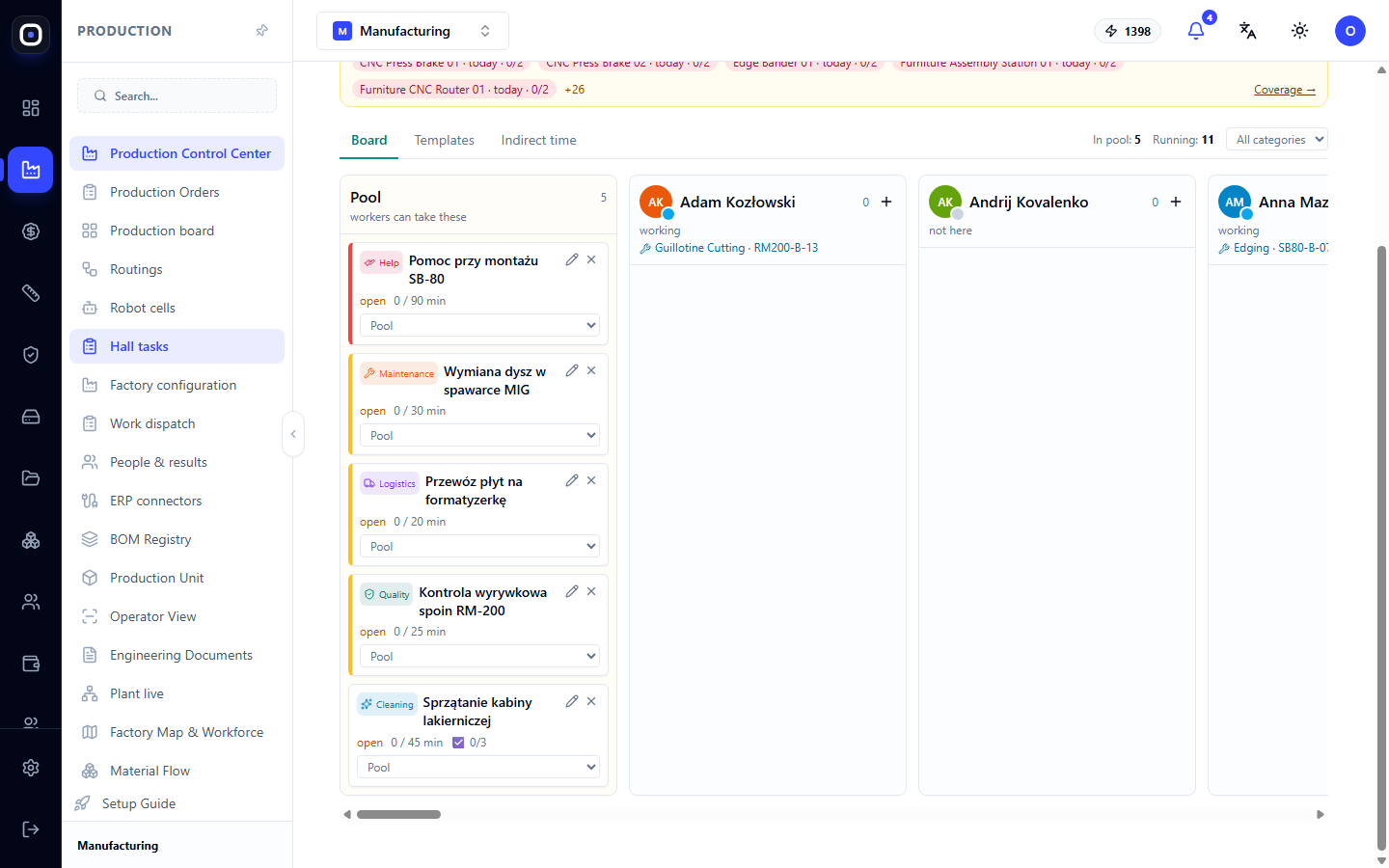
Above the board, there are two counters: In Pool (how many tasks are awaiting assignment) and In Progress (how many are currently being worked on).
Below that is a filter by categories: Cleaning, Material, Logistics, Packing, Maintenance, Quality, Assistance, Other. The All Categories button removes the filter.
Pool
The first column on the left is Pool. This is where open tasks that haven't been assigned to anyone yet reside. Below the heading, there's a hint "employees can pick up tasks themselves": if the corresponding factory rule is enabled, employees see these tasks on the terminal and can pick any of them using the "Take" button.
Task card
Each card shows:
- category, e.g., "Assistance" or "Maintenance";
- title — what needs to be done;
- status, e.g., "open";
- time in "0 / 90 min" format: how much time has been spent and how much is planned;
- the "Assign to" list, used to assign tasks to a person.
Employee columns
After the pool, there's a column for each employee in the shop. The column shows if the person is present, if they are currently working, what they are doing, their workload, and how much indirect time they have accumulated for the day.
How to assign a task
There are two ways, with the same result.
- Drag and drop the card from the pool to an employee's column.
- Select a person from the "Assign to" list on the card. This method is convenient on a phone where dragging is difficult.
To unassign a task, drag the card back to the pool.
The employee will see the task on the shop terminal or their phone immediately after assignment.
New Task
Click New Task and fill in:
- what to do — brief and specific: "Replace nozzles on MIG welding machine," not "maintenance";
- category;
- priority;
- planned minutes;
- machine, if the task relates to specific equipment;
- due date;
- checklist, if the task consists of several items. The employee won't be able to click "Done" until the checklist is completed.
The new task will appear in the pool.
"Templates" tab
Some work repeats daily or weekly: end-of-shift cleaning, gas level checks, waste removal. To avoid creating such tasks manually, save them as a template.
In a template, you set the same details as for a task, plus days of the week and time. After this, the task will be created automatically according to the schedule and placed in the pool.
"Indirect Time" tab
A report by employees and categories for the selected period. It shows how much working time was spent not on route operations, but on everything else.
This is useful for two reasons. First, it provides a realistic picture: if a third of the shop's time goes to logistics, it's worth reviewing material placement. Second, a person who spent half a shift helping a colleague doesn't appear in reports as if they did nothing.
Whether task time counts as working time is determined by the factory rule "Time on tasks is working time."
What the employee sees
On the kiosk or phone, after logging in with a card or PIN, the employee sees a "Tasks" block:
- My Tasks with "Start," "Pause," "Done" (with checklist), "Cannot do" (with mandatory reason), and "Return" buttons;
- Available to take — open shop tasks with a "Take" button;
- Report need — the employee can write what's missing, e.g., "out of 40x40 pipe." Such a message becomes an open task for the foreman.
Factory rules affecting the board
Four rules are set for the entire factory on the production shops page:
- Work between shops. Disabled by default: tasks cannot be assigned to employees from other shops.
- Employees take tasks themselves. Open tasks are visible on the terminal with a "Take" button.
- Employees report needs. Enables the "Report need" block.
- Time on tasks is working time. Time is counted in the "indirect work" category.
Until any shops are created in the factory, there are no restrictions: everyone sees everything.
Typical foreman workflow
- Open Production → Shop Tasks at the start of the shift.
- Select your shop.
- Review the "Missing qualified personnel" block and decide who will cover the gaps.
- Review the pool and assign tasks to people.
- Throughout the shift, add new tasks using the New Task button.
- At the end of the week, open Indirect Time and see how time was spent.
Frequently Asked Questions
How does a shop task differ from a route operation?
A route operation relates to a specific part and moves an order towards completion. A shop task is not related to a part: it's cleaning, material handling, assistance, or maintenance.
Employee doesn't see the task on the terminal
Check three things: whether the task was assigned specifically to them, whether they belong to the same shop, and whether the terminal is assigned to that shop.
Cannot assign a task to someone from another shop
The "Work between shops" rule is disabled. Enable it on the production shops page if people in your factory actually help in neighboring shops.
Employees took tasks from the pool themselves, and I didn't want that
Disable the "Employees take tasks themselves" rule. Then, only the foreman assigns tasks.