APS Planning: How the System Schedules Operations Based on Machine Capacity
Automatic planning considering real capacity, calendars, and material readiness. Plan revisions, five workspace tabs, bottlenecks, and "what if" scenarios.
When you have two orders, you can plan them in your head. When you have twenty orders and thirty machines, it no longer fits in your head: something will inevitably end up on a machine that is busy or undergoing maintenance at that time.
APS planning does this for you. The system schedules operations on machines over time, considering that each machine has limited capacity, its own calendar, and maintenance windows.
Where to Find the Page
In the left menu, open Production → APS Planning. The page address ends with …/erp/production/planning. The APS Plan button on the production board also leads here.
What "Finite Capacity" Means
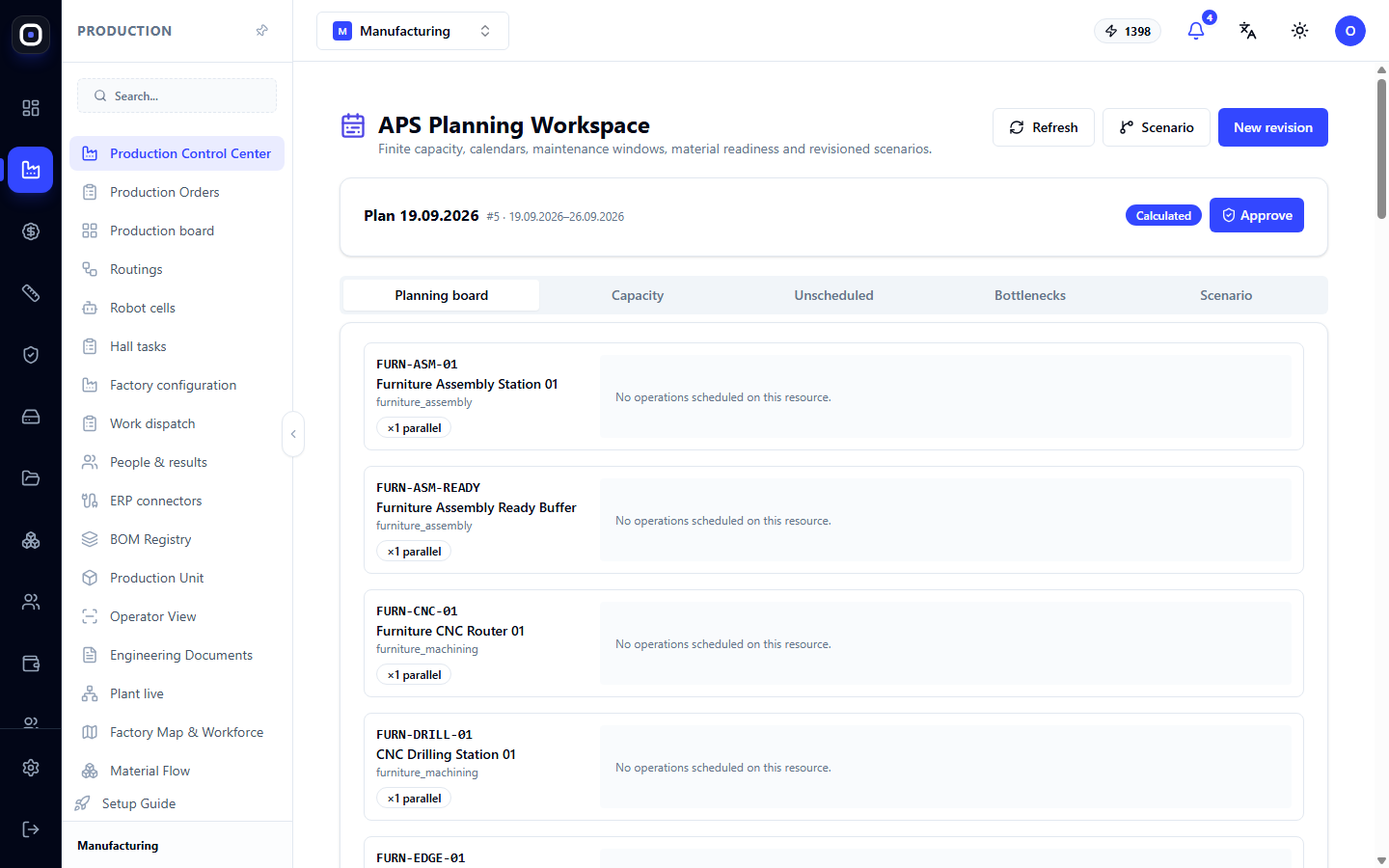
Under the page title, the planning considerations are listed: finite capacity, calendars, maintenance windows, material readiness, and scenarios with versions.
The first concept is the most important. A simple plan calculates like this: an operation takes two hours, due on Friday, so we'll start Friday morning. It doesn't consider that three other operations are already scheduled for the same morning and the same machine.
Finite capacity planning assumes that a machine can only do one job at a time (or as many as it has parallel slots). If a machine is busy, the next operation queues up, and its date shifts. Therefore, the deadlines in such a plan are realistic.
Plan Revisions
The plan is not edited in place. Each calculation is saved as a separate revision. The line below the buttons shows the current revision: its name and number, the period it covers, and its status, for example, "Calculated".
Buttons at the top:
- Refresh — re-read the data;
- New Revision — recalculate the plan from scratch, considering all changes;
- Approve — make the revision active;
- Scenario — create a "what if" variant.
The difference between "calculated" and "approved" is fundamental. A calculated revision is a proposal you are considering. An approved revision becomes the plan by which the factory operates: it is what the Gantt chart on the production board and the "Machine" tab for the operator show.
Old revisions do not disappear. You can always see what the plan was a week ago and why it changed.
Five Tabs
Planning Board
The first tab shows machines one below the other. For each, you can see the code, name, group (e.g., furniture assembly or processing), and how many jobs it can perform in parallel.
To the right of the name is a timeline with scheduled operations. If nothing is scheduled on the machine, it says "No operations scheduled on this resource."
An operation on the board can be locked. A locked operation remains in its place and time even after recalculation. This is necessary when you have already promised a specific day to a client or agreed with a contractor.
Capacity
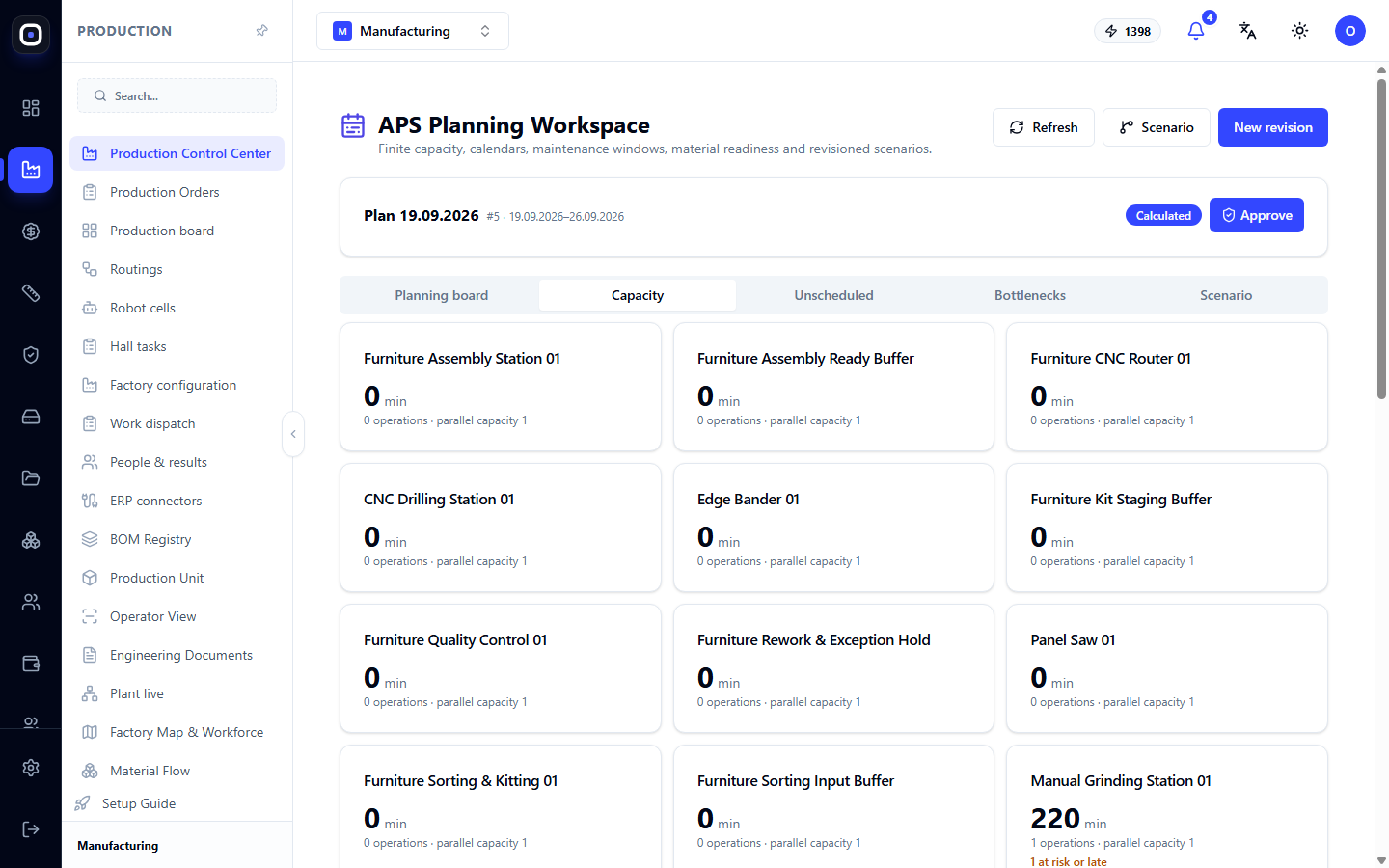
A card for each machine with the number of planned load. Here you can immediately see where capacity is insufficient and where the machine is idle.
If one machine is overloaded and a similar adjacent one is empty, the plan can be balanced by adding the required capability to the second machine.
Unscheduled
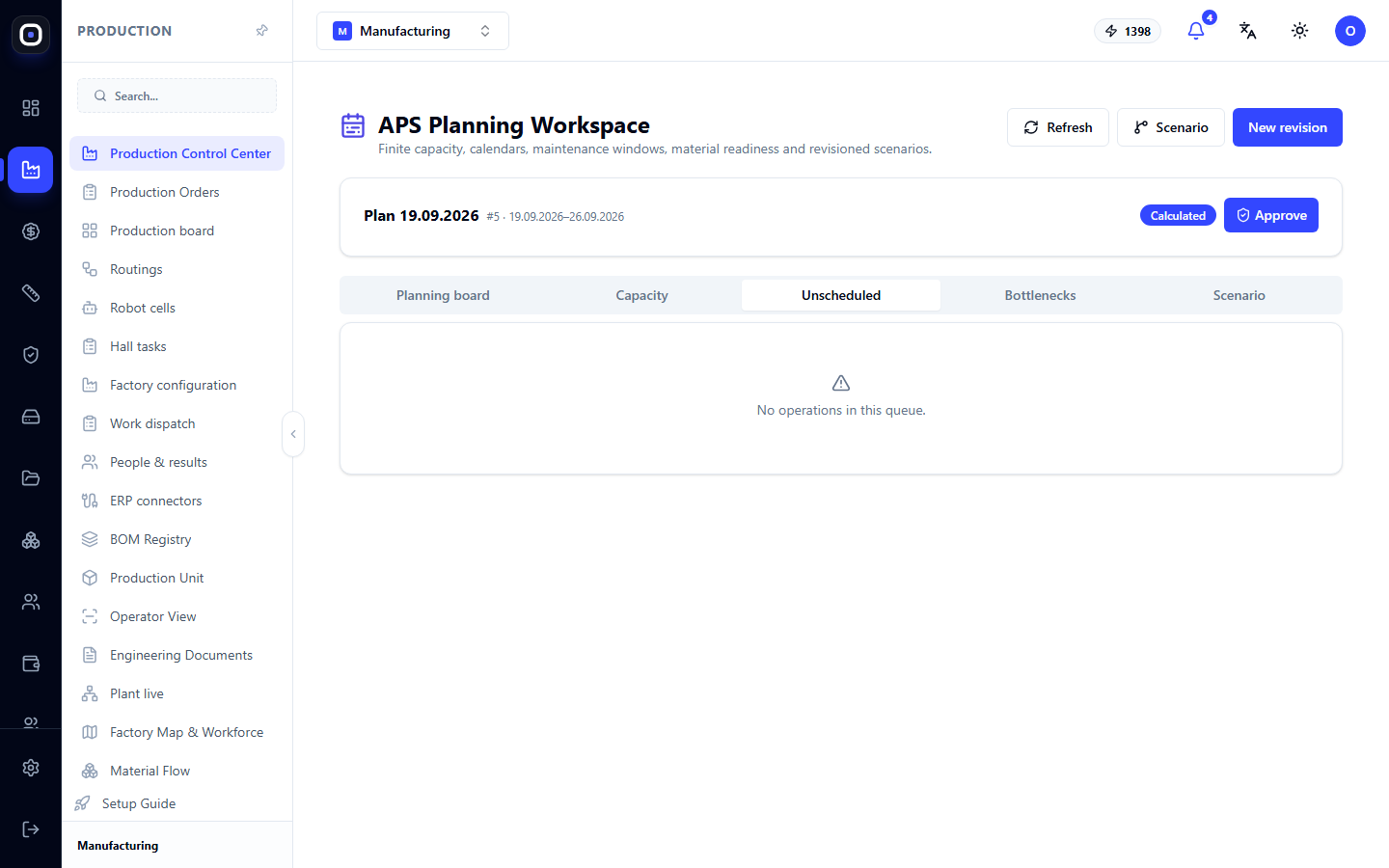
Operations that the system could not include in the plan. The reasons vary: no machine with the required capability, no material, or no time standard specified for the step.
An empty tab is a good sign: everything that needs to be done has its place in the plan.
Bottlenecks
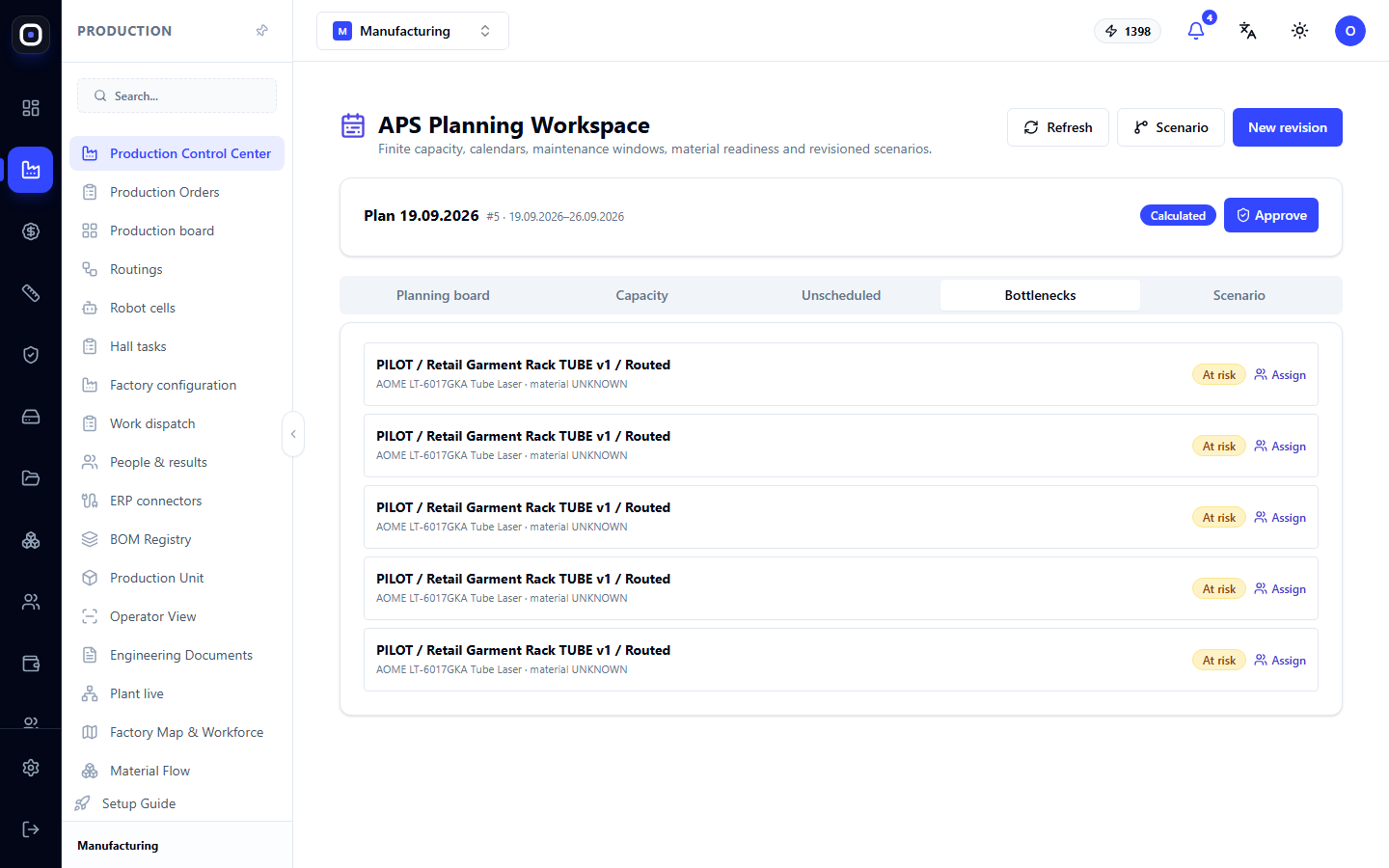
A list of orders and operations that are at risk. Next to each line is a risk indicator, such as "At Risk," and an Assign button, which allows you to manually place the operation on a specific resource.
This tab is for the planner's daily work. If time is short, look at this tab specifically: it shows not the entire plan, but only what requires a decision.
Scenario
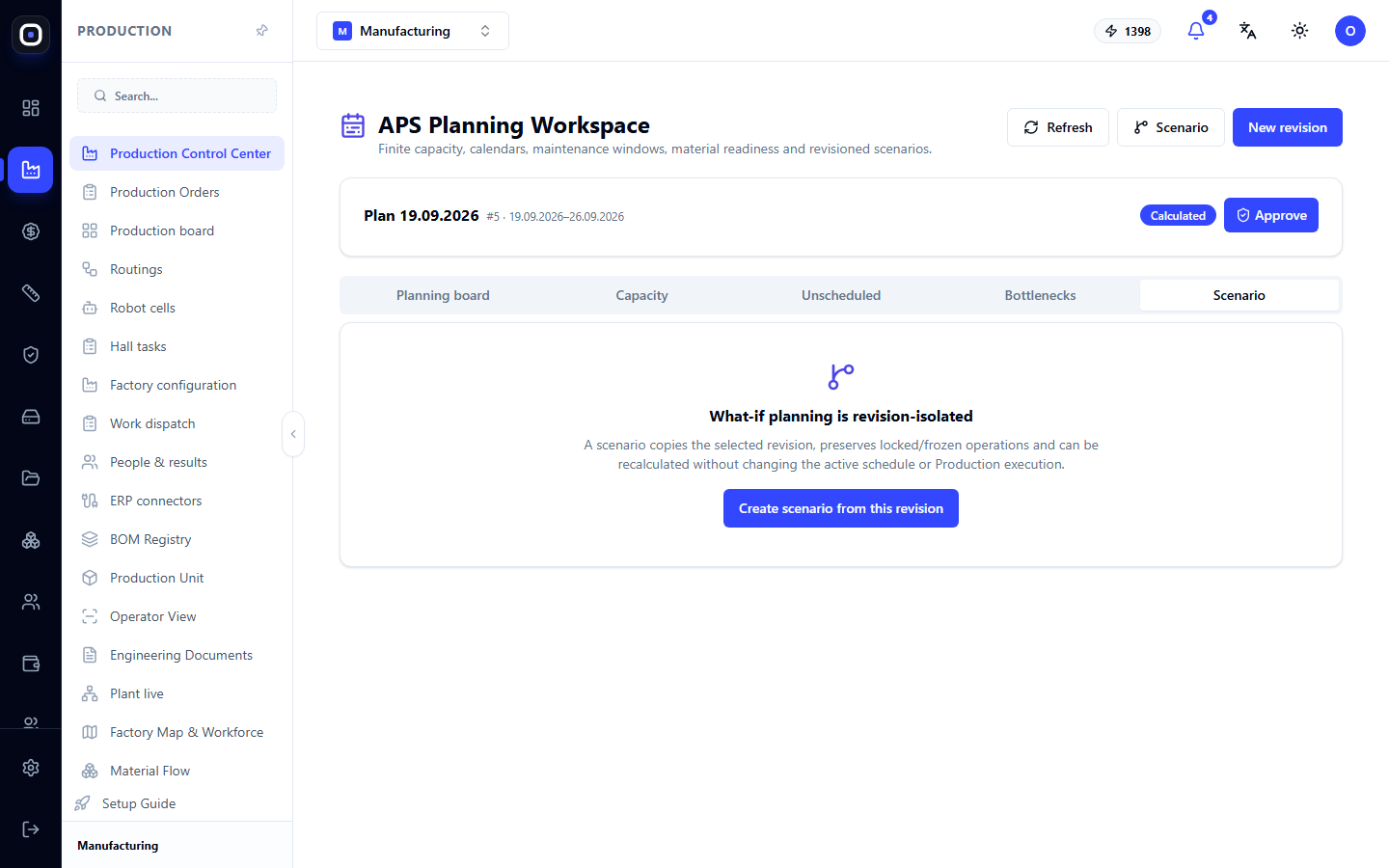
A scenario answers the question "what if." What if we take another urgent order? What if the laser is down for a week for repairs? What if we start a second shift?
A scenario is created from the current revision using the button. It is an isolated copy: you can change anything in it, recalculate, and see the result. The current plan does not change, and the shop floor notices nothing.
If the result is satisfactory, the scenario becomes the basis for a new revision. If not, it is simply left as is.
Where Planning Gets Its Data
Planning is only as accurate as its input data:
- operation duration — from time standards in routings. A step without a standard cannot be planned;
- machines and their capabilities — from the factory configuration;
- calendars — working days and shifts for the machine, department, or shop floor;
- maintenance windows — planned equipment downtime;
- material readiness — from the material flow page;
- people — if the rule "only qualified personnel work on machines" is enabled, the plan assigns only qualified and present personnel to the machine.
Typical Workflow
- Open Production → APS Planning.
- Click New Revision to calculate the plan based on current data.
- Open Unscheduled and eliminate the causes: add standards, capabilities, or material.
- Open Bottlenecks and decide what to do with each risk.
- Lock operations that cannot be moved.
- Click Approve.
- Go to the production board and check the Gantt chart: the approved plan is shown in blue.
Frequently Asked Questions
All machines on the planning board are empty
There are no scheduled operations in the current revision. Most often, the reason is that the routing steps have no time standards, or the orders have not yet been launched. Check the "Unscheduled" tab.
I calculated a new revision, but nothing changed on the production board
The revision is calculated but not approved. Click Approve.
After recalculation, an operation "moved" to another day
It was not locked. Lock operations that must remain in place before calculating a new revision.
How does a scenario differ from a new revision?
A new revision is a candidate for the active plan. A scenario is a sandbox: you can try anything in it without any impact on the factory.
The plan shows that we are behind schedule. What should we do?
Look at the "Capacity" tab: find the overloaded machine. There are three ways forward: add capacity (second shift, another machine with this capability), shift less urgent orders, or honestly inform the client about the new deadline.