ERP Connectors: How to Import Orders from a Client's System
Orders from Business Central or CSV and Excel files are sent for review and only become production order drafts after approval. Learn how to connect a source, map items, and approve imports.
Many manufacturers work on orders for large clients who manage everything in their accounting system. Manually re-entering their orders is time-consuming and risky: one mistake in quantity, and you've made the wrong thing.
The ERP Connectors page automatically imports order lines from a client's system or from a file. However, nothing goes into production automatically: every import is first reviewed by a person.
Where to find the page
In the left-hand menu, open Production → ERP Connectors. The page URL ends with …/erp/production/erp-connectors. The page is available to the owner and administrator.
Main principle: review first
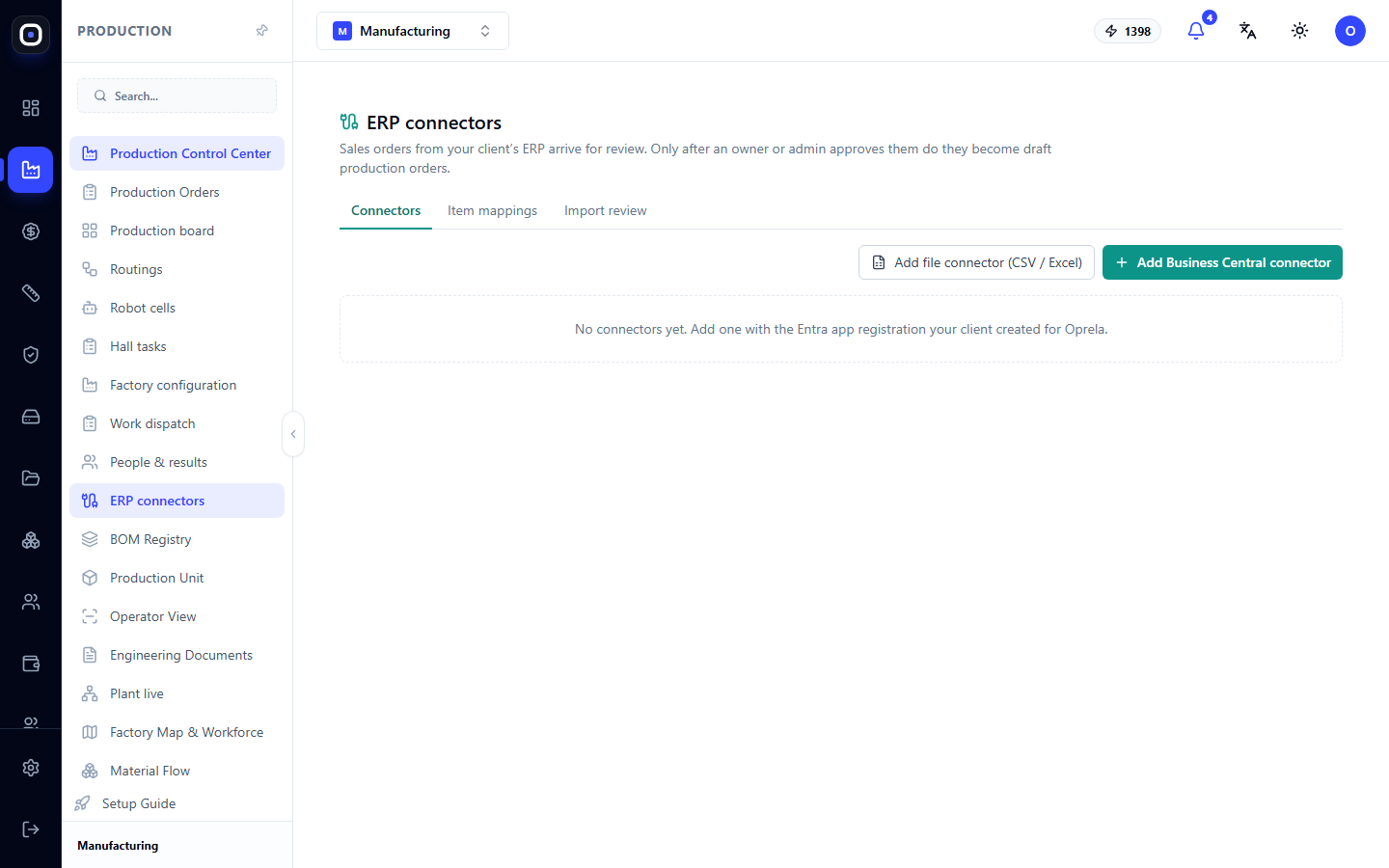
Under the page title, there's a rule that everything else is based on: orders from the client's ERP system are sent for review, and only after approval by the owner or administrator do they become drafts of production orders.
So the path is:
- The connector retrieves order lines;
- You review them on the "Import Review" tab;
- After approval, each line becomes a draft production order;
- The draft is launched into production separately, in the usual way.
There are always two human checks between the client's system and your workshop.
Three tabs
- Connectors — sources from which orders are received.
- Item Mapping — how the client's items are named in your system.
- Import Review — what has been received and what to do with it.
Two connection methods
On the "Connectors" tab, there are two buttons.
- Add Business Central connector — for clients using Microsoft Dynamics 365 Business Central. The system automatically retrieves new and changed orders.
- Add file connector (CSV / Excel) — for any system from which a file can be exported: Symfonia, Comarch, Insert, or a regular spreadsheet.
If there are no connectors yet, the page will state this and offer to add the first one.
Business Central connector
Before connecting, the client must prepare two things on their side:
- Application registration in Microsoft Entra ID: organization ID, application ID, and secret;
- Access for this application within Business Central. Without the second step, the connection will not work, and this is the most common reason for a failed first attempt.
Then click Add Business Central connector and enter the organization ID, environment, company ID, application ID, and secret. The secret is stored encrypted. After saving, it is no longer visible, so an error is corrected by entering a new one.
What the connector can do:
- Import now retrieves orders that have changed since the previous import. If the import was interrupted, the next one will continue from the same point, and nothing will be lost.
- Check deleted orders finds orders that the client has deleted on their side. Your production orders are not automatically canceled in this case. They are only marked, and you make the decision.
- Send statuses transmits the production status back to the client. Standard Business Central does not have a field for such a status, so the client must add it. Specify where this field is and what value to write for each status. First, test it in a test environment.
Automatic scheduled import is enabled by the Oprela team during connection.
File connector
Click Add file connector and upload one sample file. Based on this, you explain to the system once how to read files from this client.
- Source key — a short Latin name, for example
symfonia. It cannot be changed later, so choose a clear one. - Encoding. Polish programs often save files in windows-1250. If you see strange characters instead of "ą" or "ł", change the encoding.
- Delimiter, decimal separator, date format — as in the client's file. For example, semicolon, number "1234,5", date "DD.MM.YYYY".
- Columns. Specify which column contains the order number, line number, item code, and quantity. These four are mandatory. You can also specify the deadline, unit of measure, and client.
- Line type. If the file contains comments or services, specify the value that identifies an item. The remaining lines will be skipped.
At the bottom, you can see how many orders and lines have been read from the sample. If the numbers match what's in the file, the settings are correct.
Then each new file is uploaded using the Upload file button. Three safeguards are in place:
- If even one line cannot be read, the import is completely blocked, and errors are shown with the line number;
- The same file is not imported a second time;
- A line that is not in the next file is not considered deleted.
The Export status file button provides a file with production statuses for each line. The client imports it into their system.
"Item Mapping" tab
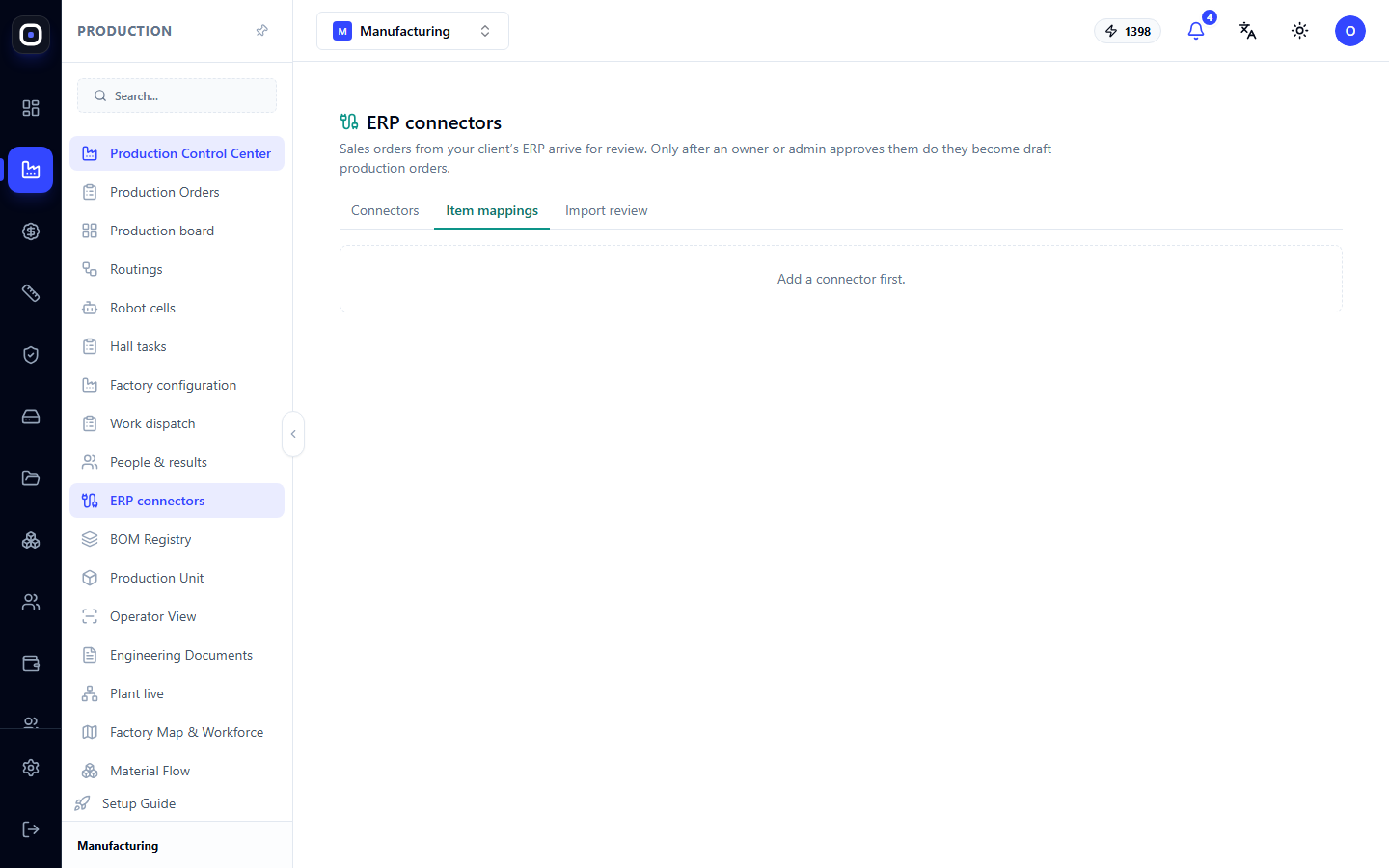
The client names items in their own way, and you in yours. Mapping matches one to the other. For each item from the client's system, specify one of two options:
- manufactured to order — and which product it is in your system;
- not manufactured — the item is purchased or from stock.
A line with an unmapped item will be blocked until reviewed. This is intentional: the system does not guess what an unknown code means.
"Import Review" tab
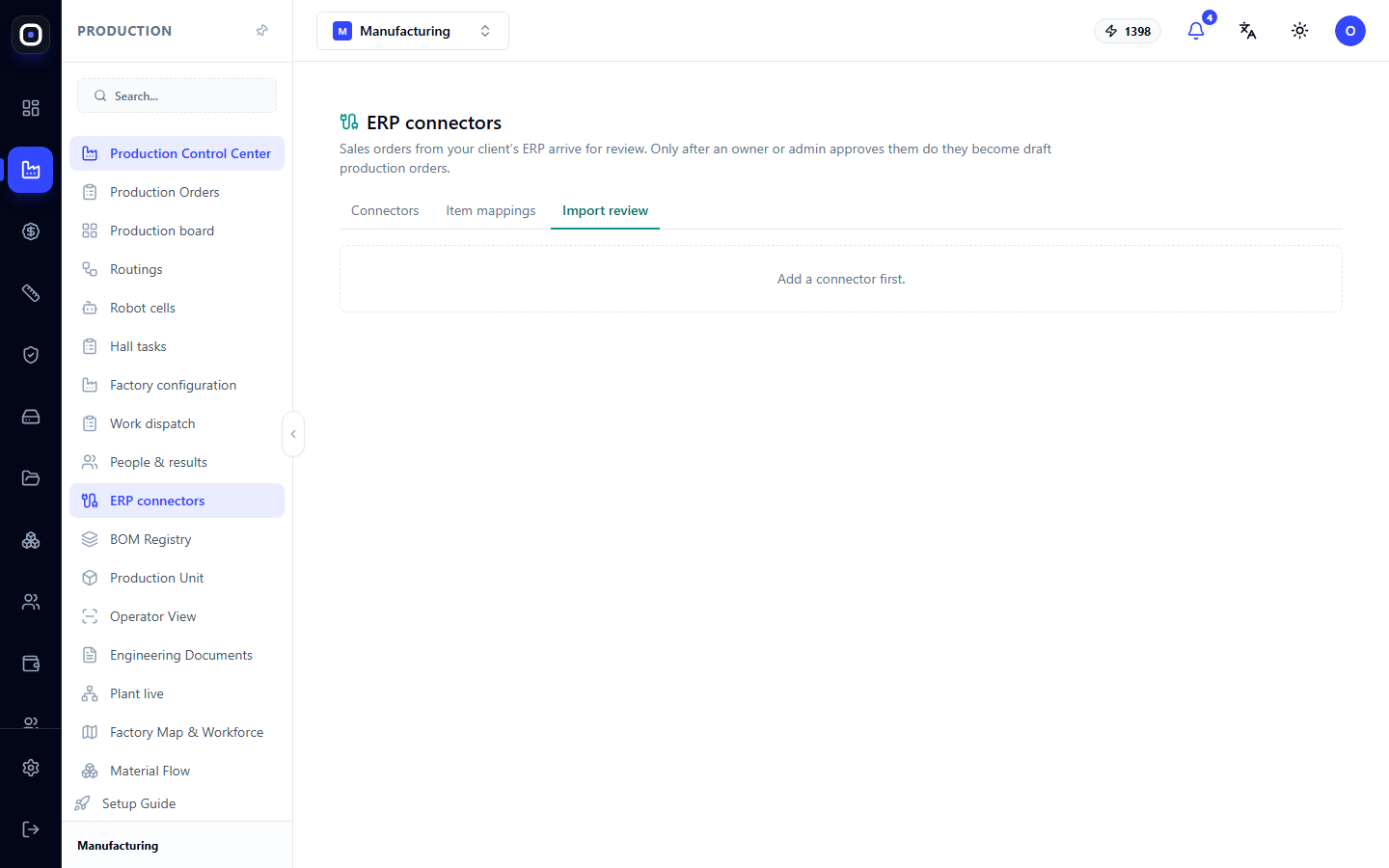
Each import shows its lines with one of two statuses:
- ready — the line can be approved;
- blocked — next to the line, it says what needs to be done.
A blocked line is resolved in one of two ways: either the cause is eliminated (e.g., item mapping is added) and Check again is clicked, or the line is rejected with an explanation of the reason.
The Approve and create orders button becomes available only when no lines are blocked. Approval creates draft production orders, and a link to its order appears next to each line.
If the client changed an order after approval
This is the most delicate situation, and the system handles it carefully.
If a line changed in the client's system after a production order has already been created from it, Oprela does not create a second order and does not modify the existing one. The new version of the line appears as blocked.
You decide what to do with the existing order: change the quantity, cancel it, or leave it as is. After that, you reject the blocked line.
This avoids two dangerous scenarios: when the workshop silently makes the old quantity, and when two orders for the same thing are in progress.
Typical workflow
- Open Production → ERP Connectors.
- Add a connector: Business Central or file-based.
- On the Item Mapping tab, match the client's items with your products.
- Import orders using the Import now button or upload a file.
- On the Import Review tab, resolve blocked lines.
- Click Approve and create orders.
- Go to production orders and launch the drafts into production.
Frequently Asked Questions
Connection to Business Central is not working, even though the data is entered correctly
Most often, the application has not been granted access within Business Central itself. Registration in Microsoft Entra ID is not enough: both steps are required.
In the file, instead of Polish letters, there are strange characters
Change the connector's encoding to windows-1250.
The "Approve and create orders" button is inactive
There are blocked lines in this import. Resolve or reject each one.
The client deleted an order. Will it disappear from our system?
No. It will only be marked. You decide whether to cancel it or not.
Do imported orders go directly to the workshop?
No. After approval, they become drafts. A draft is launched into the workshop separately.