Bending Operator Center: Bend Sequence for a Sheet Metal Part
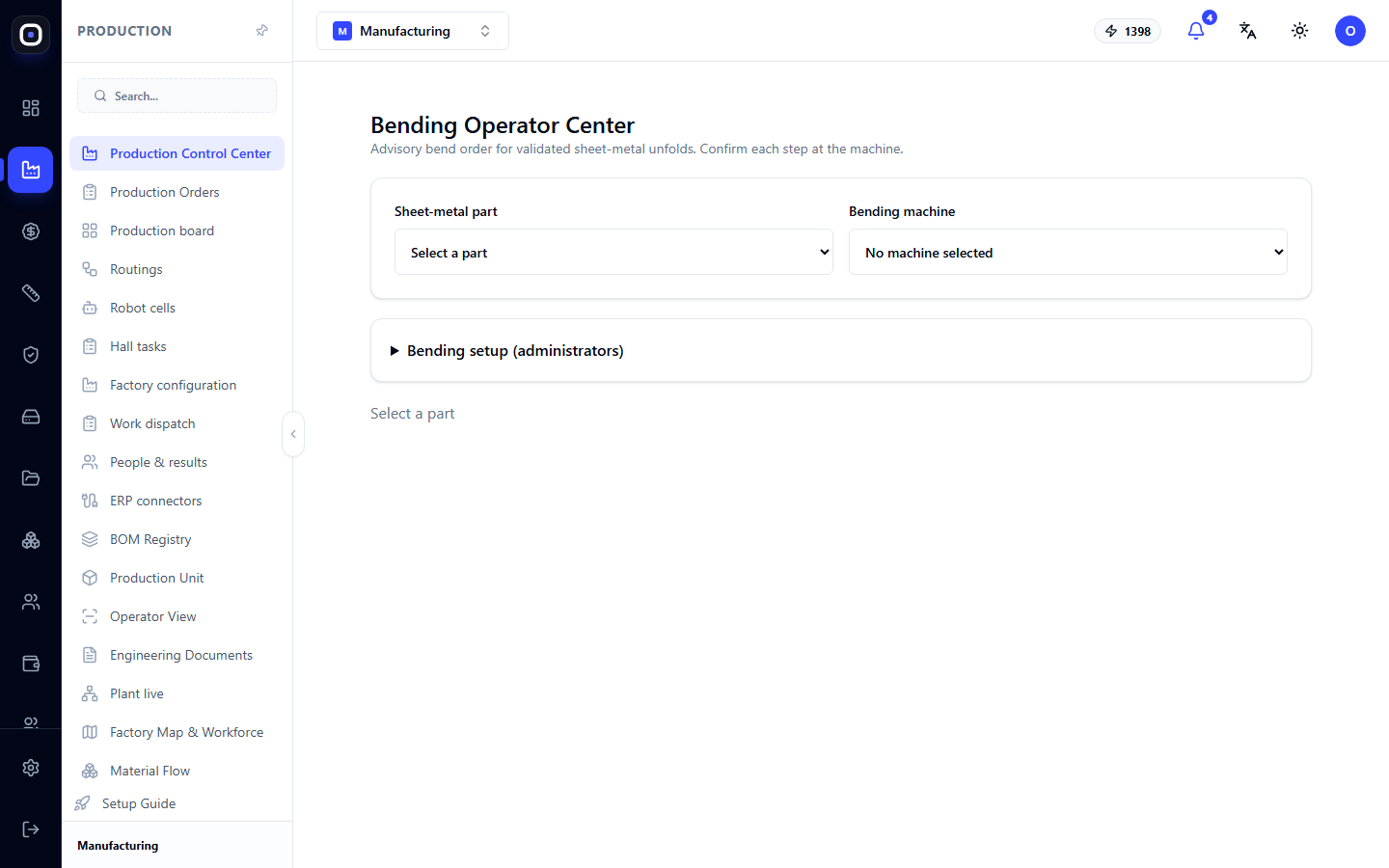
Screen for the sheet metal bending machine operator: part and machine selection, recommended bend sequence for a validated flat pattern, flat pattern file, and confirmation of each step.
A bent part starts as a flat blank. It is cut according to a flat pattern and then bent in several steps. The order of bends matters: if you start incorrectly, the next bend might collide with an already bent flange or the machine itself.
The Bending Operator Center suggests this order. The page title states its purpose: a recommended sequence for validated sheet metal flat patterns, with each step confirmed on the machine.
Where to find the page
The page opens at an address ending in …/erp/production/bending-center. From the Foreman Cockpit, the Bending button leads here: it opens selected parts one by one.
Two initial choices
At the top of the page are two lists.
Sheet Metal Part
The list displays the bent parts in the workspace. Each name has a status:
- Validated — the flat pattern has been checked and can be bent;
- Not validated — the flat pattern has not yet been checked.
The difference is fundamental. A flat pattern is a calculation: the system takes a bent part and "unbends" it, considering metal thickness and bend radius. If the calculation is incorrect, the cut blank will not be the correct size after bending. Therefore, the flat pattern is checked first, and only for a validated one does the center offer a sequence.
Choose a part with the "Validated" status. For an unvalidated part, you must first go through flat pattern validation in the engineering section.
Bending Machine
The second list contains machines that can perform bending. The sequence depends on the machine: different presses have different lengths, forces, and tool sets. Therefore, the machine is selected before planning.
After selection
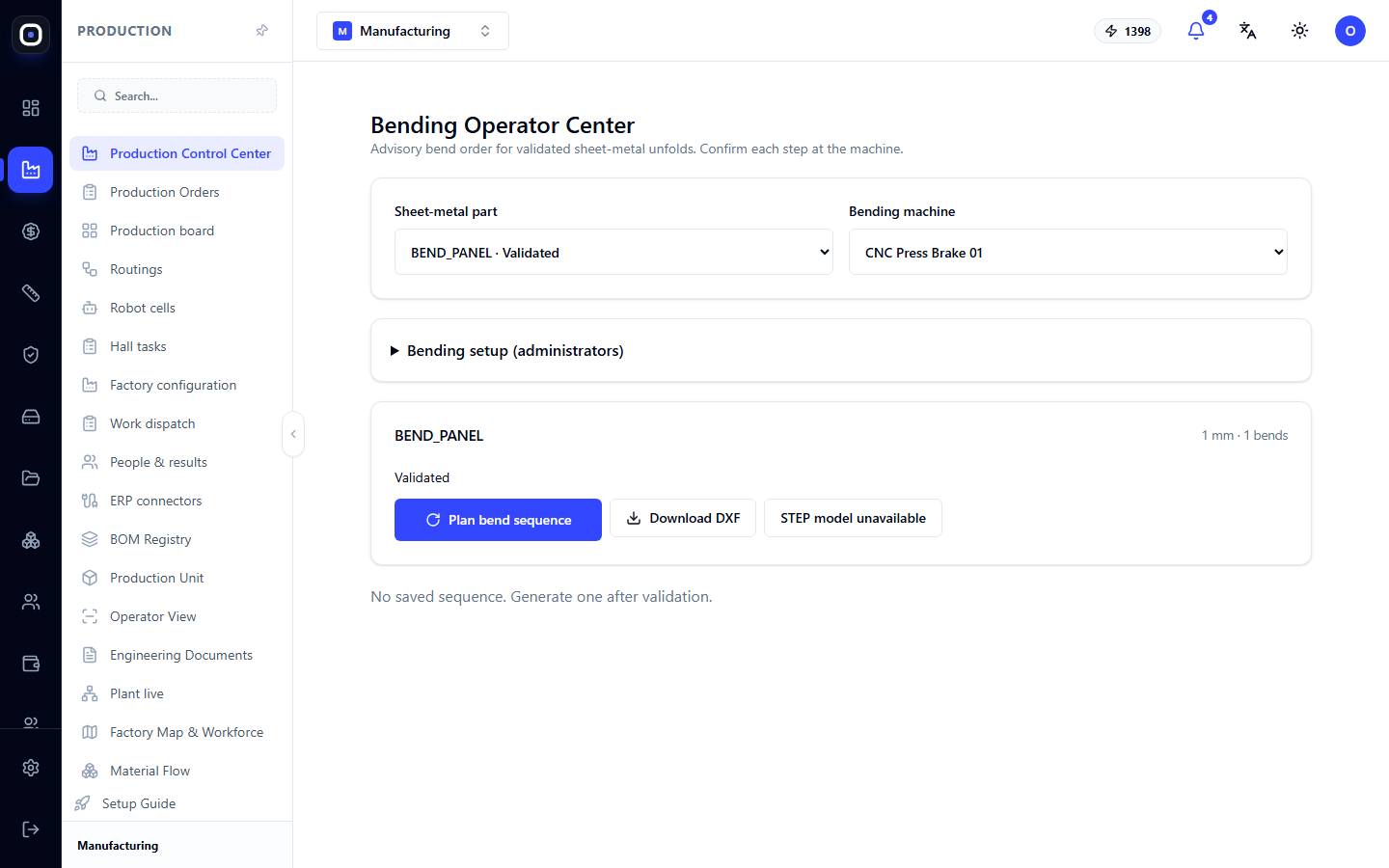
Once the part and machine are selected, a part card appears below. It shows:
- the part name;
- metal thickness and number of bends, for example, "1 mm · 1 bends";
- flat pattern status.
Three buttons on the card:
- Plan Bending — calculate the bend sequence for this part on the selected machine;
- Download DXF — get the flat pattern file. This is opened by the cutting machine's software;
- STEP-model button. If it says "STEP-model unavailable," there is no 3D model for this part.
Below the card, there might be a message: "No saved sequence. Create it after validation." This means that bending for this part has not yet been planned.
Bend sequence
After planning, the center displays the bends in order. For each step, it indicates which line to bend, at what angle, and in which direction.
The operator performs the step on the machine and confirms it in the system, then moves to the next. Confirmation is not a formality. It ensures that no bend is missed, and if work is interrupted, the next shift sees where it stopped.
If several parts are transferred from the Foreman Cockpit, the center guides the operator through them one by one: "Part 2 of 5," then the Next button.
Bending settings
Between the lists and the part card, there is a collapsed block "Bending settings (administrators)". It is available to administrators and contains parameters that affect the calculation: machine and tool data.
The operator does not need to touch this block. If the sequence looks strange for your machine, tell the technologist: perhaps the machine parameters are specified inaccurately.
How it relates to the rest of the system
- Flat patterns are built and validated in the engineering section. Without validation, the bending center will not offer a sequence.
- Nesting uses the same flat pattern to arrange blanks on a sheet. A bent part cannot be nested on a sheet until it is unbent.
- Operator View shows a link to bending instructions for bent parts.
- Routings determine that after cutting, the part goes specifically to bending.
Typical workflow
- Open the Bending Operator Center or navigate here from the Foreman Cockpit.
- Select a part with the Validated status.
- Select your bending machine.
- Click Plan Bending if no sequence exists yet.
- Perform the first bend and confirm the step.
- Repeat until the last bend.
- Move to the next part using the Next button.
Frequently Asked Questions
The required part is marked "Not validated"
Its flat pattern has not yet been checked. Contact the technologist: validation is done in the engineering section.
It says "No saved sequence"
Bending for this part has not yet been planned. Select a machine and click Plan Bending.
After bending, the part is the wrong size
Most likely, the flat pattern was calculated with inaccurate parameters: different metal thickness or tool radius. Document the defect and inform the technologist to check the flat pattern.
Why confirm each bend?
To ensure nothing is missed and to see where you stopped after an interruption.
Can I bend on a different machine than the one selected?
Yes, but the sequence should be planned again specifically for that machine: machines have different capabilities.