Users and Roles
The Team & Permissions page is where the owner or administrator invites employees and assigns them roles that determine which modules of the production workspace they can see.
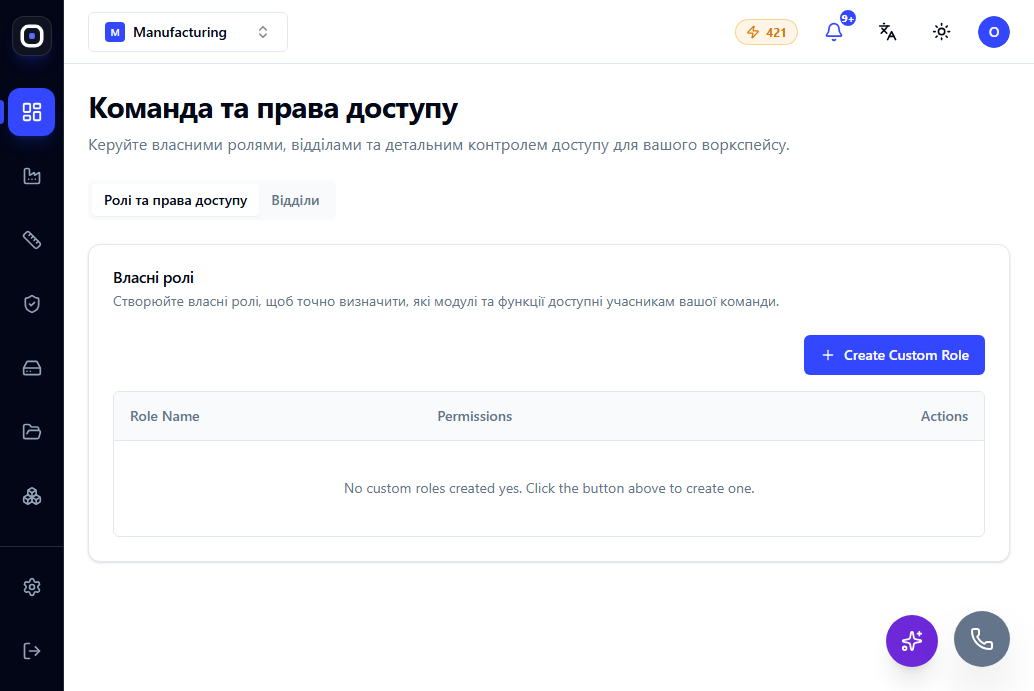
Page: Team & Permissions (/team-permissions)
Inviting a User
A new employee is added via an email invitation. Until the invitation is accepted, the account does not have access to the workspace; after acceptance, it receives the role assigned during the invitation (which can be changed later).
Assigning a Role
The platform's basic roles (owner, admin, member, child) define the general access level – a detailed breakdown is described in Roles and Access. For a production workspace, the typical practice is to assign member to most full-time employees (engineers, planners, operators, QA), leaving owner/admin for management.
Terminal Accounts
For shared shop floor workstations (scanner/screen for multiple shifts), a technical terminal role is used instead of each operator's personal login – see Operator View.
Module-based Restrictions, Not Just Role-based
It's important to understand: some sections (Production, Engineering, Quality) are additionally restricted at the workspace vertical level (restrictedToVerticals), regardless of the role. Even an owner will not see these sections in a workspace with a different vertical profile. Conversely, in a Manufacturing workspace, these sections are available to any user with a sufficient role.
Access Review
Periodically review the list of active users and their roles on this page – especially after changes in team composition or shop floor structure. For auditing user actions, see Audit Logs (/audit-logs), available to the owner and administrator.