Factory Calculator: Your Own Way to Price, Just Like Your Spreadsheet
A complete guide: what the calculator consists of, how to read and write cost lines, rate tables, order questions, Excel-like formulas, checking against known prices, and safe activation.
Almost every factory has its own spreadsheet for calculating prices. It contains years of experience: a complexity coefficient, a surcharge for urgent orders, a minimum batch cost, a special rate for stainless steel. No standard formula knows any of this.
The "Calculator" section brings this logic into the system. You describe the price using lines and formulas, just like in Excel, and the system inserts measured product data into them: weight, cut length, number of bends, painting area.
This article explains everything in order: what's on the screen, what each field means, how to read existing formulas, how to write your own, and how to enable the calculator without breaking anything.
Key Takeaways
- A calculator is a set of lines. Each line calculates one component of the price: material, labor, painting, delivery, margin.
- Each line is a formula. It takes numbers from the product, from your rate tables, and from answers to order questions.
- The price is the sum of the lines. Optionally, you can set your own total formula: rounding, minimum amount.
- Nothing is hardcoded. Any number and any line can be changed, added, or removed.
- Changes are safe. As long as the calculator is in draft mode, real prices do not change. Activation is a separate, conscious step that can be undone.
Where to Find It
Open Costing Studio (Pricing menu) and click the Calculator section.
If there is no calculator yet, you will see the message "No calculator yet" and buttons to get started.
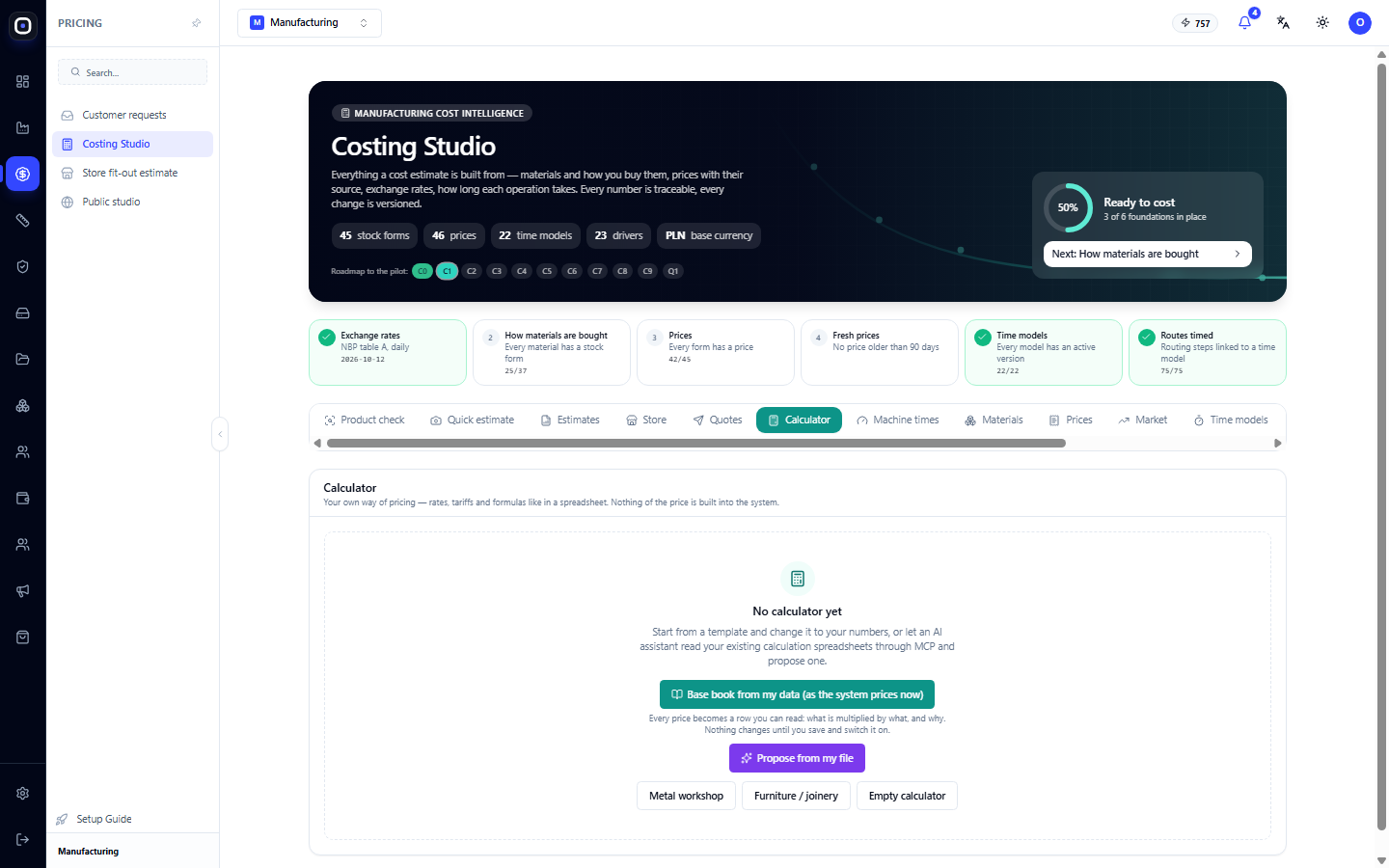
Only owners and administrators can modify the calculator. Others see it as read-only.
Calculator vs. Built-in Engine: What's the Difference?
The system can calculate product prices in two ways.
- Built-in engine. Ready-made calculation: material by weight, labor by the average cost per part from your past calculations, painting by area, losses, overheads. Works immediately, no setup required.
- Your calculator. The same product data, but your formulas. You decide which lines exist, what multiplies what, and under what conditions.
Below the calculator title, it always states how products are currently being calculated: "Designs are priced with the built-in engine" or "Designs are priced with this calculator".
When to choose the calculator:
- You have a trusted methodology, and prices should match it.
- There are rules that standard calculation doesn't know: minimum amount, surcharges, distance-based delivery, installation.
- You want to see and control every coefficient.
If there is no established methodology, start with the built-in engine. The calculator can be created later.
How to Start: Four Paths
1. Basic Book from My Data
The "Base book from my data (as the system prices now)" button creates a calculator that calculates the same way as the built-in engine, but broken down into lines.
What is automatically included:
- Loss percentage, material yield from sheet and tube, overheads, and margin — from the "Rates & policy" section.
- Cost of labor per part and painting per square meter for different series sizes — from your own past estimates.
- Material prices — from your purchase prices.
If some data is missing, the system sets a starting value and adds a note: "System's starting value - replace with your own when you know it."
This is the safest way to start. You see how the system calculates now and only change what you disagree with. The basic book is shown in the screenshots in this article.
2. Suggest from My File
The "Propose from my file" button opens a window where you upload the spreadsheet you currently use to calculate prices: Excel, LibreOffice, or CSV.
How it works:
- Select the file.
- Mark the sheets that are part of the price. Uncheck unnecessary ones, otherwise the file might be too large.
- In the hint field, write what's important to know. For example: "net prices" or "the Offers sheet contains past orders with the final price in column K."
- Click "Propose". Reading can take several minutes.
- Read what the AI says about the draft and click "Open the draft in the editor".
The AI reads rates, tariffs, and formulas and rebuilds them into a calculator. If the file contains past orders with a final price, it checks the draft against them. The "Also save these orders to check the calculator against" checkbox adds them to the known price check.
Important:
- This action uses the workspace's AI credits.
- The suggestion opens unsaved, with the "proposed by AI" label.
- It needs to be carefully checked on several real products before activation.
3. Industry Template
Two ready-made templates with a typical calculation structure.
- Metalworking: material, purchased parts, laser cutting, bending, tube cutting, welding, bolts and rivets, powder coating, delivery, customer visit, installation, overheads, margin.
- Furniture / Joinery: panels, fittings and handles, CNC cutting, edge banding, workshop assembly, delivery, customer assembly, margin.
The numbers in the template are conditional. Replace them with your own rates.
4. Empty Calculator
Contains only a rate table, a material line, and a margin line. You add everything else yourself. Requires the most time but gives full control.
Screen Layout
When the calculator is open, the screen is divided into two parts.
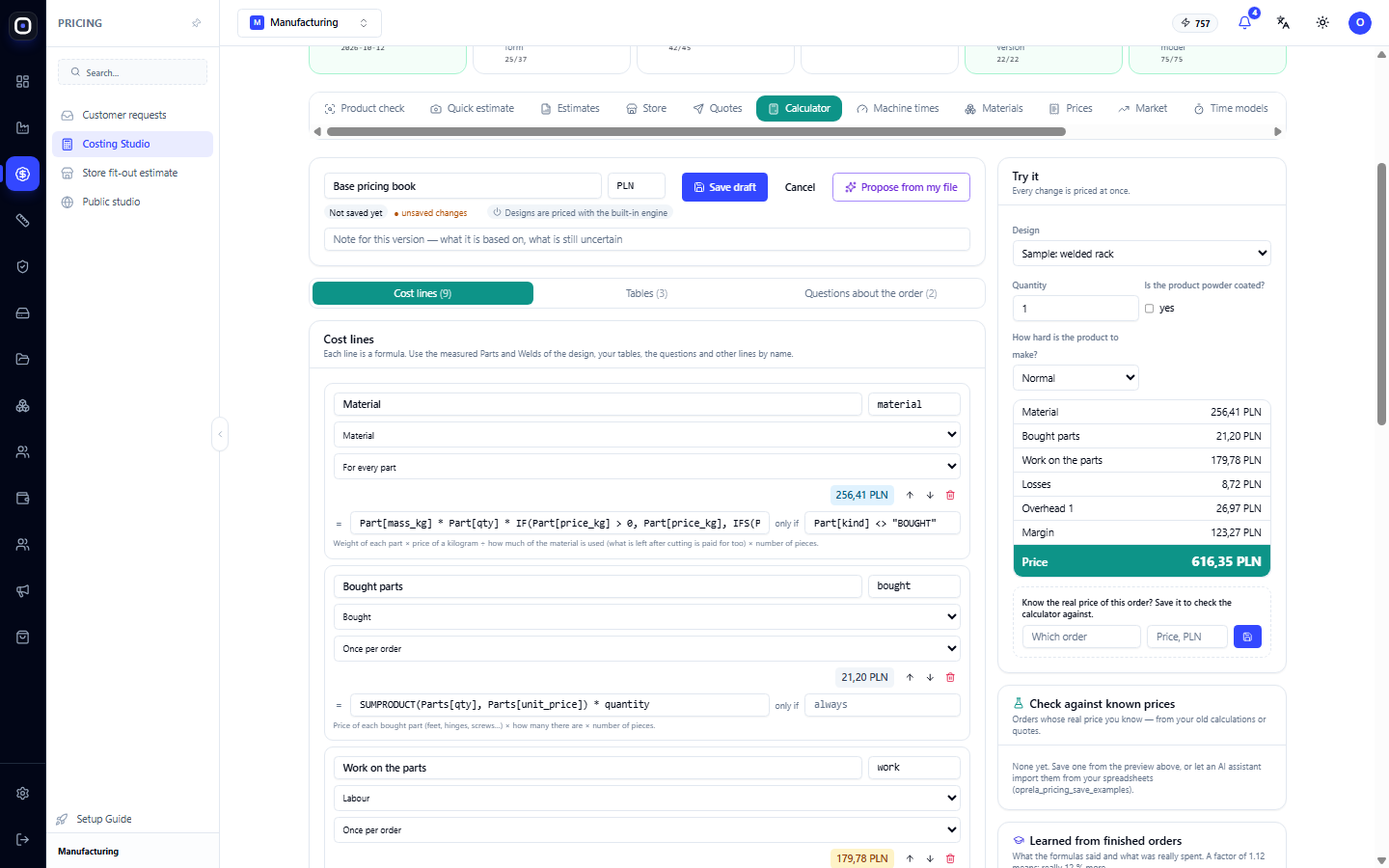
On the left — the calculator itself:
- Title. Calculator name, currency (three letters, e.g., PLN), version status, save and activate buttons, version note field.
- Three sections. "Cost lines," "Tables," "Questions about the order." The number in parentheses shows how many there are.
- Help. Collapsed block "What formulas can use."
On the right — verification:
- "Try it." Live calculation using a product example. Recalculates after every change.
- "Check against known prices." Orders whose real price you know.
- "Learned from finished orders." Adjustments from actual costs.
- "Let an AI set it up." A hint on how to delegate configuration to the AI assistant.
Status Indicators in the Title
- "Not saved yet" — the calculator only exists on your screen.
- "Draft v2" — saved draft of the second version. Does not affect prices.
- "Active v1" — the version the system uses if calculator mode is enabled.
- "active: v1" — shown next to the draft: reminds you which version is currently active.
- "● unsaved changes" — you have made changes and not saved them.
- "2 problems" — there are errors in the calculator. A list of them appears below in red.
Cost Lines
A cost line is one component of the price. Each line is shown as a separate card.
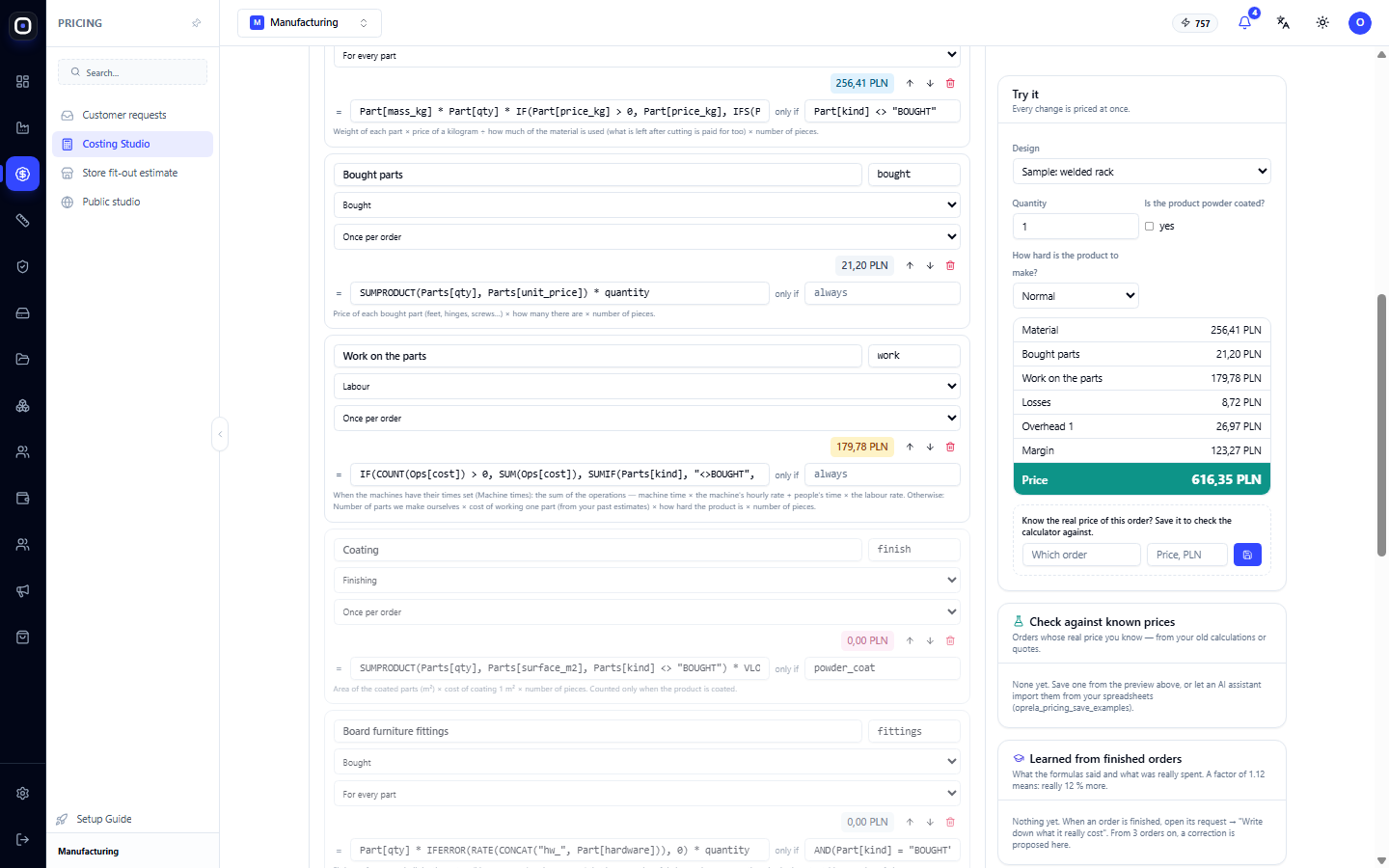
Line Fields
- Name. What the user sees: "Material," "Laser Cutting," "Delivery."
- Name in formulas. Short name in Latin or Cyrillic without spaces:
material,work,delivery. Other lines refer to the sum of this line by this name. The name must be unique, start with a letter, and can contain letters, numbers, underscores, and periods. - Cost type. The category of the line. List below.
- How to calculate. "Once per order" or "For every part."
- Amount. The colored bar on the right shows how much this line contributes to the product in the preview. A line with an error is highlighted in red.
- Up and down arrows. Change the order of lines. The order only affects the appearance: the system automatically understands which line depends on which.
- Trash can. Deletes the line.
- Formula. The field after the "=" sign.
- "only if." Condition. If empty, it says "always." If filled, the line is calculated only when the condition is true.
- Explanation. Small text below the formula: what multiplies what and why. Write in simple terms; the manager will see it in the client's request.
Below the list is the "Add a cost line" button.
Cost Types
Cost types are needed for three things: grouping in pricing, totals in formulas, and learning from actual data.
- Material — metal, panel, raw material.
- Labor — human work.
- Machines — machine time.
- Purchased — purchased parts and fittings.
- Outsource — external work.
- Finishing — painting, coating.
- Logistics — delivery, packaging.
- Installation — work at the client's site.
- Overhead — losses, business maintenance.
- Margin — your profit.
- Discount — the formula should yield a negative number.
- Informational — the line shows a number, but is not included in the price. Useful for intermediate calculations: total weight, meters of cut.
Three types have a special characteristic: Margin, Discount, and Informational are not included in the LINES() total. This allows margin and discount to be calculated from the sum of all other costs.
"Once per order" and "For every part"
This is the most important distinction between lines.
Once per order. The formula is calculated once. Part columns in it are entire columns: Parts[qty] means "quantities of all parts at once." Therefore, they need to be aggregated with SUM, SUMPRODUCT, SUMIF functions.
- Example:
SUMPRODUCT(Parts[qty], Parts[unit_price]) * quantity— for each part, quantity is multiplied by price, results are added, and everything is multiplied by the number of products.
For each part. The formula is calculated separately for each part, and the results are added. It uses Part[...] in the singular — this is the value of the current part.
- Example:
Part[mass_kg] Part[qty] Part[price_kg] * quantity— part weight × how many in the product × price per kg × number of products.
The "only if" condition in such a line is also checked for each part separately. For example, Part[kind] <> "BOUGHT" means: calculate only parts that we make ourselves.
Remember: values in parts are given per one product. Therefore, almost every formula ends with multiplication by quantity — the number of ordered products.
Reading the Basic Book Line by Line
It's easiest to understand the calculator by example. Below are the lines of the basic book and the calculation for a sample "welded rack" for one piece. The numbers are the same as in the screenshots.
Material — 256.41 PLN. "For every part" line, condition: part is not purchased.
- Part weight × quantity in product × price per kg ÷ material yield × number of products.
- Price per kg is taken from your purchase price of the material (
Part[price_kg]). If not available, from the rate table by material family: stainless steel, aluminum, wood, or steel. - Material yield:
yield_tubefor tubes and bars,yield_sheetfor sheets and panels. Dividing by 0.8 means that 20% of the sheet goes to waste, and the order also pays for it.
Purchased parts — 21.20 PLN. "Once per order" line.
- Quantity of each purchased part × its price, all added up and multiplied by the number of products.
Labor on parts — 179.78 PLN. The line has two paths.
- If time is set for machines ("Machine times" section): sum of operation costs. Each operation = machine time × machine hourly rate + human time × labor rate.
- If no time is set: number of parts we make ourselves × labor cost per part from the series table × complexity multiplier × number of products.
Painting — 0.00 PLN. Condition: powder_coat, meaning "yes" to the question "Is the product powder coated?". In the example, the answer is "no," so the line is gray and not included in the price.
- Area of painted parts × cost per square meter from the series table × number of products.
Furniture fittings for panels and Edge banding and drilling panels — 0.00 PLN. Only work for panel furniture. They have nothing to calculate for a metal shelf.
Losses — 8.72 PLN.
- (Material + labor + painting) × loss percentage. In the example: (256.41 + 179.78 + 0) × 2% = 8.72.
Overheads — 26.97 PLN.
- Percentage of the base named in the line explanation. In the example: 15% of labor cost, 179.78 × 15% = 26.97.
- There are as many such lines as there are overhead lines in your cost policy.
Margin — 123.27 PLN.
LINES() * RATE("margin")— sum of all costs above × margin from the rate table.- In the example, costs: 256.41 + 21.20 + 179.78 + 8.72 + 26.97 = 493.08. Margin 25%: 493.08 × 0.25 = 123.27.
Price — 616.35 PLN. 493.08 + 123.27.
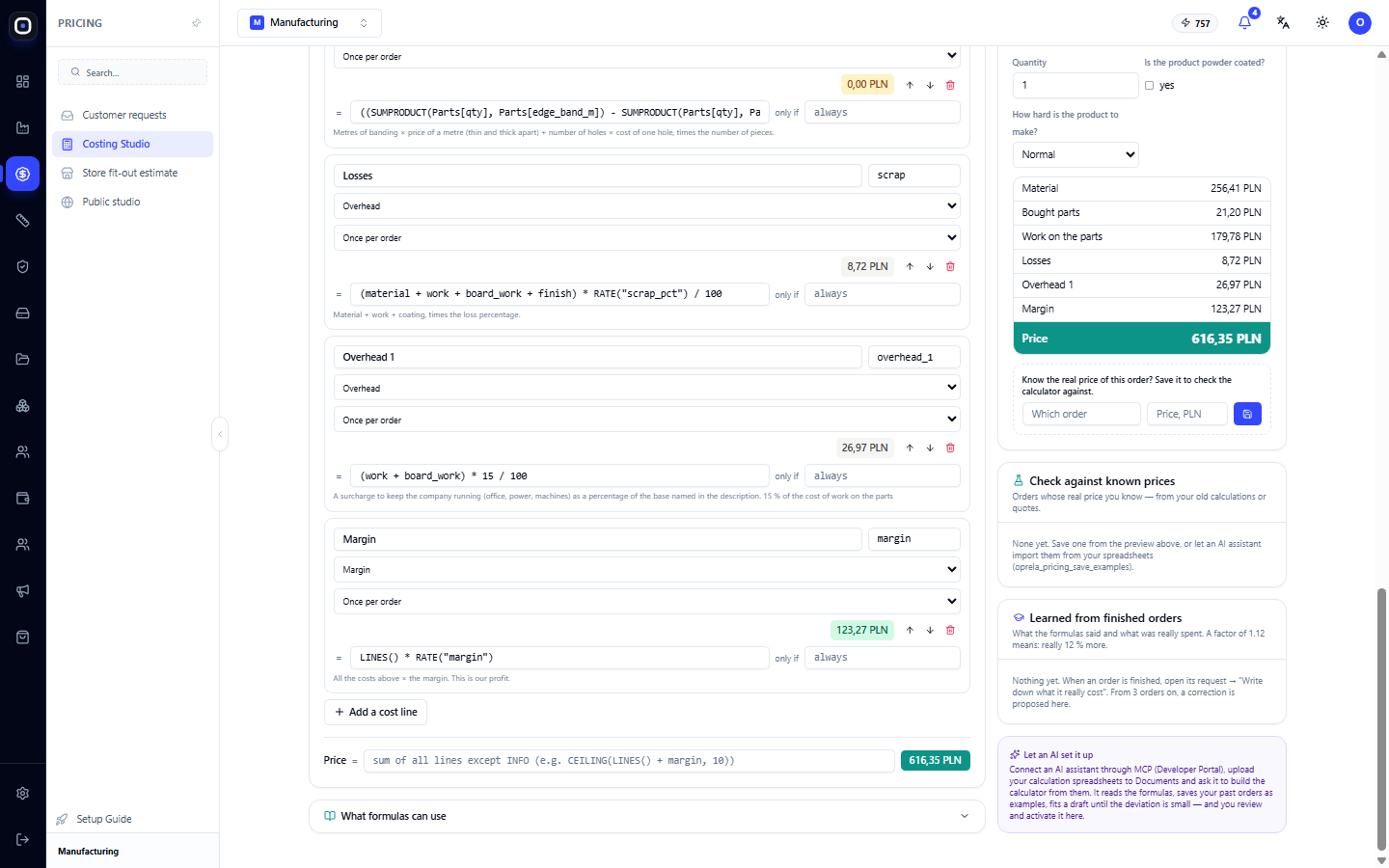
"Price" Field: Total
Below the lines is the "Price =" field.
- If it's empty, the price equals the sum of all lines, except for the "Info" type. Margin is added, discount is subtracted.
- If it contains a formula, its result becomes the price. Then you are responsible for what's included in it.
Examples:
CEILING(LINES() + margin, 10)— costs plus margin, rounded up to the nearest 10.MAX(LINES() + margin, 300)— same, but not less than 300.ROUND(LINES() + margin + discount, 0)— with a discount line, rounded to a whole number.
The green bar next to it immediately shows the result for the product in the preview.
Tables
The "Tables" section contains your reference data: rates, tariffs, ranges. They are similar to sheets in Excel.
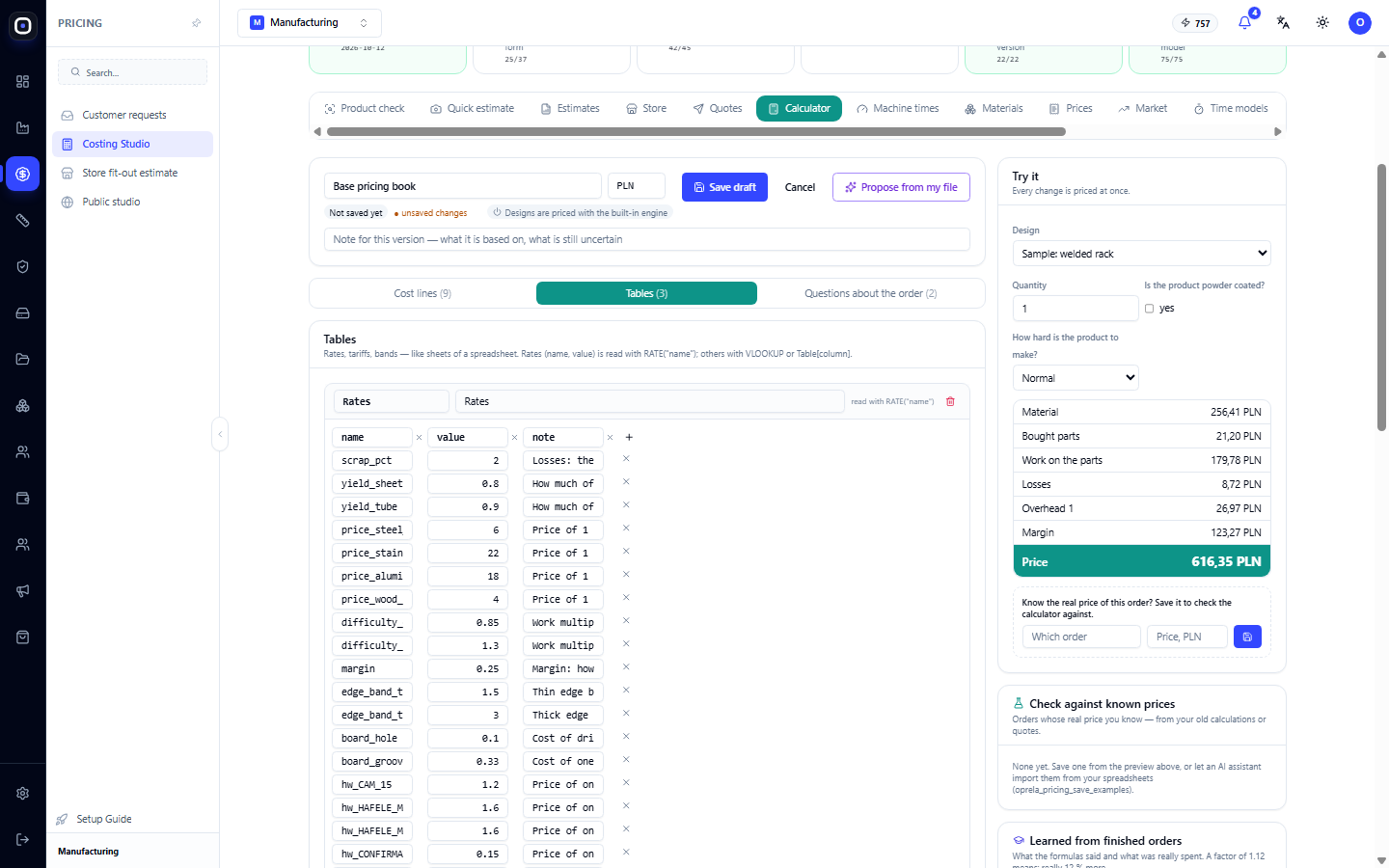
Each table has:
- Name in formulas — left field, e.g.,
RatesorTransport; - Description — right field, what this table is;
- Columns — names in the first row. Plus adds a column, cross removes it;
- Rows — values. Cross at the end removes a row, "Row" button adds a new one.
Below is the "Add a table" button.
Rates Table
This is a special table: the first column is the name, the second is the value, the third is a note. It's read in the shortest way: RATE("name").
What's in it in the basic book:
scrap_pct— loss in percentage;yield_sheet,yield_tube— what part of the sheet and tube is used;price_steel_kg,price_stainless_kg,price_aluminium_kg,price_wood_kg— price per kg when there is no own purchase price;difficulty_easy,difficulty_hard— labor multipliers for simple and complex products;margin— margin as a fraction: 0.25 means 25%;edge_band_thin_m,edge_band_thick_m,board_hole,board_groove_m— edge banding, drilling, and grooving in panels;- lines starting with
hw_— price of one piece of hardware.
Add your own rates here: laser_m (price per meter of cut), weld_m (price per meter of weld), bend (price per bend). Then use them in formulas as RATE("laser_m").
Tip: keep all numbers in the rate table, not inside formulas. Then, to change a price, you only need to change one number, and the formulas remain untouched.
Series Table
Columns: qty, per_part, per_m2. It shows how the cost of labor per part and painting per square meter changes with the series size: the more pieces, the cheaper each one.
Read using VLOOKUP(quantity, Series, "per_part"). The function takes the last row where the first column is not greater than the searched value. If the table has rows 1, 10, 50, 100, and 30 pieces are ordered, row 10 is taken.
All tariff grids work similarly: delivery by kilometers, price by thickness, volume discount.
Ops Table
It is filled by the system, not by you. When machine time is set in the "Machine times" section, product operations appear here: name, machine, machine minutes, human minutes, rates, and cost. The "Work on the parts" line reads SUM(Ops[cost]) from it.
If the table is empty, the line switches to the series table.
Custom Tables
Example of a delivery tariff. Create a Transport table with km and price columns:
- 0 → 0
- 30 → 120
- 100 → 250
- 300 → 600
Formula for the "Delivery" line: VLOOKUP(km, Transport, "price"). For 150 km, the system will take row 100, which is 250.
Individual table columns can be read entirely: Transport[price] — all values in the column.
Order Questions
There are things not present in the product's geometry: distance to the client, whether installation is needed, whether to paint, how urgent it is. For these, there is the "Questions about the order" section.
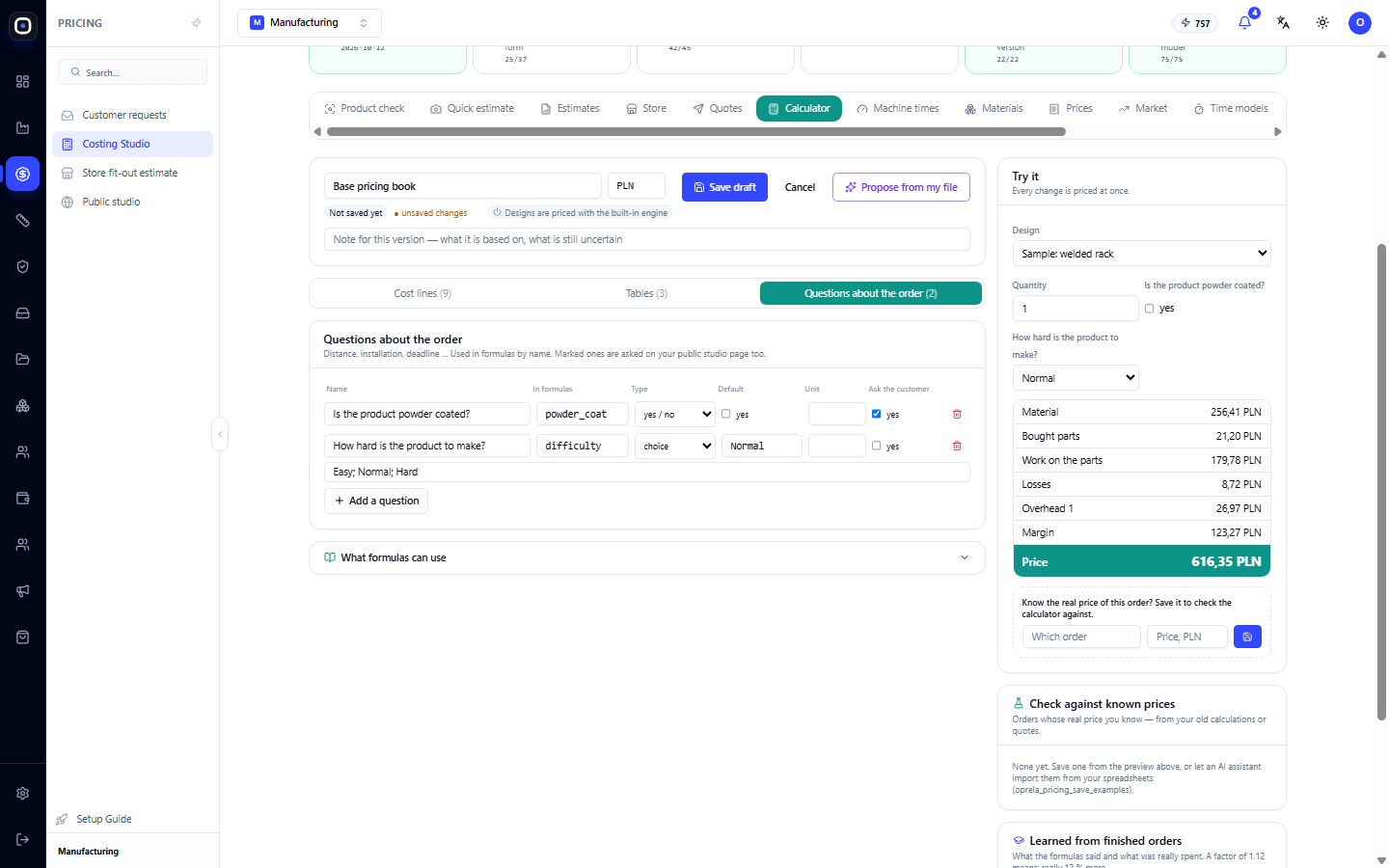
Question fields:
- Name — the text of the question that the user sees;
- In formulas — the name by which the question is used in formulas;
- Type — number, yes/no, choice, or text;
- Default — the answer if nothing is specified;
- Unit — for numbers: km, hr, persons;
- Ask client — if checked, the question is also asked on your public studio page. If not, only the manager answers it;
- Options — for "choice" type: a semicolon-separated list, e.g., "Easy; Normal; Hard."
How to use the answer in formulas:
- yes/no — directly as a condition: in the "only if" field of the painting line,
powder_coatis written; - number — as a regular number:
km * RATE("km_price"); - choice — by comparing with the option text:
IF(difficulty = "Hard", 1.3, 1).
Attention: if you rename a choice option, correct it in the formulas as well. The text must match exactly.
Formula Language
Formulas are written just like in Excel. If you use spreadsheets for calculations, almost everything will be familiar.
What You Can Write
- Numbers:
1.5,300. The decimal separator is a dot. - Percentages:
15%means 0.15. Sowork 15%andwork 15 / 100yield the same result. - Text: in double quotes —
"TUBE","Hard". - True and false:
TRUE,FALSE. - Operations:
+,-,*,/,^(power),&(concatenate text). - Comparisons:
=,<>(not equal),<,>,<=,>=. - Parentheses: as in mathematics.
- Function arguments are separated by a comma or semicolon.
What You Can Refer To
quantity— the number of ordered products.- Questions — by name:
km,powder_coat,difficulty. - Other lines — by name:
material,work. The value is the sum of that line. - Rates —
RATE("margin"). - Table columns —
Parts[mass_kg],Welds[length_m],Series[per_part]. - Current part —
Part[mass_kg], only in "For every part" lines. - Line totals —
LINES()gives the sum of all lines, except margin, discount, and informational.LINES("LABOUR")gives the sum of lines of one type.
Type names for LINES("..."): MATERIAL, LABOUR, MACHINE, BOUGHT, OUTSOURCED, FINISHING, LOGISTICS, INSTALL, OVERHEAD.
Functions
- Sums and counts:
SUM,SUMPRODUCT,SUMIF,SUMIFS,COUNT,COUNTA,COUNTIF,AVERAGE,MIN,MAX,ROWS. - Conditions:
IF,IFS,IFERROR,AND,OR,NOT. - Rounding:
ROUND,ROUNDUP,ROUNDDOWN,CEILING,FLOOR. - Mathematics:
ABS,SQRT,POWER,MOD,PI. - Text:
LEN,UPPER,CONCAT. - Lookup:
VLOOKUP,RATE,LINES.
The most commonly used ones:
SUMPRODUCT(Parts[qty], Parts[cut_mm])— multiplies columns pairwise and adds. The main way to calculate something "across all parts."SUMIF(Parts[kind], "TUBE", Parts[qty])— sum of quantities only for tubes.IF(condition, if_true, if_false)— choice between two.IFS(condition1, value1, condition2, value2, TRUE, otherwise)— choice from several. The lastTRUEmeans "in all other cases."IFERROR(formula, 0)— if the formula results in an error, take zero.CEILING(number, 10)— round up to the nearest multiple of 10.
Columns can be multiplied and compared entirely: SUM((Parts[kind] = "TUBE") Parts[length_mm] Parts[qty]) gives the total length of all tubes.
On-Screen Help
Expand the "What formulas can use" block below the sections. It contains all part columns with units, a list of functions, and the "Parts of the design in the preview" table — the actual values the system is currently substituting into formulas.
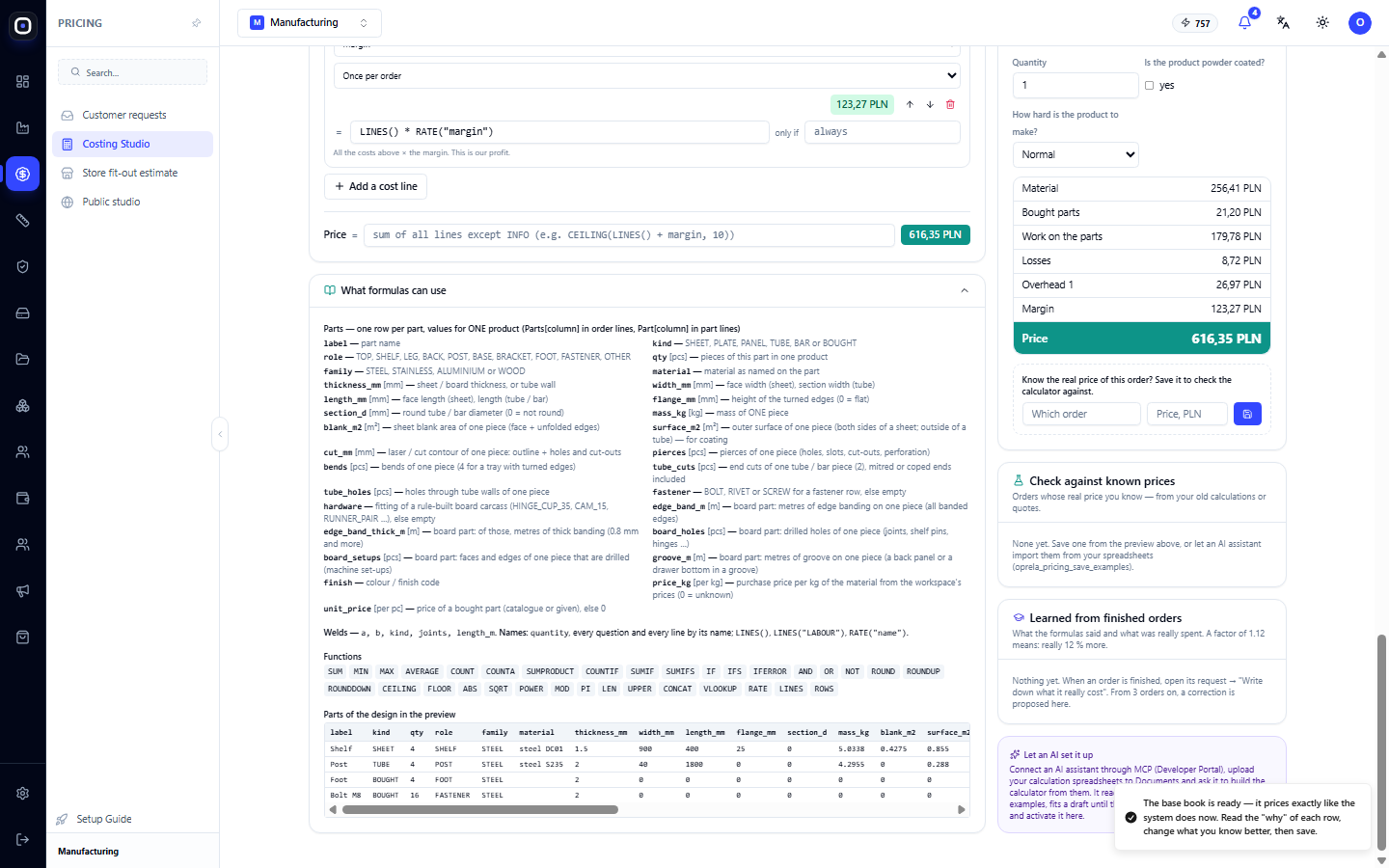
If a formula gives an unexpected result, check this table: most often, the required column is simply zero for this product.
What the System Knows About the Product
The Parts table contains a row for each part. All values are per one product.
What kind of part it is:
label— part name;kind— type:SHEET(sheet),PLATE(thick sheet),PANEL(furniture panel),TUBE(tube),BAR(bar),BOUGHT(purchased);role— role in the product: shelf, upright, leg, fastener, etc.;qty— how many such parts in one product;family— material family:STEEL,STAINLESS,ALUMINIUM,WOOD;material— material, as named on the part;finish— color or coating.
Dimensions and weight:
thickness_mm— thickness of sheet, panel, or tube wall;width_mm,length_mm— width and length;flange_mm— height of bent flanges;section_d— diameter of round tube or bar;mass_kg— mass of one part;blank_m2— area of one part's blank;surface_m2— external surface for painting.
Metal processing:
cut_mm— length of laser cut: contour, holes, cutouts;pierces— number of pierces;bends— number of bends;tube_cuts— end cuts of the tube;tube_holes— holes through tube walls;fastener— fastener type:BOLT,RIVET,SCREW.
Panel furniture:
edge_band_m— meters of edge band on the part,edge_band_thick_m— of which thick;board_holes— drilled holes;board_setups— how many times the part is re-set on the machine;groove_m— meters of groove;hardware— hardware code.
Prices:
price_kg— purchase price per kg of material from your prices. Zero means no price;unit_price— price of a purchased part. Zero means no price.
The Welds table describes connections: a and b — which parts are connected, kind — type of connection, joints — number of points or seams, length_m — seam length in meters.
The Ops table describes operations with time and cost, if machine time is set.
Ready-Made Recipes
Below are lines most often added to the basic book. First, add the rates from the examples to the Rates table.
Laser cutting by cut meters
- Type: Machines. Once per order.
- Formula:
SUMPRODUCT(Parts[qty], Parts[cut_mm]) / 1000 RATE("laser_m") quantity
Bending by number of bends
- Type: Machines. Once per order.
- Formula:
SUMPRODUCT(Parts[qty], Parts[bends]) RATE("bend") quantity
Welding by seam length
- Type: Labor. Once per order.
- Formula:
SUM(Welds[length_m]) RATE("weld_m") quantity
Surcharge for stainless steel
- Type: Labor. For each part.
- Only if:
Part[family] = "STAINLESS" - Formula:
Part[qty] RATE("stainless_extra") quantity
Setup, independent of quantity
- Type: Machines. Once per order.
- Formula:
RATE("setup_h") * RATE("machine_hour") - Without multiplying by
quantity, the sum is divided by the entire batch: the larger the series, the less per piece.
Distance-based delivery
- Question:
km, number, unit km. - Table
Transportwithkmandpricecolumns. - Type: Logistics. Formula:
VLOOKUP(km, Transport, "price")
On-site installation
- Questions:
montage(yes/no),fitters(number),install_h(number). - Type: Installation. Only if:
montage - Formula:
fitters install_h RATE("fitter_hour")
Urgent order
- Question:
urgent, yes/no. - Type: Overhead. Only if:
urgent - Formula:
(material + work) * 15%
Discount for large series
- Type: Discount. Only if:
quantity >= 50 - Formula:
-LINES() * 5%
Minimum order amount
- In the "Price" field:
MAX(LINES() + margin, RATE("min_order"))
Informational line: product weight
- Type: Informational. Formula:
SUMPRODUCT(Parts[qty], Parts[mass_kg]) - Shown in the preview, not included in the price. Can be referenced from other lines.
One caveat. A regular type line cannot contain LINES() without a type name: it is itself included in this sum, creating a circular reference. In such a line, refer to specific lines by name, as in the urgent order example.
"Try it": Live Calculation
The block on the right calculates the price instantly as you edit.
- Product. By default, "Sample: welded rack." The list also includes your quick estimates and orders with known prices. Test the calculator on your own products, not just the sample.
- Quantity. Change it to see how the price behaves in a series. For quantities greater than one, the price per piece appears below the total price.
- Questions. All calculator questions with fields for answers. Check the "Is the product powder coated?" box and you'll see the painting line appear.
- Lines. Only those applied and not equal to zero are shown. A ⚠ icon next to a line indicates a formula error.
- Price. The total on a green background.
If material prices have not loaded, a yellow warning appears: in the preview, the price per kg is zero, making the material appear cheaper than it is. Click "Retry."
Check Against Known Prices
This is the main protection against errors. You save orders whose true prices you know, and the calculator recalculates all of them every time.
How to add an order:
- In the "Try it" block, select a product, set the quantity, and answer the questions.
- In the "Do you know the real price of this order?" box, enter the name and price.
- Click the save button.
How to read the list. Each row: order name, known price, calculator price, and deviation in percentage.
- Green — deviation up to 5%.
- Yellow — up to 15%.
- Red — more than 15%.
- Plus means the calculator calculates higher, minus means lower.
Below the block title, the average deviation for all orders is shown. The smaller it is, the more accurate the calculator.
Click on an order in the list, and it will open in the preview. This way, you'll see which specific line is causing the difference.
Tips:
- Save five to ten orders of different types: simple product, complex, one piece, large series, with and without painting;
- After each rate change, look at the list. If one order became more accurate, but five became worse, the change was incorrect;
- Saved orders do not affect any prices. They are just a benchmark.
Learning from Completed Orders
This block compares what the formulas said with what was actually spent.
How data gets there: when an order is complete, open its request and click "Write down what it really cost." After three orders for a cost type, a correction suggestion appears.
What is shown for each cost type:
- how many orders are included;
- sum by formulas and actual sum;
- spread between individual orders;
- reliability: "little data," "some data," "reliable";
- suggested coefficient.
A coefficient of 1.12 means: it actually turns out 12% more. The "Put ×1.12 into the calculator" button multiplies each line of this type by this number. Such lines will have a "learned ×1.12" tag.
What's important to know:
- the correction is saved with the draft and changes nothing in prices until you activate it;
- it can be removed with the "Remove the correction" button;
- if it says "the calculator is right here," no correction is needed;
- if the discrepancy is very large, the system advises checking the formulas themselves. A large correction treats the symptom, not the cause.
Save, Activate, Enable
These are three separate steps. None of them happen automatically.
Step 1. "Save draft." The calculator is saved as a draft. Prices do not change. In the note field, write what the version is based on and what is still uncertain.
Step 2. "Activate." The draft becomes the active version. The previous active version remains in history. The button is unavailable if there are unsaved changes or formula issues.
Step 3. "Price designs with it." Switches the workspace from the built-in engine to the calculator. The system asks: "From now on, every product will be calculated by the active calculator. Continue?"
Only after the third step does the indicator in the title change to "Designs are priced with this calculator".
Other buttons:
- "Cancel" — removes the calculator from the screen if it has never been saved.
- "Discard draft" — discards the saved draft. The active version remains as is.
- "Use the built-in engine" — reverts to standard calculation. The calculator is not deleted.
How to Change an Already Running Calculator
Just edit it. Saving will create a new draft, and the active version will continue to calculate prices until you activate the draft. This means you can safely experiment on a live system.
How the Calculator Relates to Client Requests
In a client request, there is a "Where this price comes from" block — the price sheet. It shows the same lines as the calculator, but with specific product numbers.
- If your calculator is enabled, the sheet says: "Priced with your calculator."
- If the built-in engine is active, the sheet shows its calculation, broken down into basic book lines.
The manager can adjust the price only in one request: change a coefficient, add their own line, or disable a line with an explanation. The calculator itself does not change.
If the adjustment proves correct for all orders, the owner or administrator clicks "Put into the calculator (draft)". The adjustments become a new calculator draft, which then needs to be activated in the usual way.
Where numbers that the calculator doesn't save itself come from:
- material prices — "Materials" and "Prices" sections;
- operation time — "Machine times" section;
- machine and labor hourly rates — rates in the "Rates & policy" section;
- losses, material yield, overheads, margin — cost policy. These are included in the basic book when it's created. If you later change the policy, also correct the numbers in the calculator's rate table.
Configuration via AI Assistant
Besides the "Propose from my file" button, there's a second path: connect the AI assistant via MCP in the Developer Portal.
- Upload your calculation files to Documents.
- Ask the assistant to build a calculator from them.
- It will read the formulas, save past orders as examples, and refine the draft until the deviation becomes small.
- You review the draft in this section and activate it yourself.
The assistant cannot enable the calculator for you. The decision always rests with a human.
Formula Errors
An error is shown instead of the line sum and in the list of issues in the header.
#NAME?— unknown name. Check for typos in the name of the line, question, or rate.#DIV/0!— division by zero. Often this is an empty rate or zero material yield.#VALUE!— text where a number is expected, or vice versa.#REF!— no such table or column.#N/A— lookup found nothing: no matching row in the table.#CYCLE!— lines refer to each other in a loop.#NUM!— impossible mathematical operation, e.g., square root of a negative number.
Other causes of issues:
- two lines, tables, or questions have the same name;
- name starts with a digit or contains a space;
- name is reserved:
Parts,Part,Order,Welds,quantity,TRUE,FALSE; - formula is empty;
- a table row has more values than columns.
Until issues are fixed, the calculator cannot be activated.
Typical Workflow
- Open Costing Studio → Calculator.
- Click "Base book from my data".
- Read the explanations under each line.
- Open "Tables" and replace the starting rates with your own.
- Add missing lines: cutting, bending, welding, delivery.
- Add questions that affect the price.
- In the "Try it" block, test several of your own products.
- Save five to ten orders with known prices.
- Reduce the average deviation to an acceptable level for you.
- Click "Save draft", then "Activate".
- Click "Price designs with it".
- For the first few weeks, manually verify prices.
- After orders are completed, enter actual costs and check the learning block.
Frequently Asked Questions
I created a calculator, but prices didn't change
All three steps are needed: save the draft, activate it, and click "Price designs with it." Look at the indicator in the header: if it says "Designs are priced with the built-in engine," the calculator is not yet enabled.
The calculator gives a different price than my spreadsheet
Compare line by line for one specific product. The most common reasons:
- different units:
cut_mmis in millimeters, but your rate is per meter; - forgotten multiplication by
quantity; - values in parts are given per product, not per entire batch;
- margin is written as 25 instead of 0.25;
- the column for this product is zero. Check in the help, in the "Parts of the design in the preview" table.
The line shows 0.00
There are three reasons: the "only if" condition is not met, the required column is empty for this product, or the rate is zero. A gray line means it's not applied.
Material is too cheap
Check if there is a purchase price for the material. Without it, the fallback price from the rate table is used: price_steel_kg and others. Prices are entered in the "Materials" and "Prices" sections.
Can I revert to the built-in engine?
Yes, at any time. Click "Use the built-in engine." The calculator will remain saved.
Will already sent quotes change?
No. The price fixed in a quote is saved with it and is not recalculated.
Can I have multiple calculators?
A workspace has one calculator with versions: one active, one draft, previous ones in history. Different rules for different products are set by "only if" conditions and questions, not by separate calculators.
Does the client see my formulas?
No, the client does not see formulas or rates. They see the price. On the public studio page, they are only asked questions marked "Ask the customer."
Do I need to know how to program?
No. Formulas are the same as in Excel. If you use spreadsheets for calculations, you'll figure it out.
Who can change the calculator?
Owner and administrators. All factory prices depend on the calculator, so access is restricted. Other users see it as read-only.