Product Configurator: Product Families, Rules, and Variants Without New Drawings
Describe a product family once with parameters and rules, then get any variant with a ready-made structure, bill of materials, and model. Six configurator workspaces.
Is a 600mm wide cabinet and an 800mm wide cabinet one product or two? For the customer, two. For the designer, one: the same design, different size. Drawing each width separately means doing the same work dozens of times.
Product Configurator solves this through product families. You describe once how a product is structured and by what rules it changes, and the system builds any variant itself. The page header briefly states: versioned product definitions, deterministic rules, and generated engineering structures.
Where to find the page
In the side menu, open the Engineering section and the Configurator item. The page address ends with …/erp/engineering.
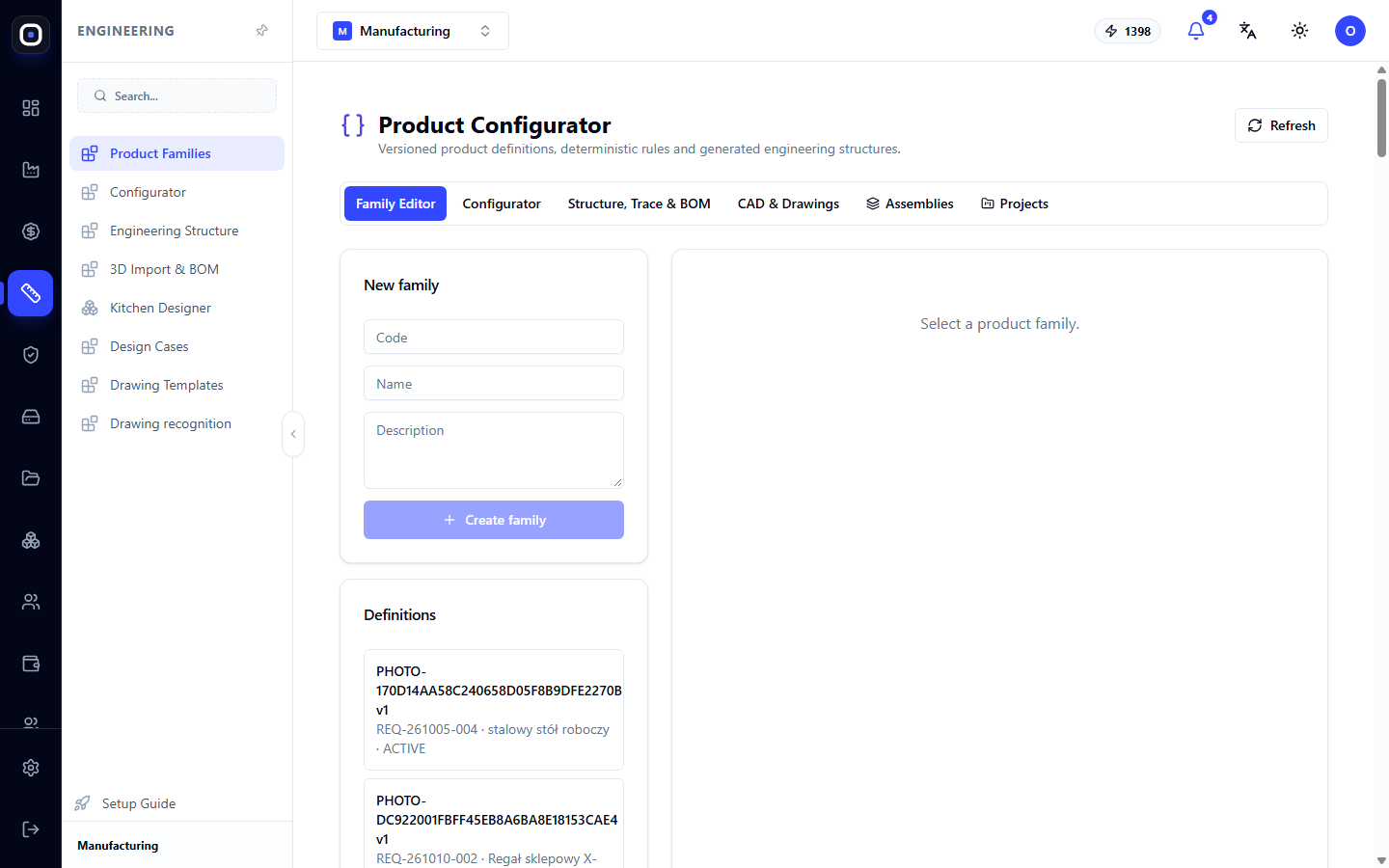
Some labels on this page are currently displayed in English. In the article, they are presented as you see them on the screen.
Three concepts
A family is a description of a product type: "base cabinet," "shelving unit," "clothing rack." A family has parameters (width, height, number of shelves) and rules that link them.
A configuration is a specific variant: a base cabinet 600mm wide, 720mm high, with two shelves. You set the parameter values, and the system builds the product according to the family's rules.
A project is several configurations together. For example, a kitchen with twelve cabinets.
The word "deterministic" in the page description means: the same parameter values always yield the same result. No surprises.
Six workspaces
At the top of the page are six buttons. They are arranged in the order of work: from family description to finished project.
Family Editor
Here, families are created and edited. On the left is the "New Family" form with fields for Code, Name, Description, and the Create Family button.
Below the form is the "Definitions" list: all workspace families with their version and status. For example, "BASE_CABINET v1 · Base Cabinet · DRAFT".
There are two statuses:
- DRAFT — a draft. The family is still being written, and configurations cannot be created from it;
- ACTIVE — active. Configurations can be created from it.
Click on a family, and its content will open on the right: parameters, parameter groups, components, rules.
A family has versions. If you change the rules of an active family, the next version appears, and already created configurations remain on their original version.
Configurator
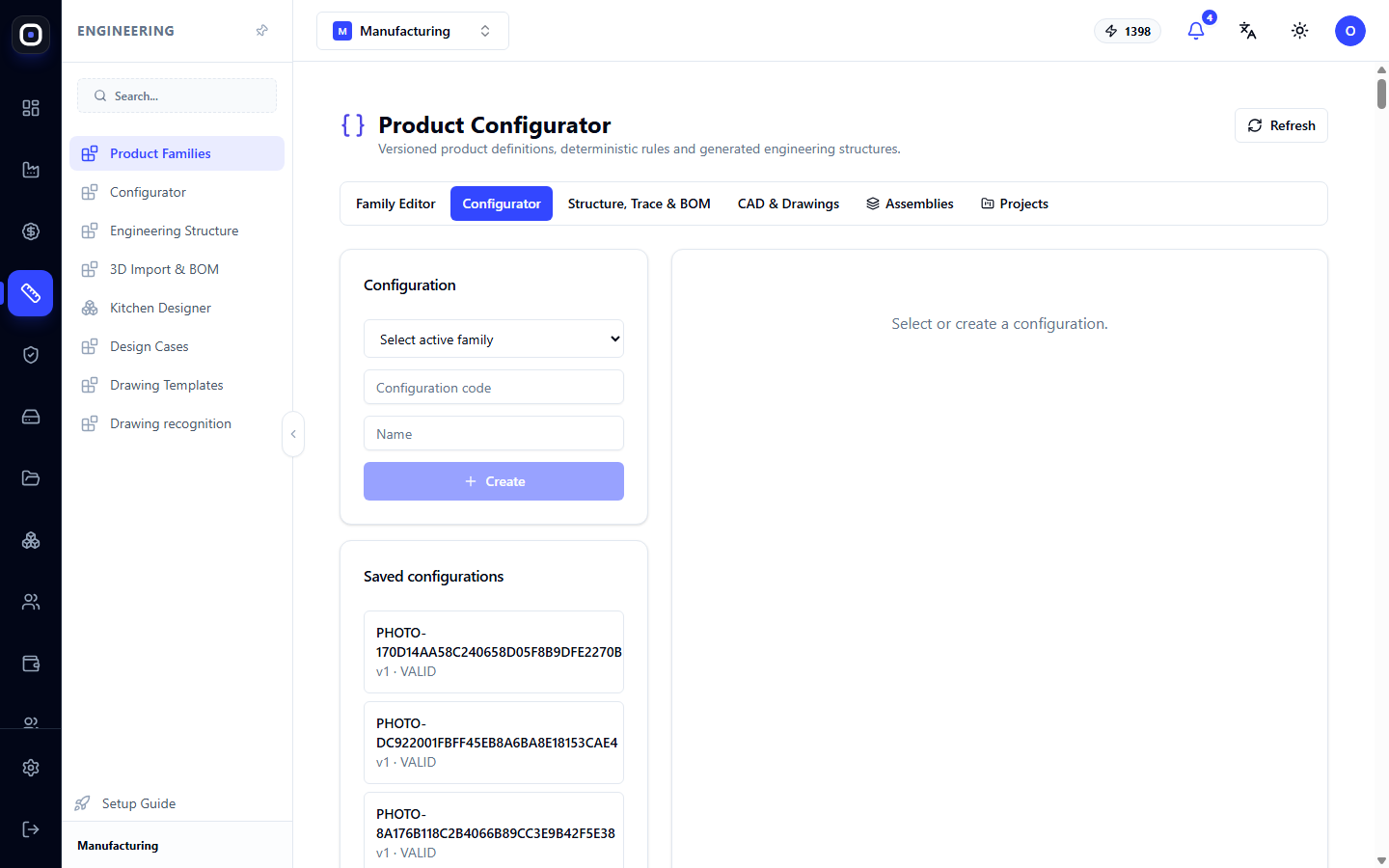
Here, a specific product is made from a family. Select a family, give the configuration a code and name, create it, and set the parameter values.
Below are the saved configurations. They can be opened, modified, or copied.
The system checks the values against the family rules. If you enter a width that the family does not allow, it will tell you, rather than building an impossible product.
Structure, Trace & BOM
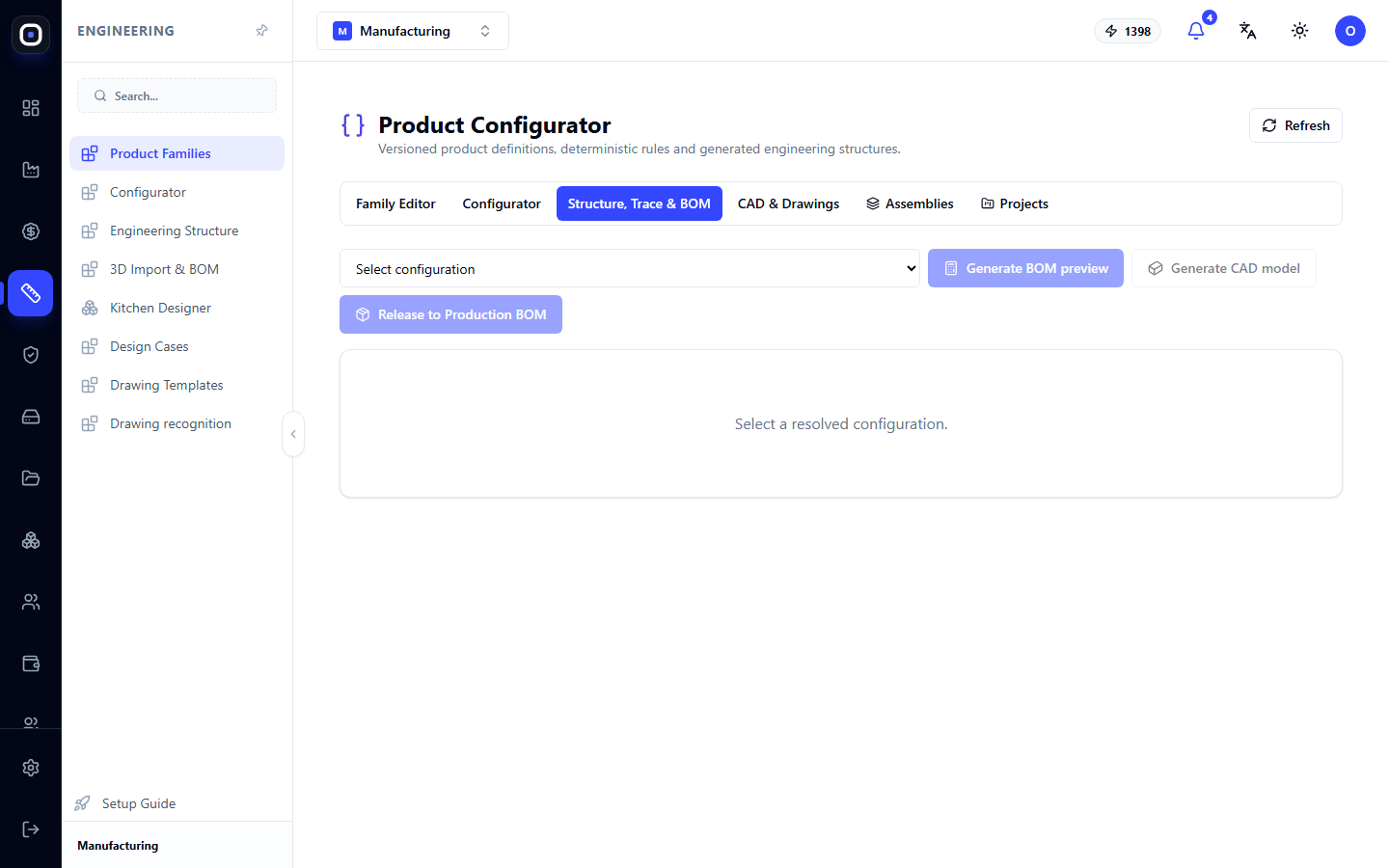
After the configuration is resolved, you can see here what the product consists of: a tree of nodes and parts, and the bill of materials (BOM).
The word Trace means traceability: for each part, you can see which rule and which parameter value generated it. If a shelf is 564mm long, you can see that it's the cabinet width minus two side panel thicknesses.
From here, the BOM is sent to production.
CAD & Drawings
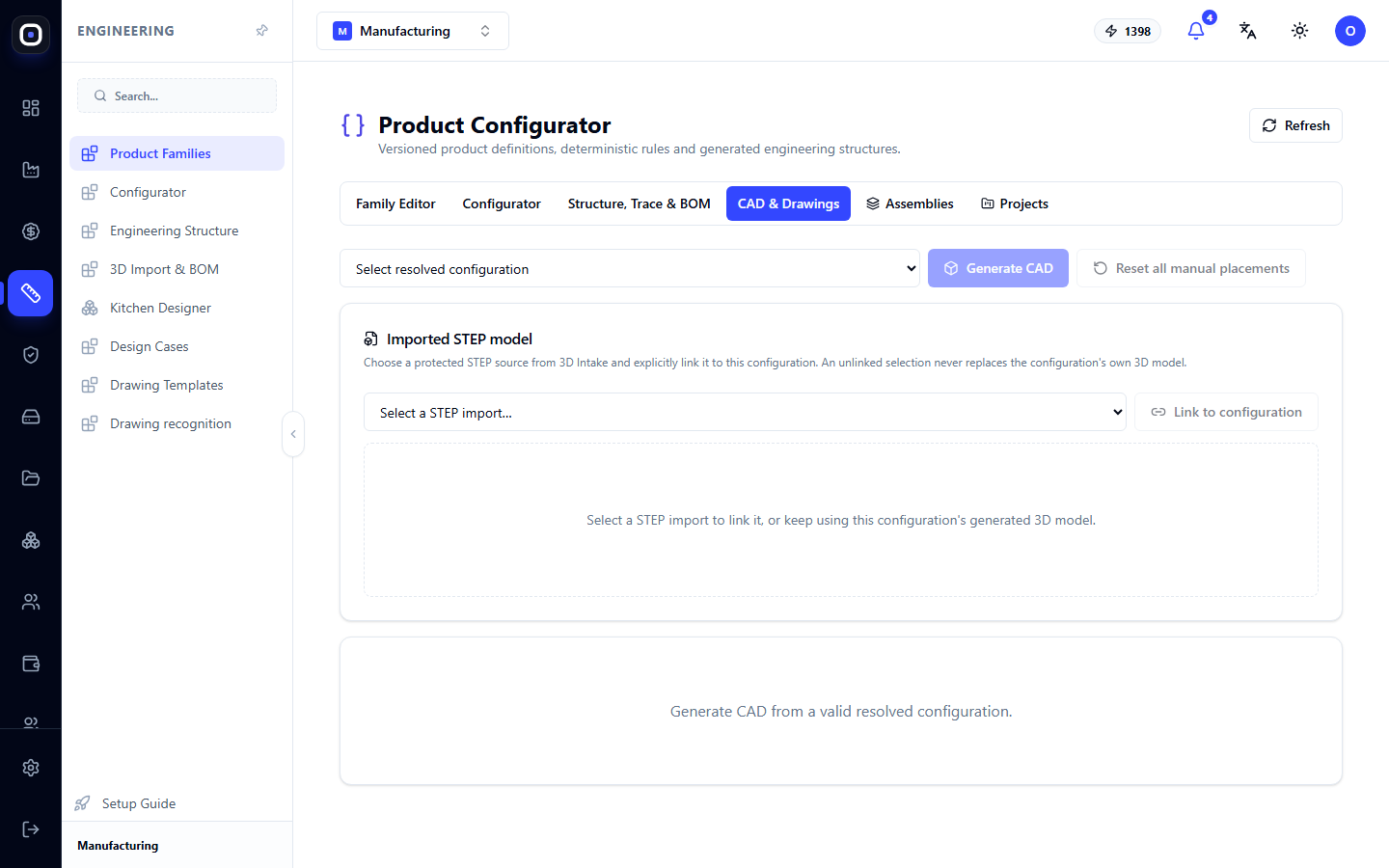
For the selected configuration, the system generates a three-dimensional model. Here you can also link an imported STEP model if the geometry came from outside.
Production drawings are then built from the model.
Assembly
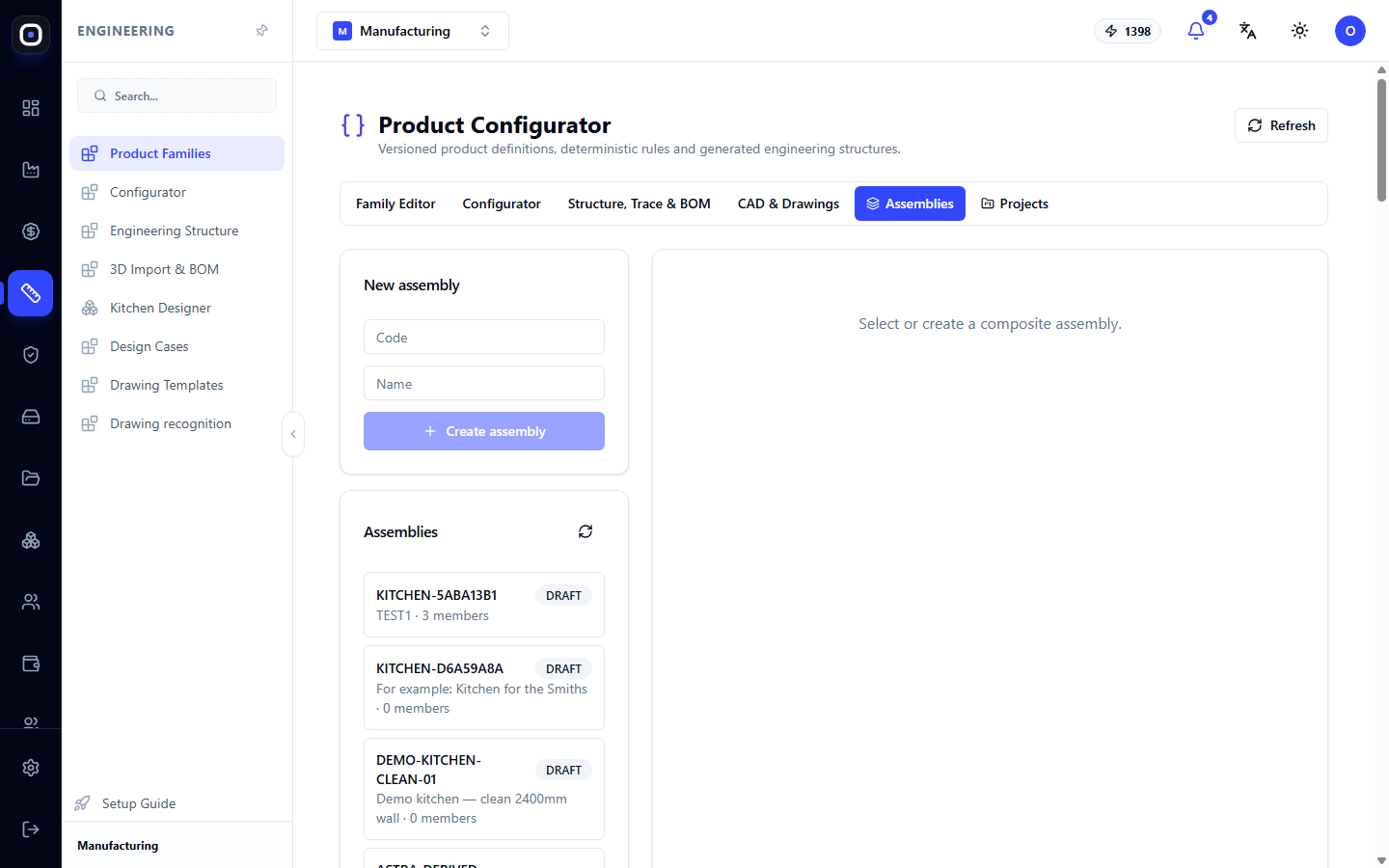
Assembly combines several configurations into a single composition with spatial arrangement. For example, a row of cabinets along a wall.
On the left is the form for a new assembly and a list of existing ones. The system checks if elements overlap.
Projects
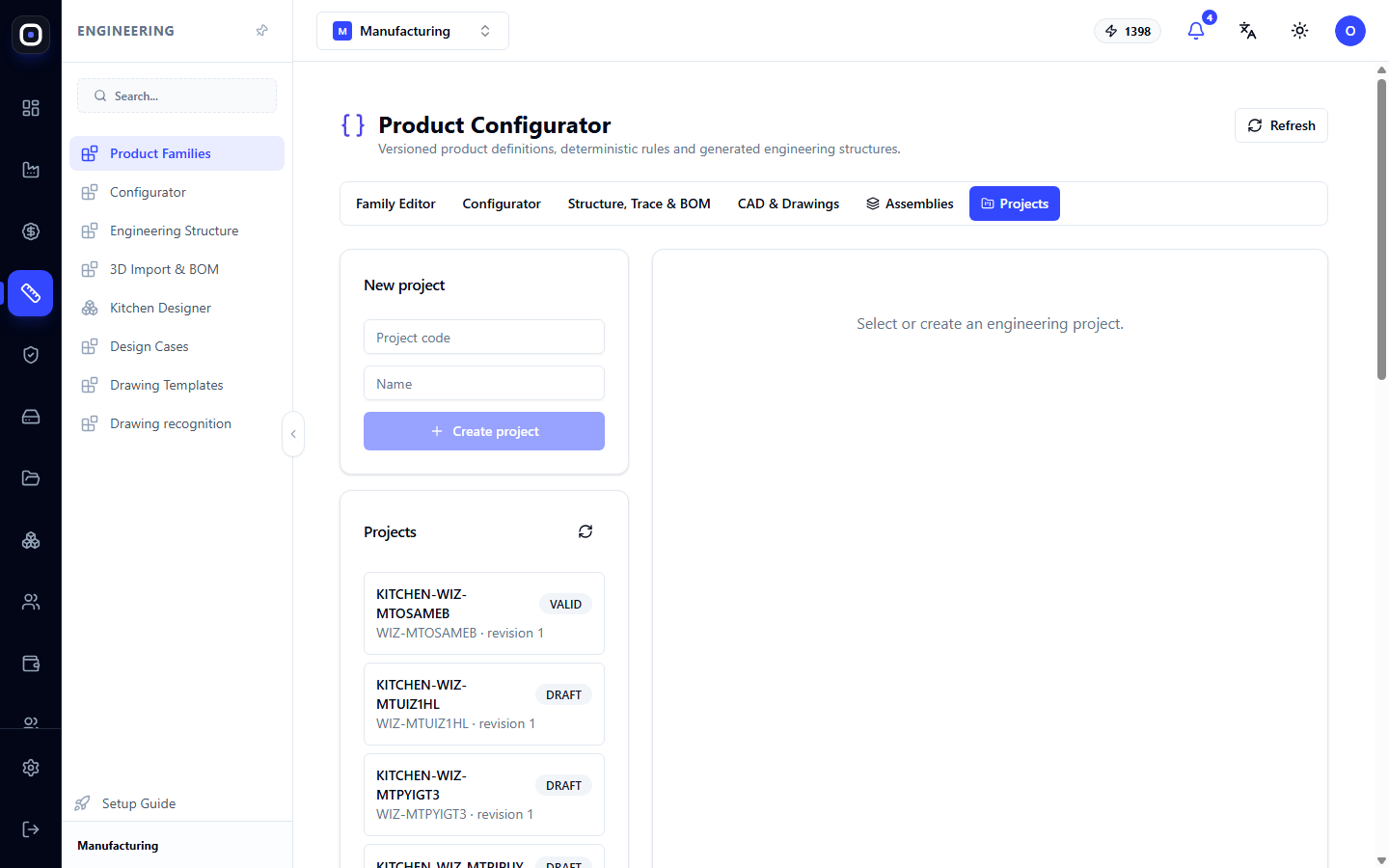
A project is the highest-level container: an entire kitchen, an entire store hall. A project has its own parameters that apply to everything within it: for example, the color of facades or the plinth height for the entire kitchen.
A finished project is frozen. After this, it does not change, and it is the frozen project that goes into production.
Where families come from
Writing families from scratch is not always necessary.
- Solution packages contain ready-made families for typical products. A kitchen package brings cabinets, plinths, countertops.
- Quick estimate from photo and 3D import create definitions automatically. Such entries have codes starting with
PHOTO-orSTEP-. - You create your own families in the editor.
Typical workflow
- Open Family Editor and create a family or select an existing one.
- Describe the parameters and rules, and change the family status to ACTIVE.
- Go to Configurator and create a configuration.
- Set the parameter values.
- In the Structure, Trace & BOM area, check the structure and bill of materials.
- In the CAD & Drawings area, generate the model.
- If necessary, combine several configurations into an Assembly and Project.
- Freeze the project and send it to production.
Frequently Asked Questions
I cannot create a configuration from a family
The family is in DRAFT status. You can only configure from an active one.
I changed a family. Will already created products change?
No. They remain on the version from which they were created. The new version applies to new configurations.
The system does not accept a parameter value
It violates a family rule: it is outside the permissible limits or incompatible with another parameter.
Where do entries with the code PHOTO- come from in the list?
They were created by the quick estimate from photo. These are product definitions automatically built from customer requests.
Is a configurator needed if we make products based on customer drawings?
No. For such products, 3D import is sufficient. The configurator is needed by those who make variants of the same product.